Your Coach Account
The rest of Profile: your personal details, password, payout account, app settings and notifications.
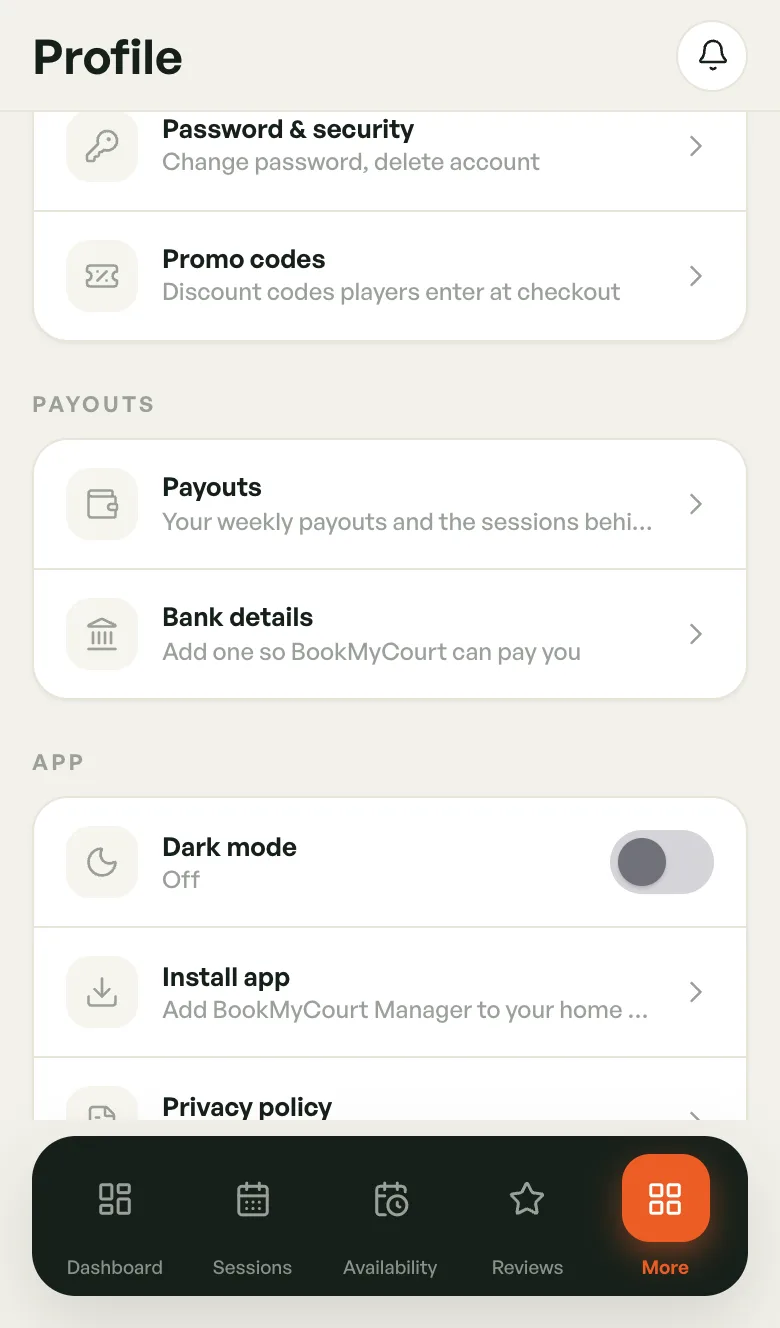
To open Profile on a phone, tap More, then your name. On desktop, click your name at the bottom of the sidebar.
Personal Details
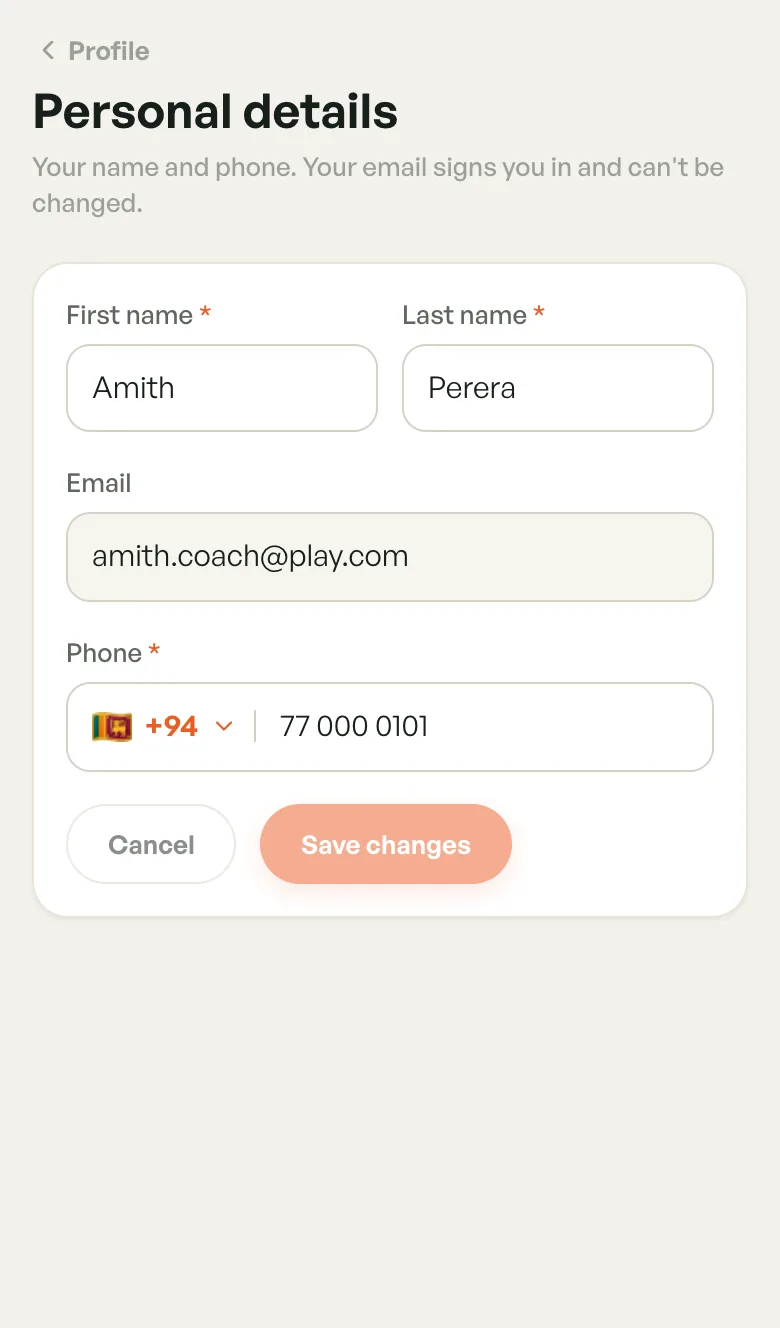
Tap Personal details to change your First name, Last name and Phone, then tap Save changes. Cancel puts back what was saved.
Your Email is how you sign in, so it can't be changed.
Password & Security
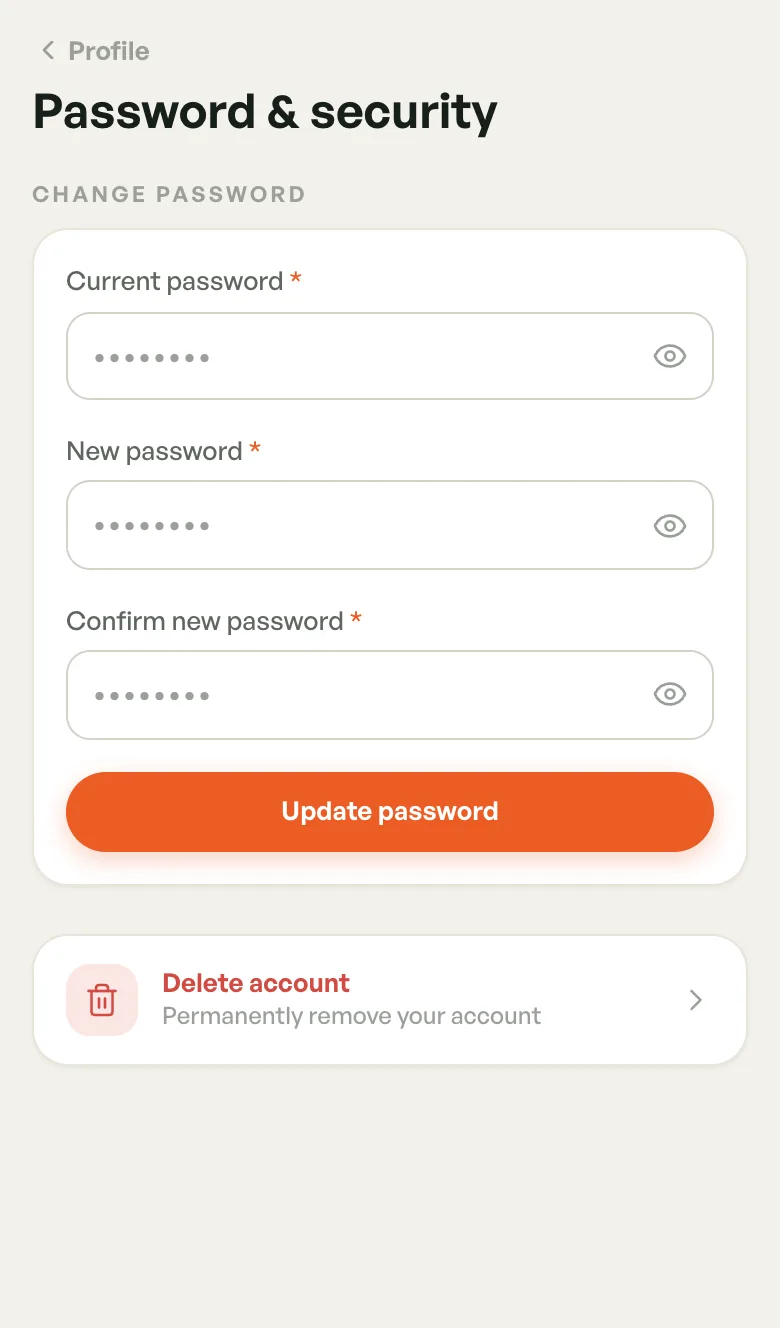
Tap Password & security.
To change your password:
- Enter your Current password.
- Enter a New password, then type it again in Confirm new password.
- Tap Update password. You'll be signed out, so sign in again with the new password.
Deleting Your Account
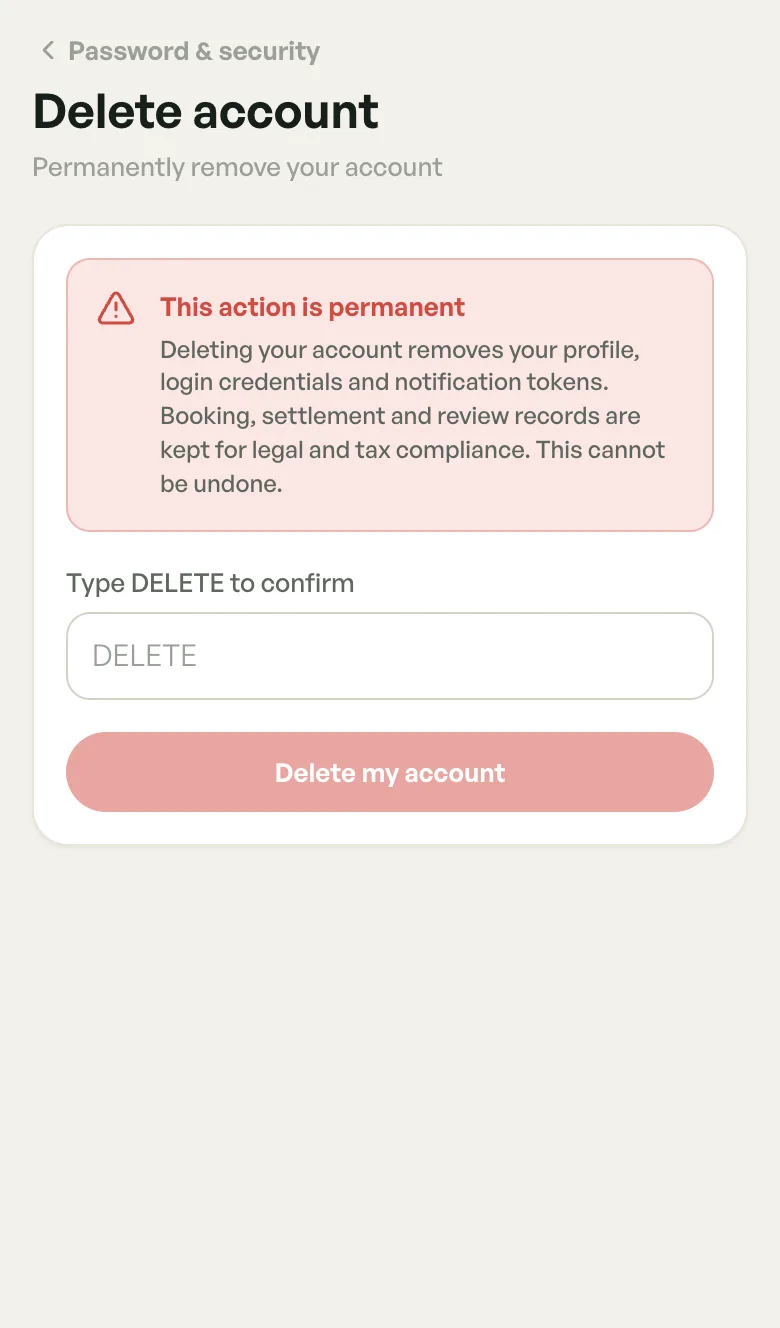
- On Password & security, tap Delete account.
- Type
DELETEin the box. - Tap Delete my account.
This removes your profile and sign-in for good. Booking, settlement and review records are kept for legal and tax reasons.
If you still have upcoming sessions, you'll be asked to cancel or complete them first. Tap View upcoming sessions to see them.
Promo Codes
Promo codes opens your discount codes. See Promo Codes.
Getting Paid
BookMyCourt pays your coaching earnings weekly into your bank account.
- Payouts — your weekly payouts and the sessions behind them. Also in the More sheet, or the sidebar on desktop.
- Bank details — the account your payouts go to.
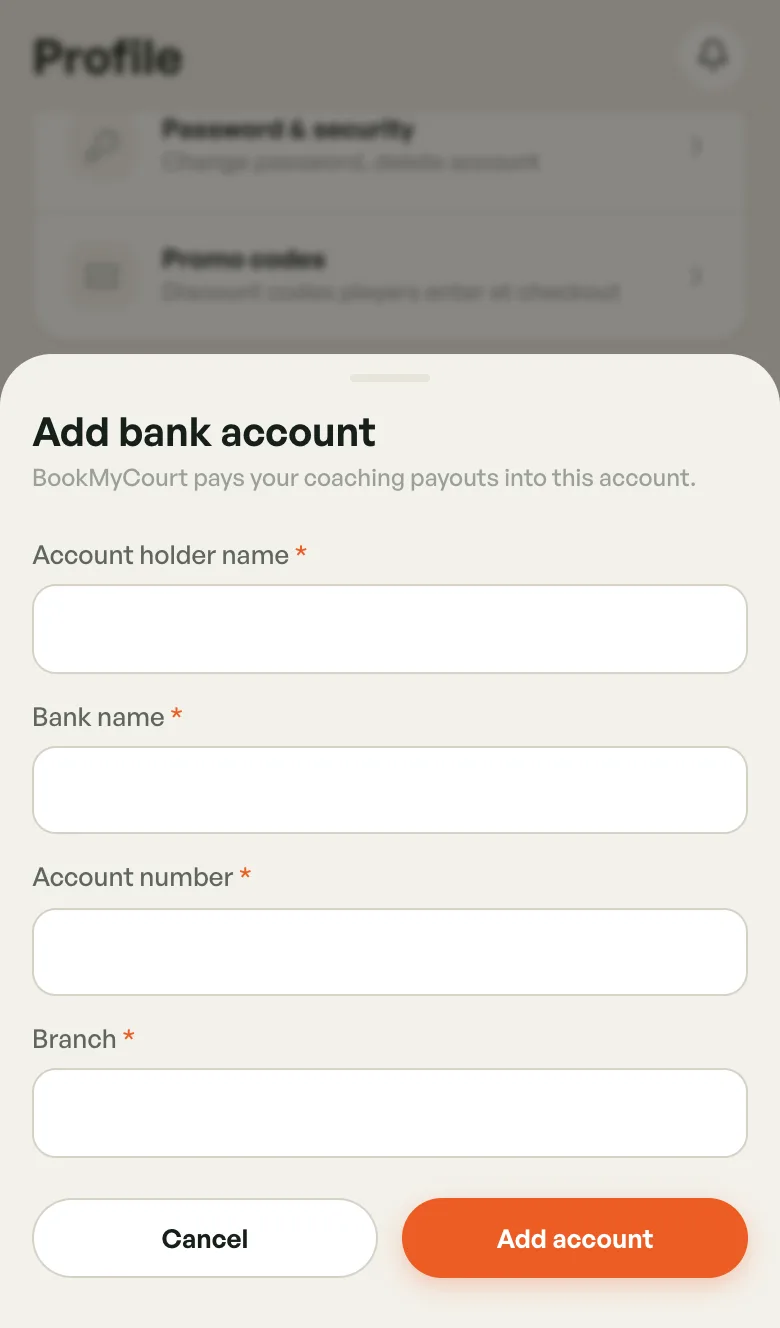
To add your bank account:
- Tap Bank details.
- Fill in Account holder name, Bank name, Account number and Branch. All four are required.
- Tap Add account.
Once saved, the row shows your bank and the last four digits of the account number. Tap it again to edit.
App Settings
- Dark mode — switch the app between light and dark.
- Install app — on the web only, adds the app to your home screen.
- Privacy policy — opens how we handle your data.
- Update to new version — appears in the phone app when a newer version is out.
The version number is at the bottom of Profile.
Notifications
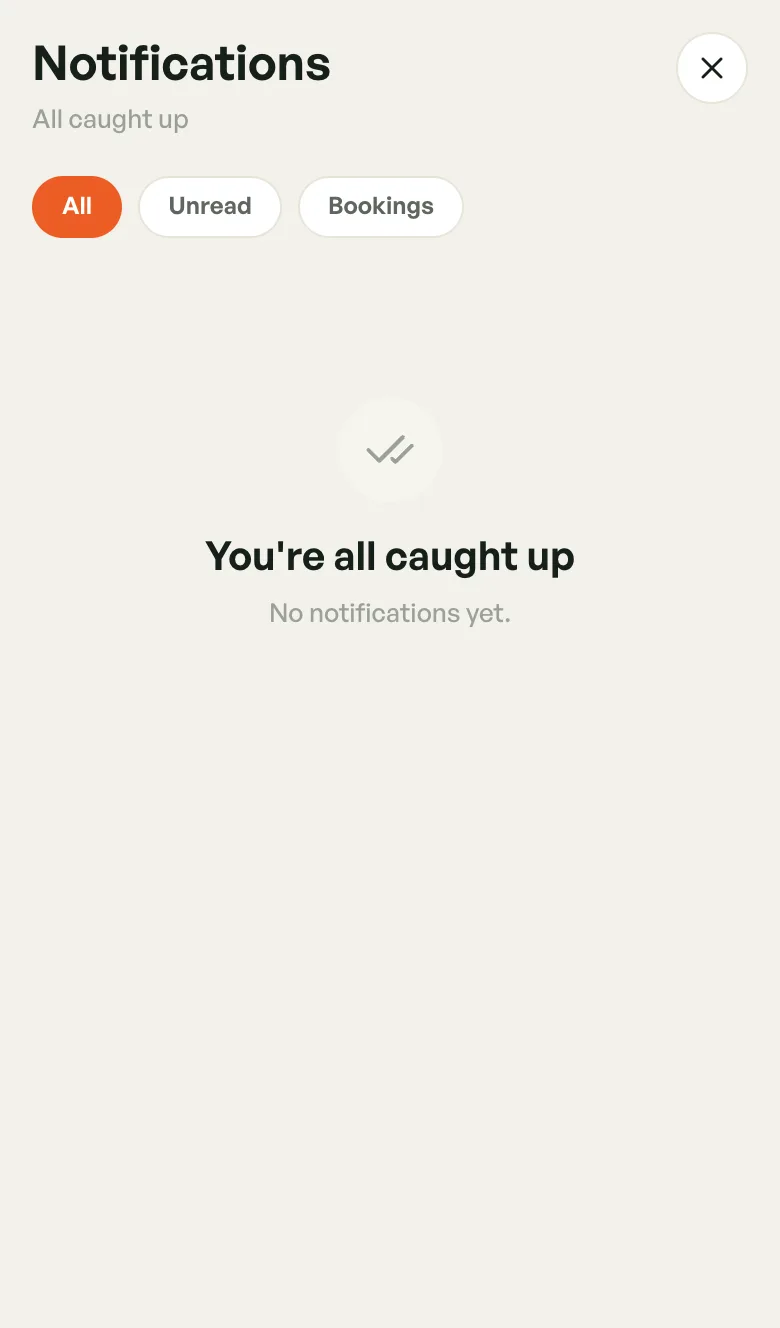
Tap the bell at the top of any screen (on desktop, next to your name at the bottom of the sidebar). A badge shows how many are unread.
Use the All, Unread and Bookings tabs to filter. Notifications are grouped into Today and Earlier.
Tap one to mark it read and open what it's about:
- A session — opens it in your Sessions calendar.
- A venue invite or a reply to your venue request — opens Venues.
- Your publish request approved or rejected — opens Profile, with the status card highlighted.
Logging Out
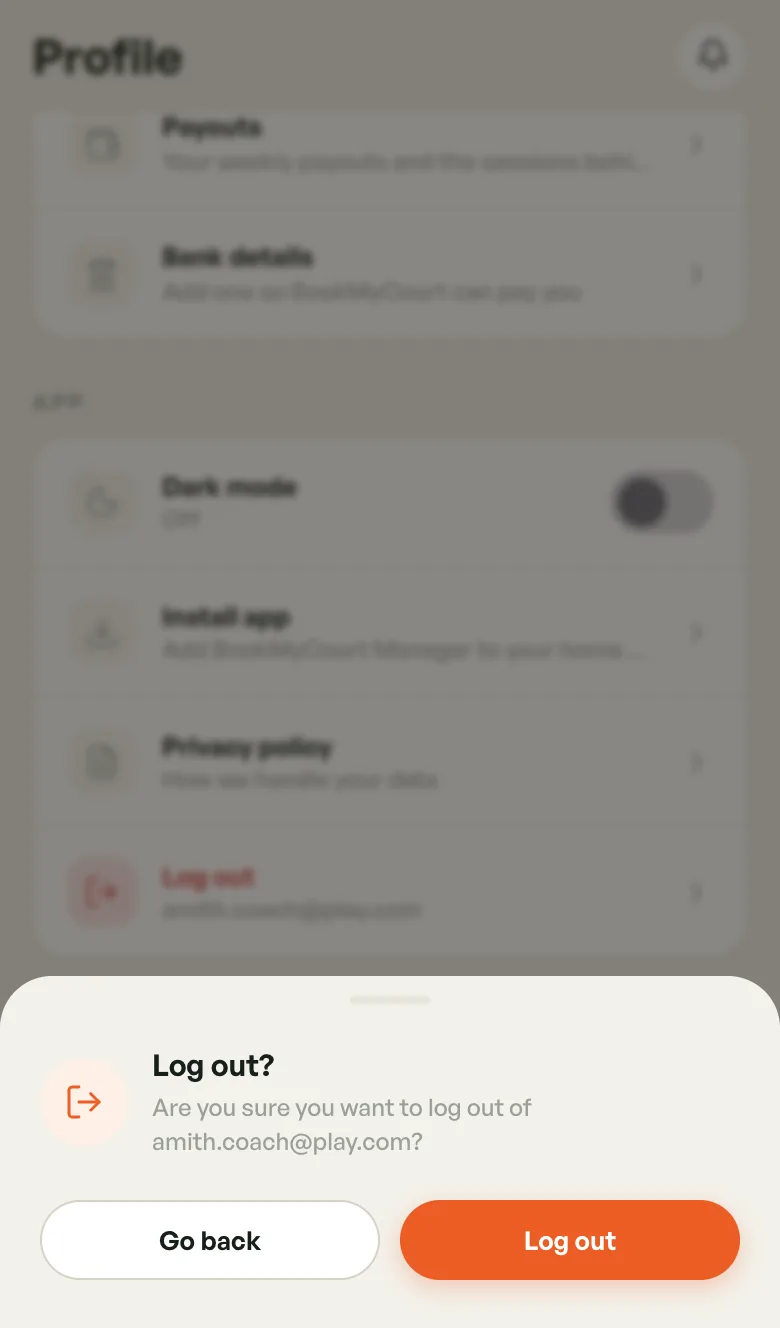
Tap Log out at the bottom of Profile, then Log out again to confirm. Go back keeps you signed in.