Getting Started as a Coach
Coaches use the same BookMyCourt admin app as venue owners, but get a different set of screens. This guide covers all of them.
Registering
Sign up at admin.bookmycourt.lk and pick Coach on the first screen — "Book courts, manage your sessions and check in your players."
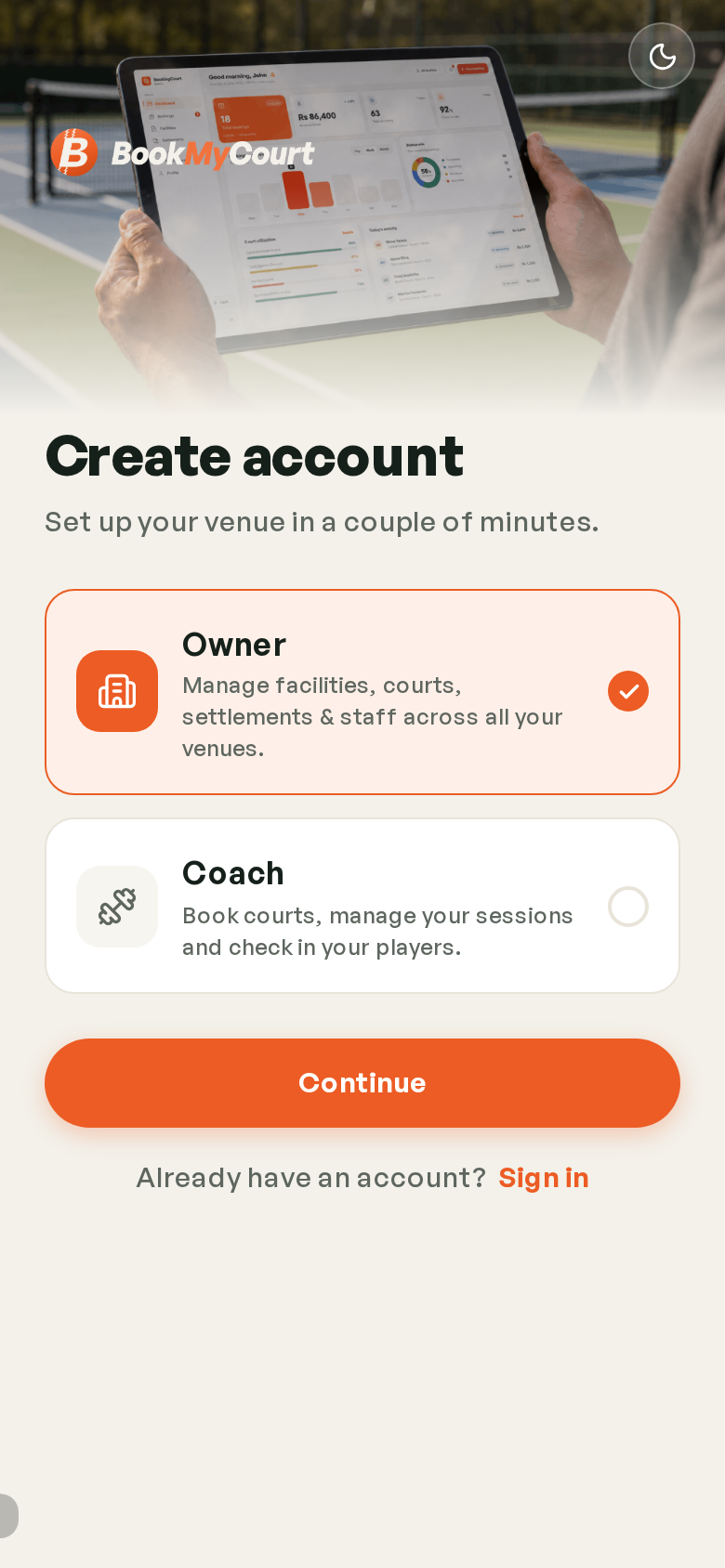
Then continue with Google, with Apple (Apple devices only), or with an email and password.
Email sign-ups verify with a code sent to your address.
Coach Onboarding
The first time you sign in you get a short two-step wizard. Each step saves when you tap Continue, so stopping half-way keeps what you've entered.
Step 1 — Profile And Rate
- Your hourly rate in LKR
- A bio telling players about your coaching experience
- The sports you coach
- A profile photo
This is exactly what players see when they're deciding whether to book you.
Step 2 — Availability
The hours you're willing to coach. Start from a pattern:
| Pattern | Hours |
|---|---|
| Mornings | 06:00 – 12:00 |
| Evenings | 15:00 – 21:00 |
| All day | 07:00 – 20:00 |
Pick the days it applies to, or set each day by hand. You can change all of it later — see Availability & Time Off.
You can also add training photos during onboarding.
Your Navigation
Once you're set up, a coach account has:
| Destination | What it's for |
|---|---|
| Dashboard | Today's sessions, earnings and rating |
| Sessions | Your session calendar and list |
| Availability | Your weekly hours and time off |
| Notifications | When players book you |
| Profile | Your bookable profile and account |
On desktop these sit in the left sidebar; on mobile they're the bottom dock, with notifications behind the bell in the header.
Those are venue-owner screens. Coaches don't have them.
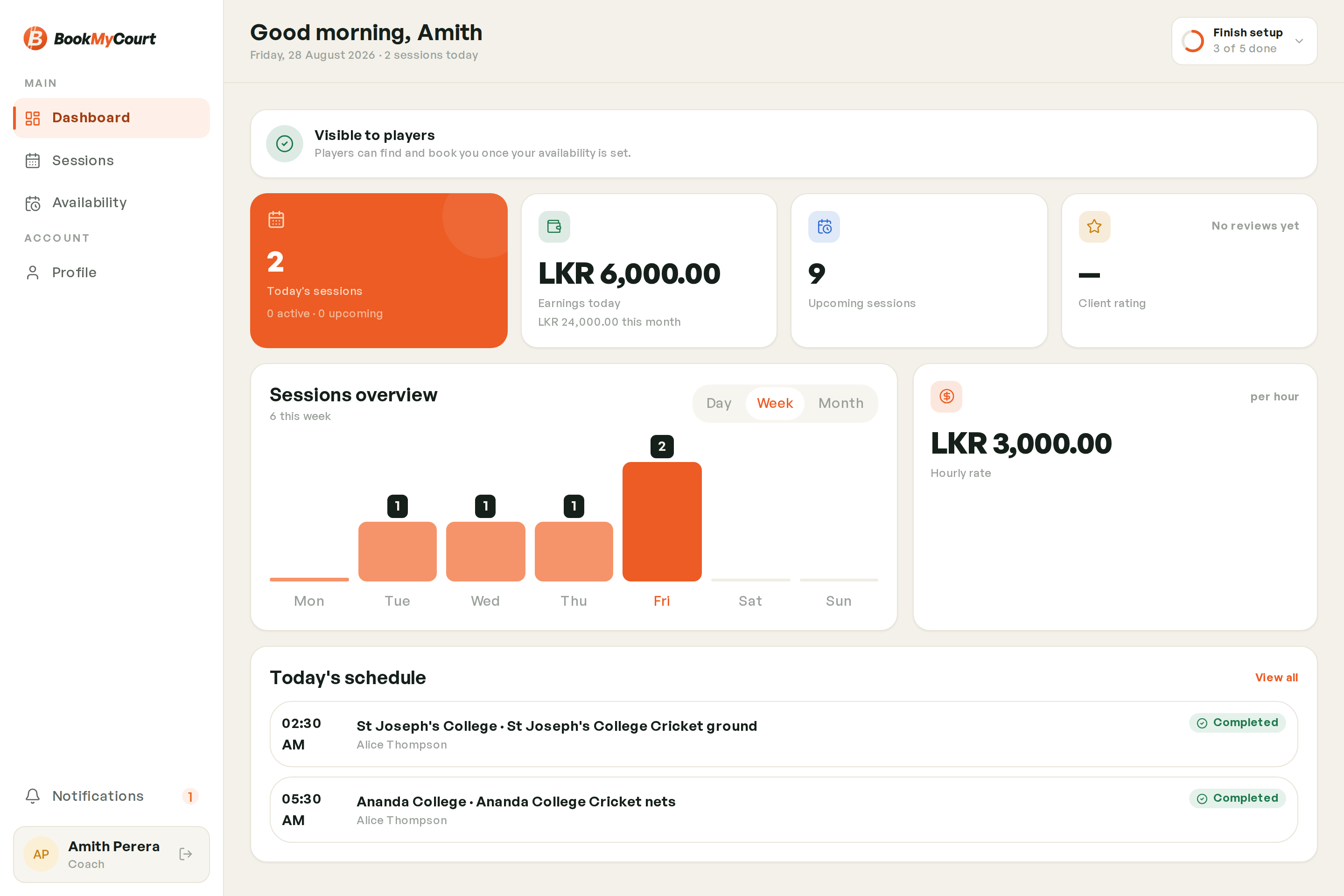
Your Dashboard
| Card | Shows |
|---|---|
| Today's sessions | How many, split into active and upcoming |
| Earnings today | What today's sessions are worth |
| Upcoming sessions | Everything booked ahead |
| Client rating | Your average player rating |
| Hourly rate | Your current rate |
Beneath them, a Sessions overview chart shows your volume over time.
Getting Your First Booking
Two things have to be true before a player can book you:
- Your profile and availability are set up — this page
- A venue lets you be booked — see Getting Bookable at Venues