Booking a Session
Book a court for a session you're running — for a student who called you directly, rather than one who found you in the app.
Starting
From Sessions, tap New Session. A four-step wizard opens.
Step 1 — Your Student
| Field | Notes |
|---|---|
| First name | Required |
| Last name | Optional |
| Phone | So the venue can reach them |
Step 2 — Where
Two options:
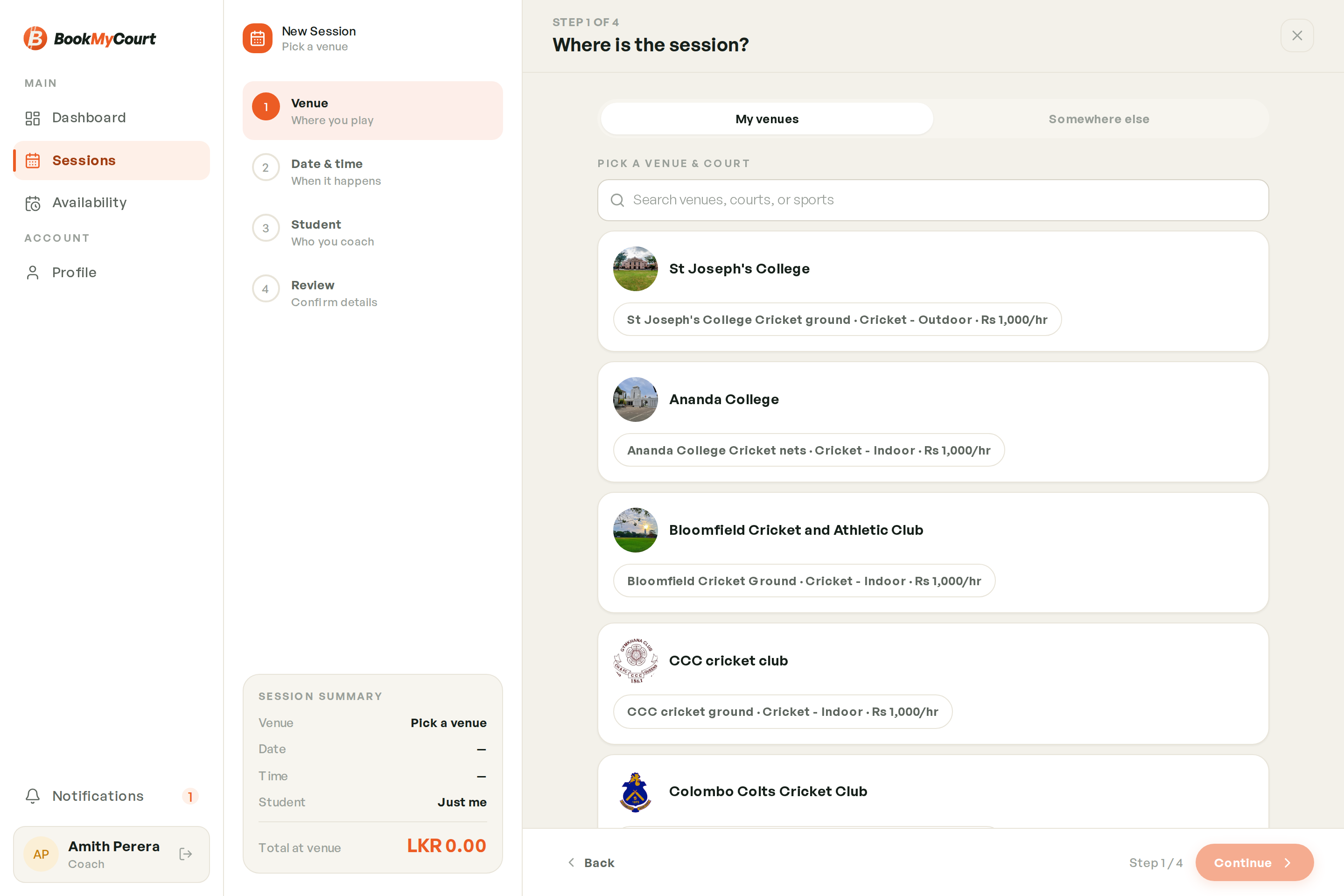
My Venues
Search across venues, courts and sports, and pick a court. Only venues that currently let you book a court in a sport you teach appear here.
If you see "No venue currently lets you book a court in the sports you teach", that's a permissions issue, not a bug — see Getting Bookable at Venues. Use Somewhere else in the meantime.
Somewhere Else
For sessions at a venue that isn't on BookMyCourt — a school ground, a private court. Enter a venue name (e.g. School grounds, Colombo) and the session is recorded without a court.
An off-platform session is checked against your availability, not a venue's opening hours — there's no venue to check.
Step 3 — Date And Time
Pick the day, the start time and the duration.
If you pick a day you've marked as time off, the app warns you — but lets you continue if that's what you meant.
Step 4 — Review
Check the student, venue, date, time and total, then confirm. The session appears in Sessions as Upcoming straight away.
If the court is at a BookMyCourt venue, it also appears in that venue's bookings — so the owner knows the court is taken.