Your Coach Profile

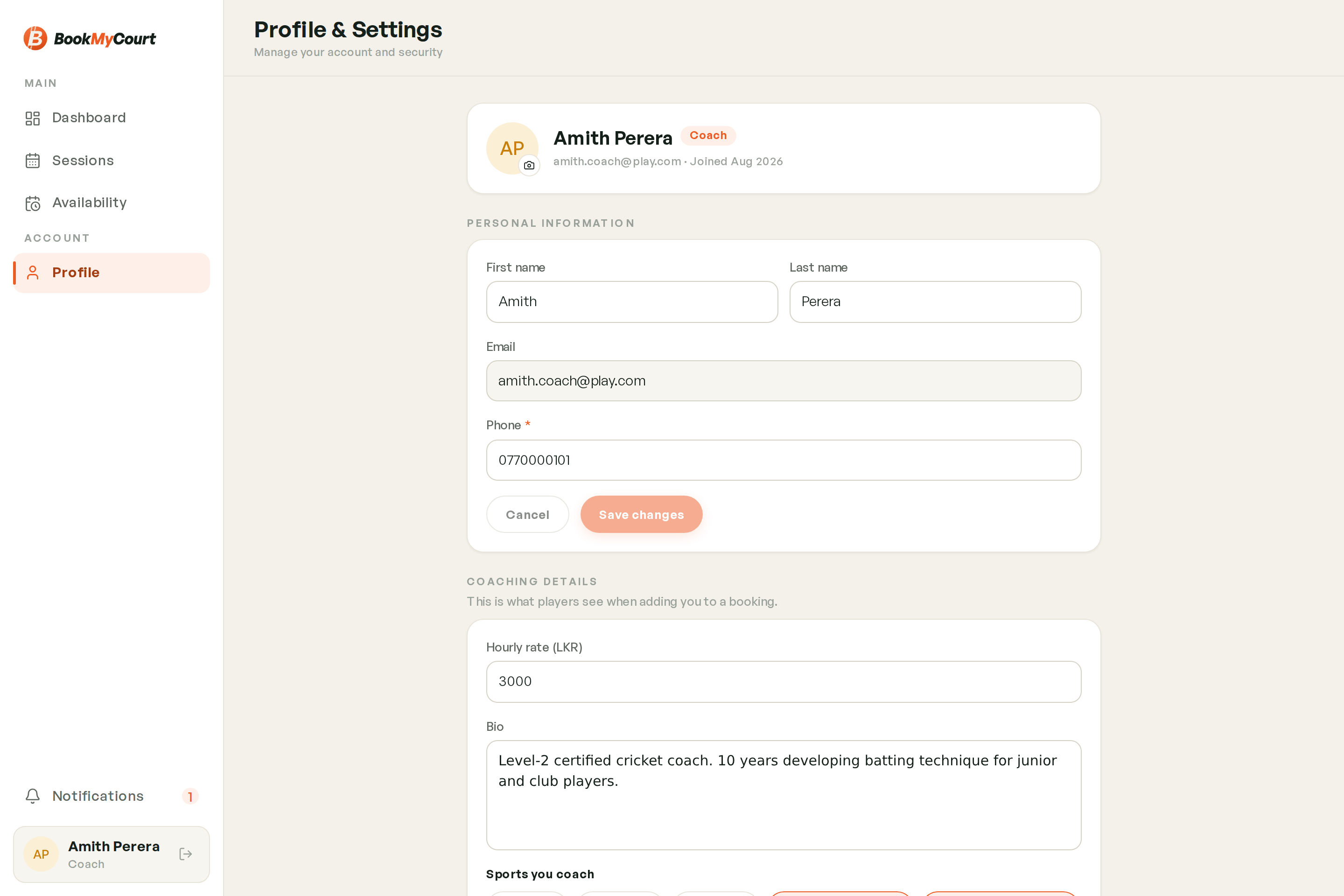
Your profile is what players see when they choose a coach: your name, photo, bio, sports, prices, specialties and training photos.

Opening It​

  • Phone: tap More in the bottom bar, then tap your name.
  • Desktop: click your name at the bottom of the sidebar.

Profile is a short list of rows. Each row shows what's saved now and opens its own page. The coaching rows are under Your coaching.

Profile screen with the identity card and the Your coaching rows
Profile

Profile Photo​

Tap your photo (or initials) at the top of Profile, the one with the camera badge, and pick a picture. It uploads straight away.

Players see it on your coach card and your profile. Coaches with a photo get picked far more often.

Public Profile​

Tap Public profile to edit:

  • Profile name — optional. Shown to players instead of your first and last name. Leave it blank to use those.
  • Bio — your coaching experience, who you coach, what you're known for.

Tap Save. It stays greyed out until you change something.

Your first and last name and your phone number are under Personal details. See Your Coach Account.

Public profile page with Profile name and Bio fields and a Save button
Name and bio

Your Sports, Rates and Specialties​

Tap Your sports. Everything on this page saves with one Save at the bottom.

  1. Under Sports you coach, tap each sport you coach.
  2. A card appears for each sport family (Indoor and Outdoor cricket share one Cricket card). Under Rate per hour, enter your price in Rs for each sport. Use for all sports copies the first price to the others.
  3. Under Specialties, tap what you're best at, such as Batting or Fast bowling. Select all ticks every one, Clear all unticks them. They're shown on your profile.
  4. Tap Save.
Your sports page with sport chips and a Cricket card with a rate for Indoor and Outdoor
Sports and rates
Nets fee fields, the Nets are required switch and specialty chips
Nets fee and specialties

Every sport you coach needs a rate above zero. If one is missing, the page tells you why Save won't work.

Players filter coaches by sport and specialty. If you aren't showing up where you expect, check this page first.

Nets Fee (Cricket)​

If you coach cricket and teach at your own nets, the Cricket card also has Nets fee per hour:

  • Enter a fee for each cricket sport. Players pay it on top of your rate.
  • Leave it blank if you don't have nets.
  • Nets are required — on: every booking includes your nets. Off: players choose with or without them. You can only turn it on once you've entered a nets fee.

What Players See​

If all your sports cost the same, players see that price. If they differ, your lowest price is shown as your starting rate, and each sport's price is on your profile.

Tap Session gallery to manage your training photos. You can have up to 30. Changes save automatically.

  • Add photos — pick one or several JPG or PNG files, up to 8 MB each.
  • Tap a photo to see it full size.
  • Arrows under each photo move it earlier or later.
  • Cover — the first visible photo is your cover.
  • Eye button — hides a photo from your public profile without deleting it. Hidden photos are marked Hidden.
  • ✕ button — deletes the photo. Tap Delete photo to confirm. This can't be undone.

The counter at the top shows how many photos you have and how many are visible.

Session gallery with an Add photos tile and a cover photo
Your gallery
More gallery photos with reorder arrows and a note about consent
Reorder and hide
Delete this photo confirmation sheet
Deleting a photo
Photos of minors

Get consent before posting photos of minors.

Is My Profile Visible?​

When your profile isn't live, Profile shows a status card above Your coaching:

  • Not published yet — tap Request to publish.
  • Publish request in review — wait for the admin's decision.
  • Publish request rejected — read the reason, fix your profile, then tap Request to publish again.
  • Hidden by platform admin — contact support, or tap Request to publish to ask again.

When you're live, the card goes away. See Going Live.