Availability & Time Off
The hours you can be booked, and the days you can't. This is the screen that decides whether players ever see you.
Opening It
Availability — in the sidebar on desktop, in the dock on mobile.
Weekly Availability
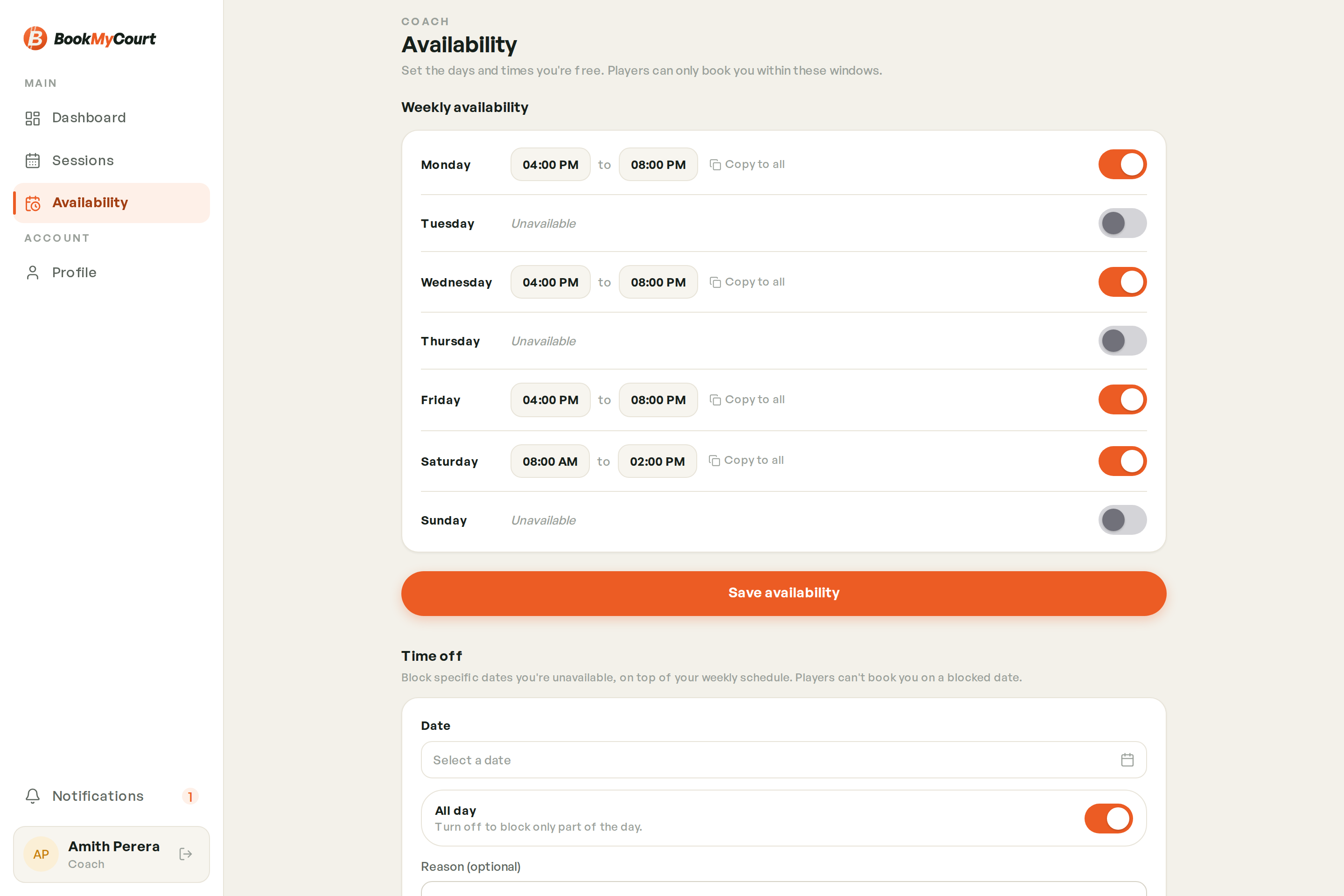
"Set the days and times you're free. Players can only book you within these windows."
Each day of the week has a row: a toggle for whether you're available, and a start and end time. Days you're off read Unavailable.
Copy to all beside any day applies that day's window to every other day — much faster than setting seven rows by hand.
Tap Save availability when you're done. Players are only offered slots inside these hours, and only where they overlap a venue's opening hours.
The app stores a single start and end per day. If you coach mornings and evenings, set the day to span both and carve out the middle with a time-off block below.
Time Off
Below your weekly hours is your list of block-offs — specific dates you're not available, regardless of your weekly pattern.
"Block specific dates you're unavailable, on top of your weekly schedule. Players can't book you on a blocked date."
Adding Time Off
- Pick the date
- Leave All day on, or turn it off to block only part of the day and set a start and end time
- Add a reason if you want — it's optional, and just for your own reference
- Save
Each block-off then shows as the date plus either All day or a window like 9:00 AM – 5:00 PM.
Removing Time Off
Tap the bin icon on a block-off. You'll be asked to confirm first.
When Time Off Clashes With Sessions
If the time off you're adding overlaps sessions that are already booked, the app doesn't silently hide them. It shows you a conflict sheet listing exactly which sessions clash.
You then decide: keep the sessions and narrow your time off, or take the time off and cancel those sessions yourself from Sessions.
Blocking a day stops new bookings. Sessions already on the books stay there until you cancel them.
Booking Yourself On A Day You're Off
If you create your own session on a day you've marked off, the app warns you but lets you proceed — sometimes that's exactly what you meant to do. See Booking a Session.