Understanding the Dashboard
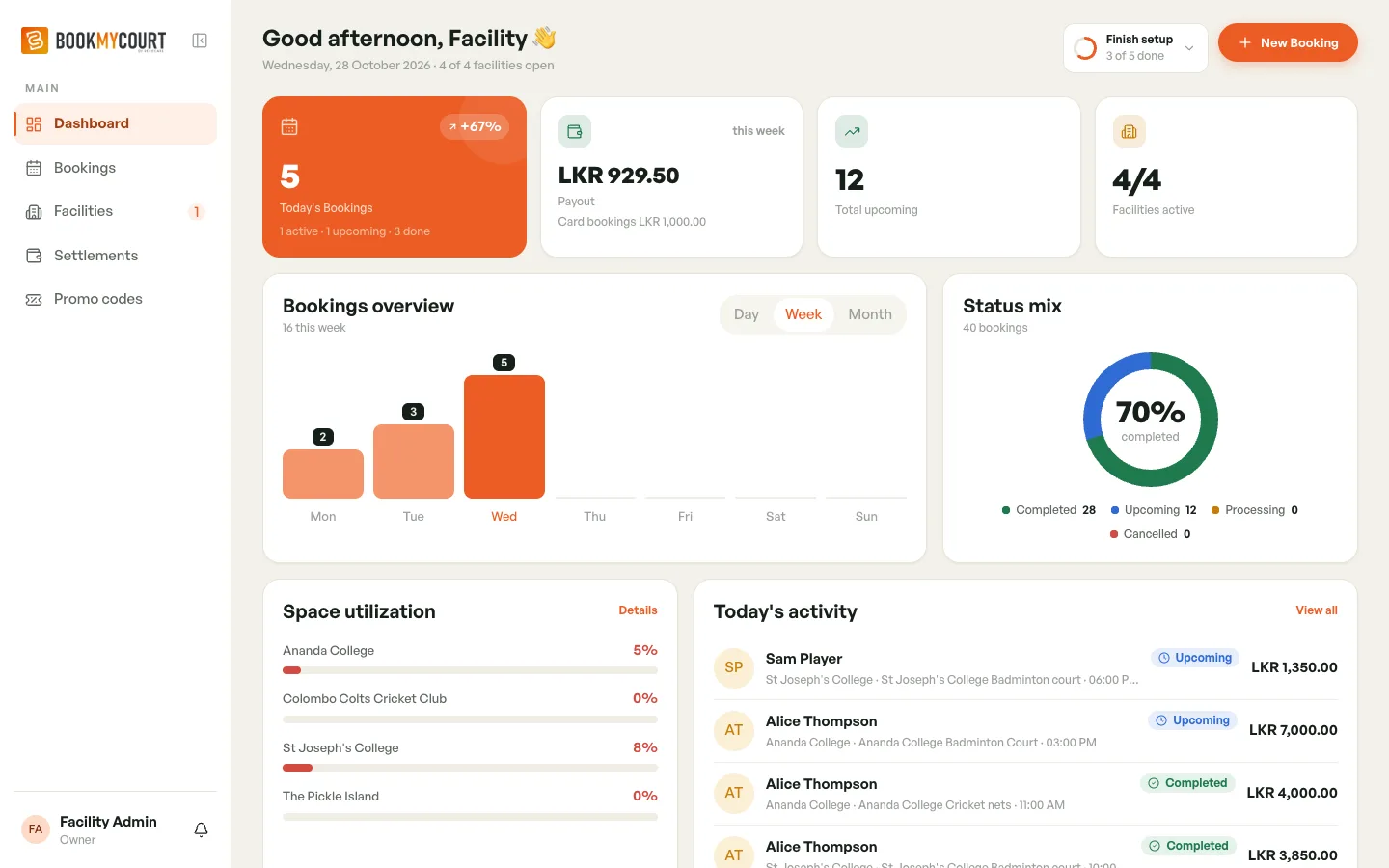
The dashboard is your venue at a glance: today's bookings, this week's payout and what's still left to set up.
It opens when you sign in. To come back to it, tap Dashboard in the bottom bar.
Finish setup
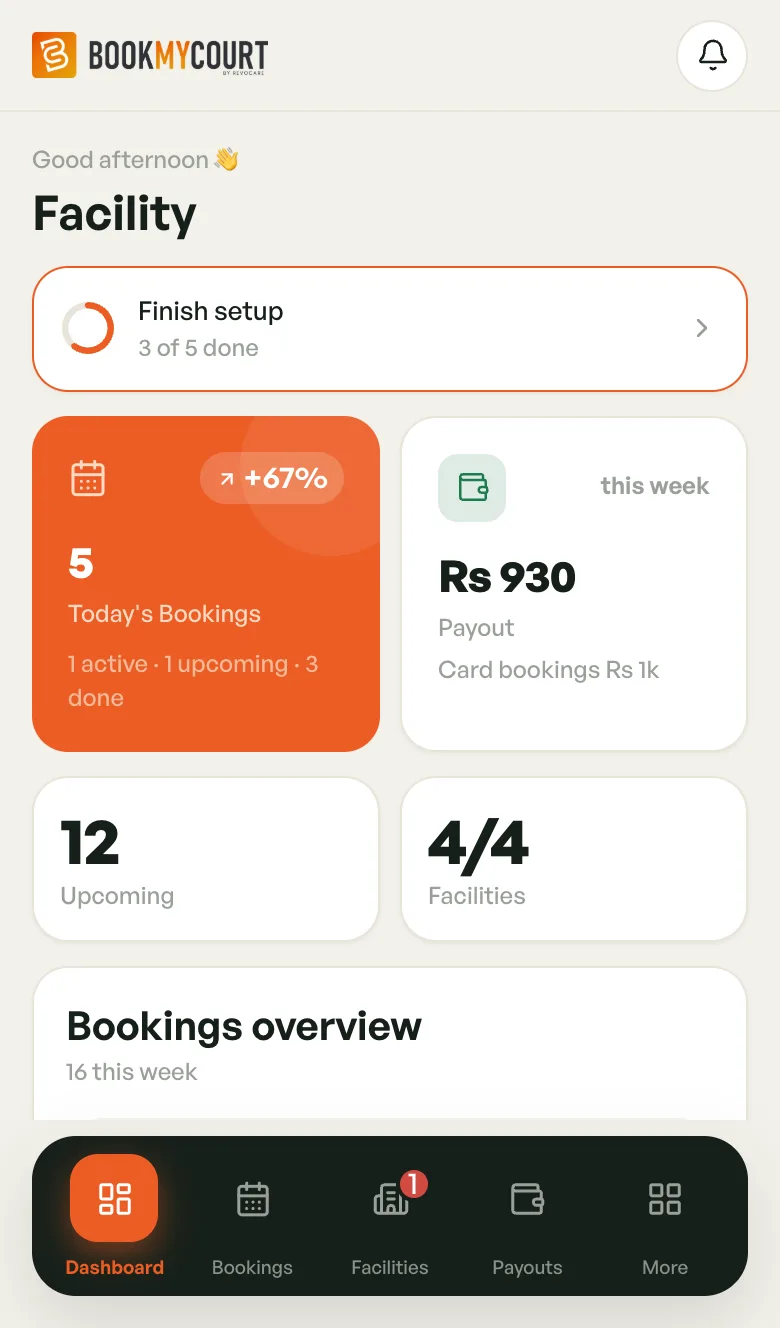
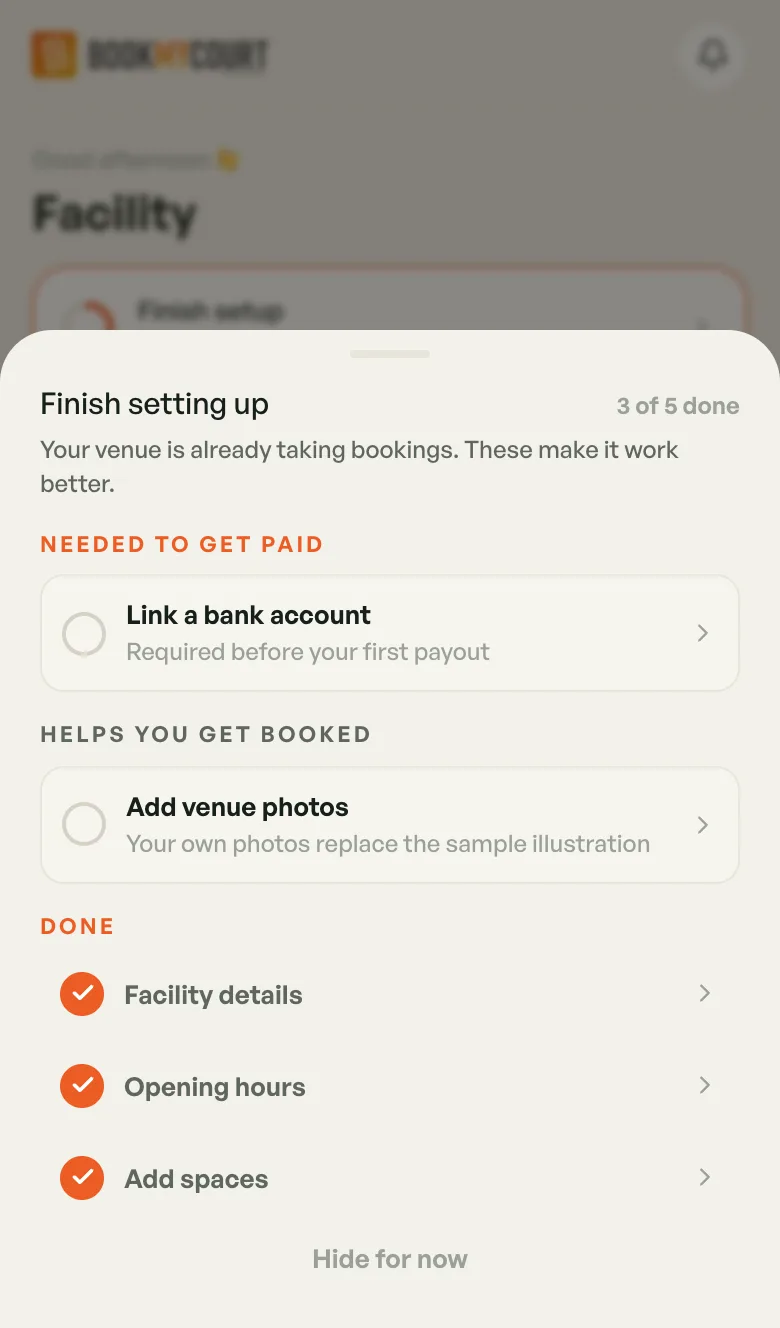
While any setup step is still open, a Finish setup card sits at the top, showing your progress (for example 3 of 5 done).
- Tap Finish setup.
- Tap a step to jump straight to the screen where you do it.
The steps are grouped:
- Needed to get paid — Link a bank account. Required before your first payout.
- Helps you get booked — Add spaces (any venue with nothing bookable yet) and Add venue photos.
- Done — steps you've finished, such as Facility details and Opening hours. You can still tap them.
If you skipped setup before adding a venue, the list shows all six setup steps instead, with Payout account first and Invite coaches under Optional.
Hide for now just closes the sheet. The card itself goes away once every step is done. See Setting Up Your Venue for the full list.
Today's Bookings
The orange card shows how many bookings you have today, with a line such as 1 active · 1 upcoming · 3 done.
The small badge (for example +67%) compares today with yesterday. Tap the card to open Bookings.
Payout · this week
This card shows what BookMyCourt will pay you for the current week (Monday to Sunday), added up across all your facilities.
- The big figure is your Payout. On a phone it's shortened, e.g. Rs 930.
- Card bookings underneath is what players paid by card for your courts this week.
- If the week has gone negative, the label reads Comes off next payout instead of Payout.
Tap the card to open Settlements.
Employees see a Yesterday card (yesterday's booking count) here instead of money. They don't get the Finish setup card either.
Upcoming and Facilities
- Upcoming — every booking still ahead, across all your venues.
- Facilities — how many of your venues are active out of the total, e.g. 4/4.
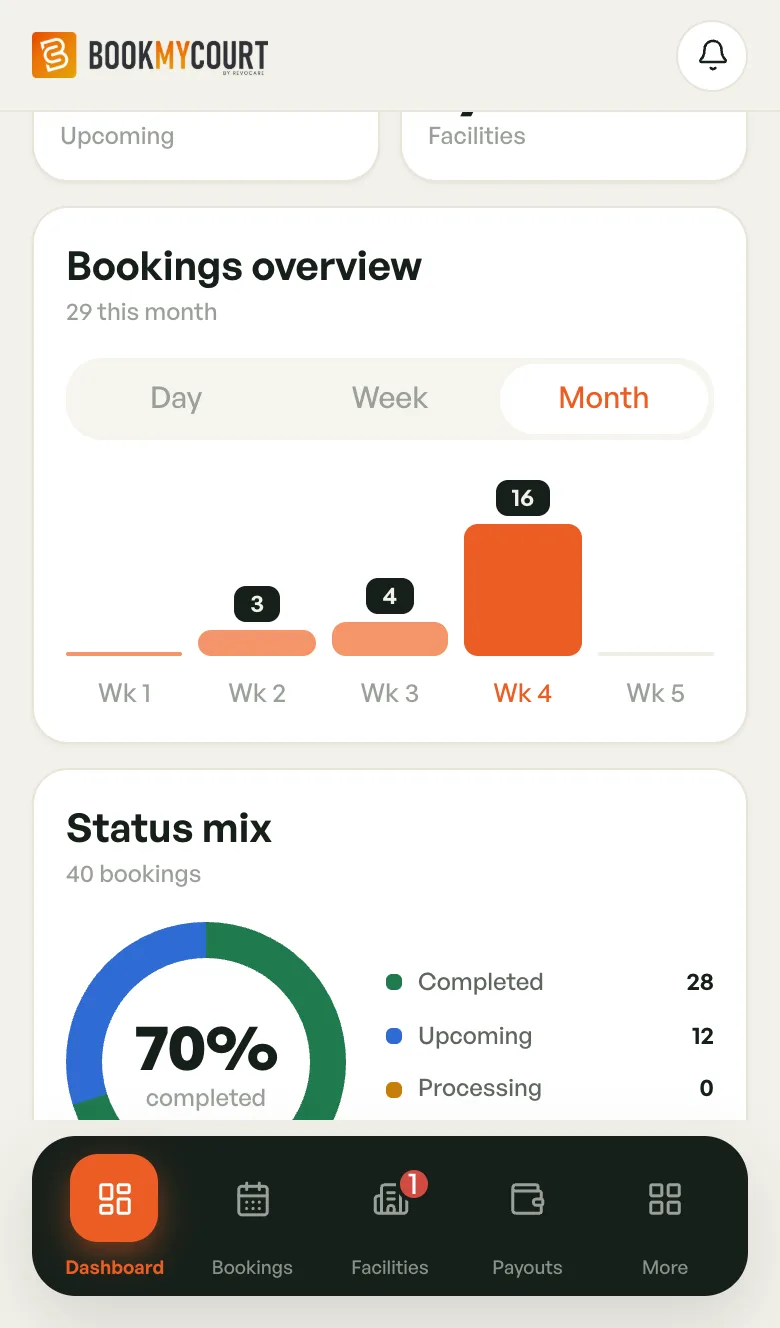
Bookings overview
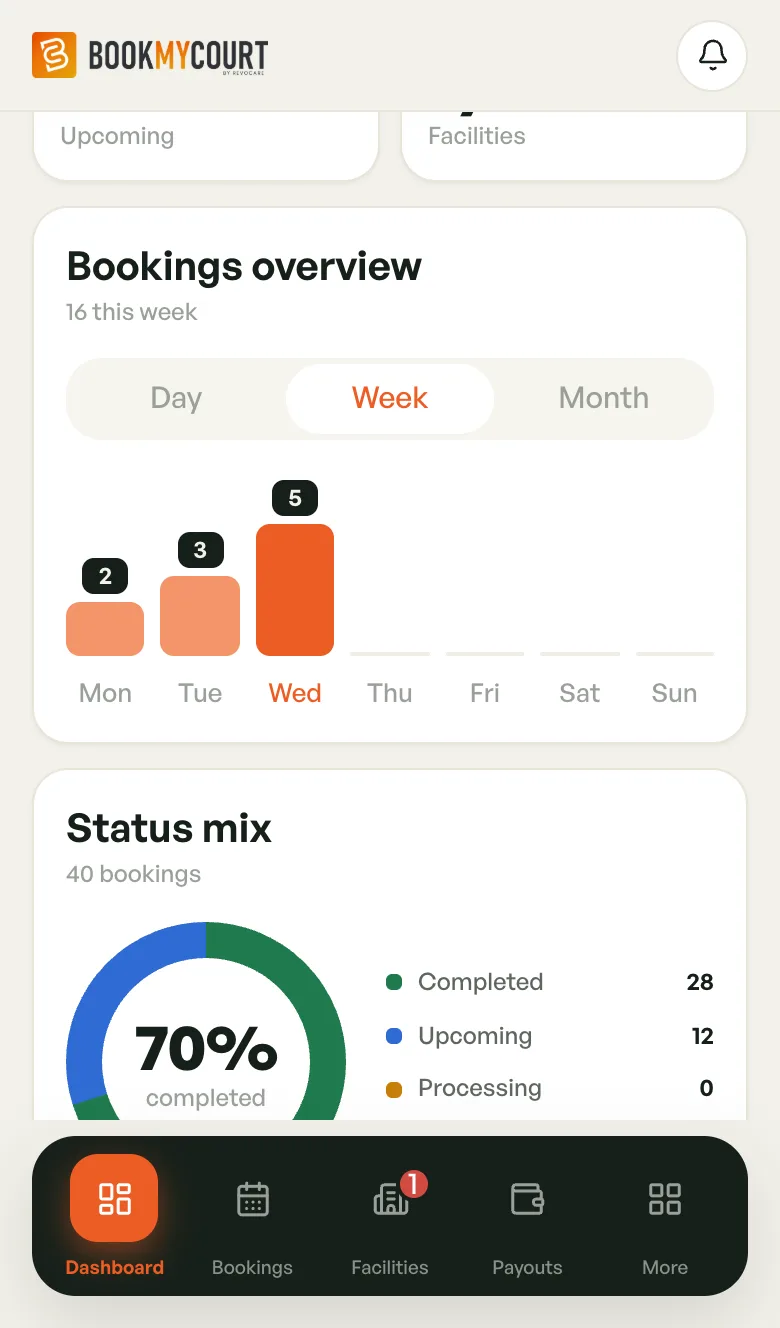
A bar chart of how many bookings start in each period. It opens on Week. Tap Day, Week or Month to switch.
- Day — today, in two-hour blocks.
- Week — Monday to Sunday.
- Month — this month, week by week (Wk 1, Wk 2 …).
The bright bar is now, lighter bars are past periods, and future periods show as flat stubs. The count sits on top of each bar, and the total is under the title (e.g. 16 this week).
Status mix
A ring chart of your bookings by status, with the share that's completed in the middle. The legend counts Completed, Upcoming, Processing and Cancelled.
The colours match the rest of the app. See Understanding Bookings.
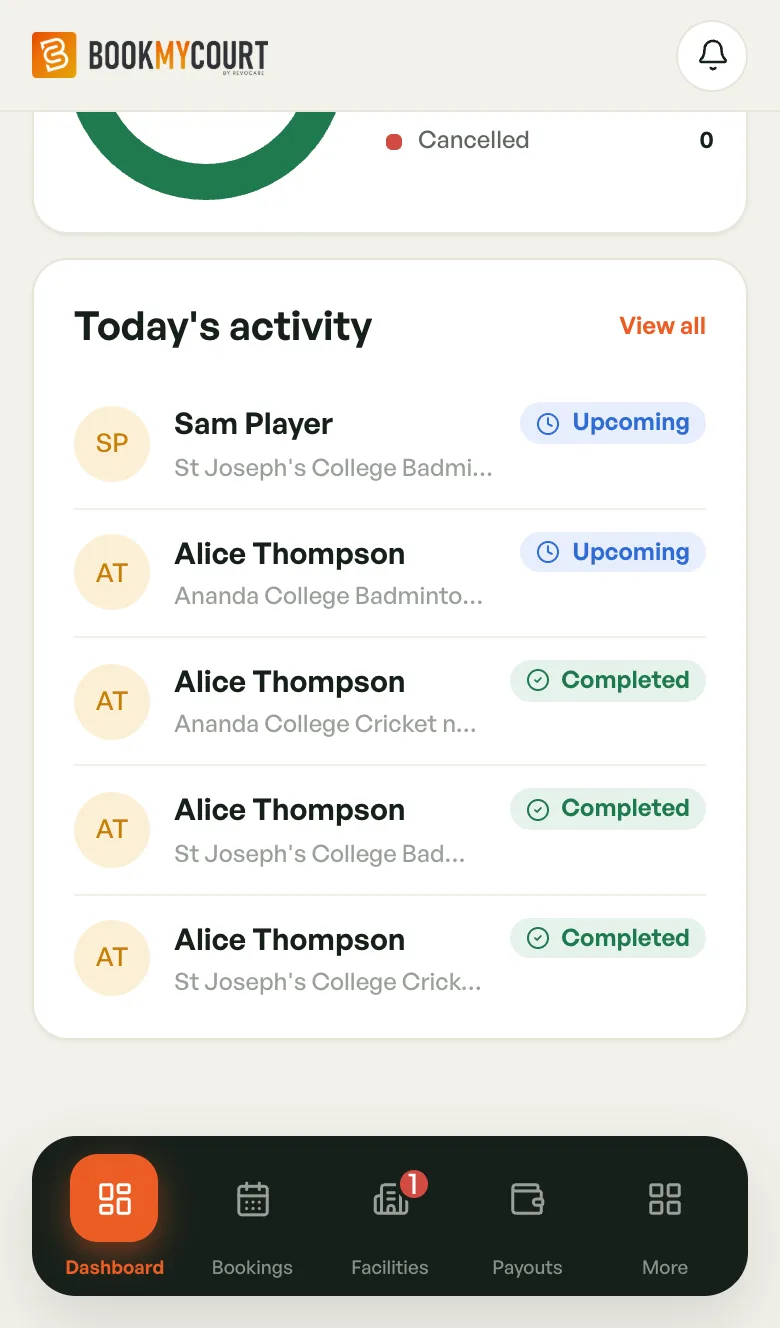
Today's activity
Up to six of today's upcoming and completed bookings: the player, the space, the start time, the price and a status badge. On a phone the space, time and price share one line, so a long space name gets cut short.
- Tap a booking to open its details.
- Tap View all to see every booking.
Refreshing
In the BookMyCourt Admin app, pull down on the dashboard to refresh it. On the web, reload the page.
Getting around on a phone
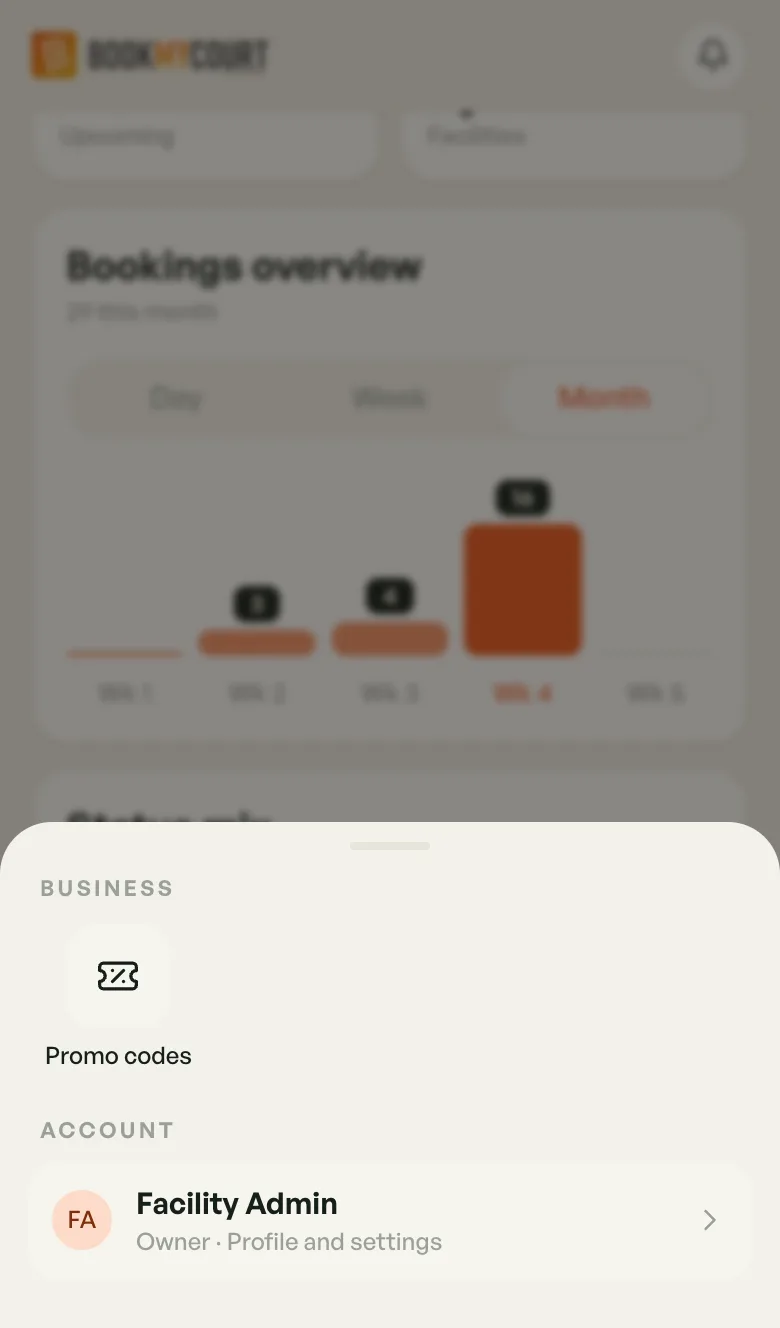
The bottom bar holds Dashboard, Bookings, Facilities, Payouts and More.
Tap More for Promo codes and your account row, which opens Profile (bank details, password, notifications and so on).
Employees have a shorter bar: Dashboard, Bookings and Profile, with no More.
On a computer
At admin.bookmycourt.lk on a wide screen, the dashboard spreads out. Finish setup becomes a small button at the top right, next to New Booking.
The cards read Total upcoming and Facilities active. Tapping Facilities active opens your facilities. Owners also get a Space utilization card showing how busy each venue is today. Its Details link opens your facilities.