Setting Up Your Venue
The first time an owner signs in, a short setup walks you through getting your venue ready.
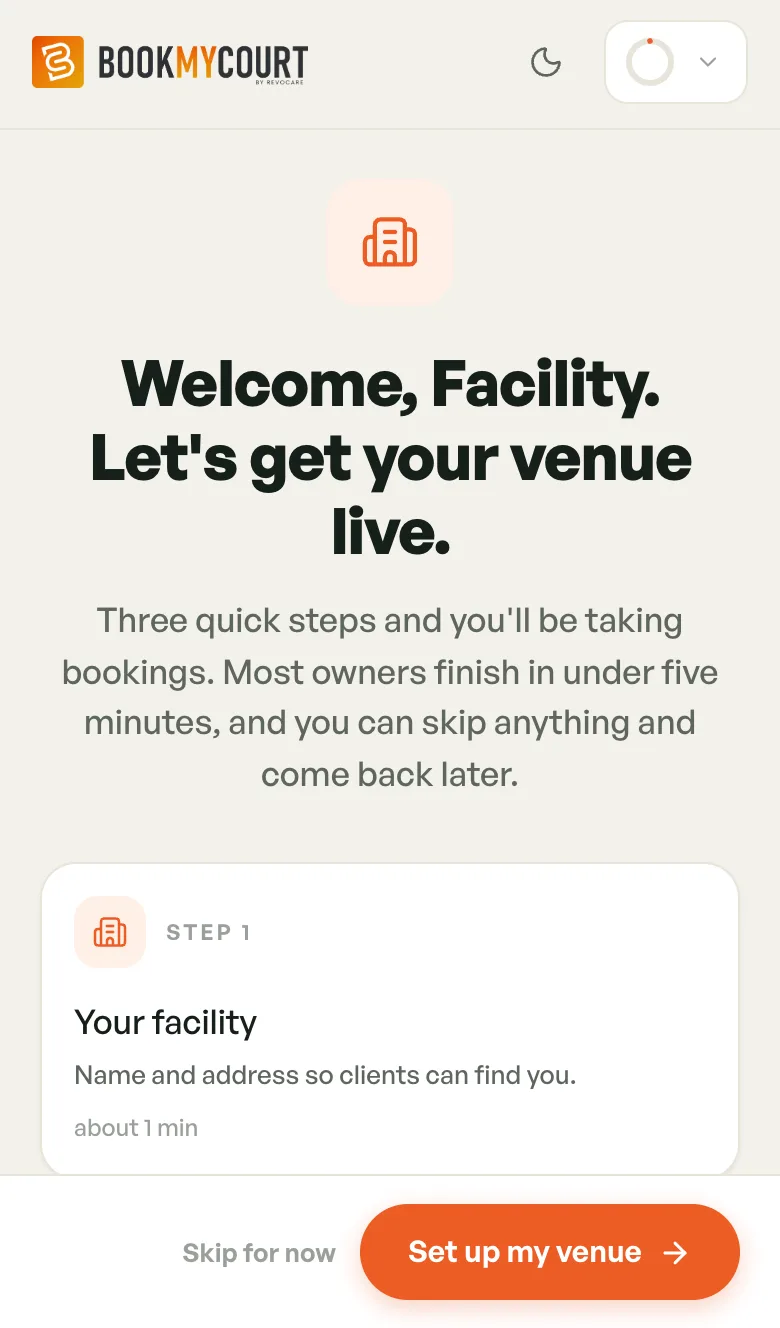
Welcome
The welcome screen lists three steps: Your facility, Your spaces and Hours & payout. Most owners finish in under five minutes.
- Tap Set up my venue to start.
- Or tap Skip for now to go straight to the dashboard. Your steps wait for you in the Finish setup card.
Each step saves as you go. If you stop half-way, nothing is lost, and the app picks up where you left off next time.
Step 1: Facility
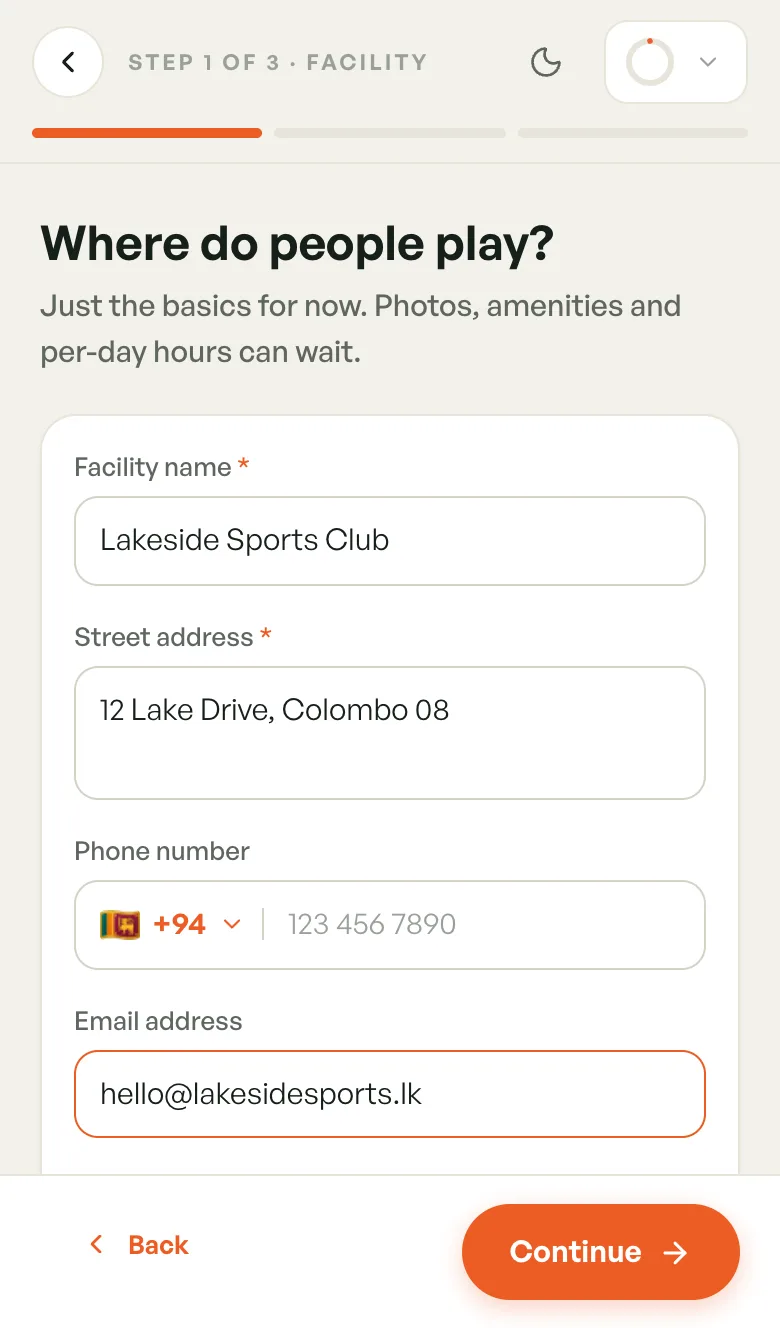
"Where do people play?"
- Enter the Facility name, for example Colombo Indoor Arena.
- Enter the Street address.
- Add a Phone number and Email address if you like. Both are optional.
- Tap Continue.
Tapping Continue creates your facility. Photos, amenities and more can be added later in Facility details.
Step 2: Spaces
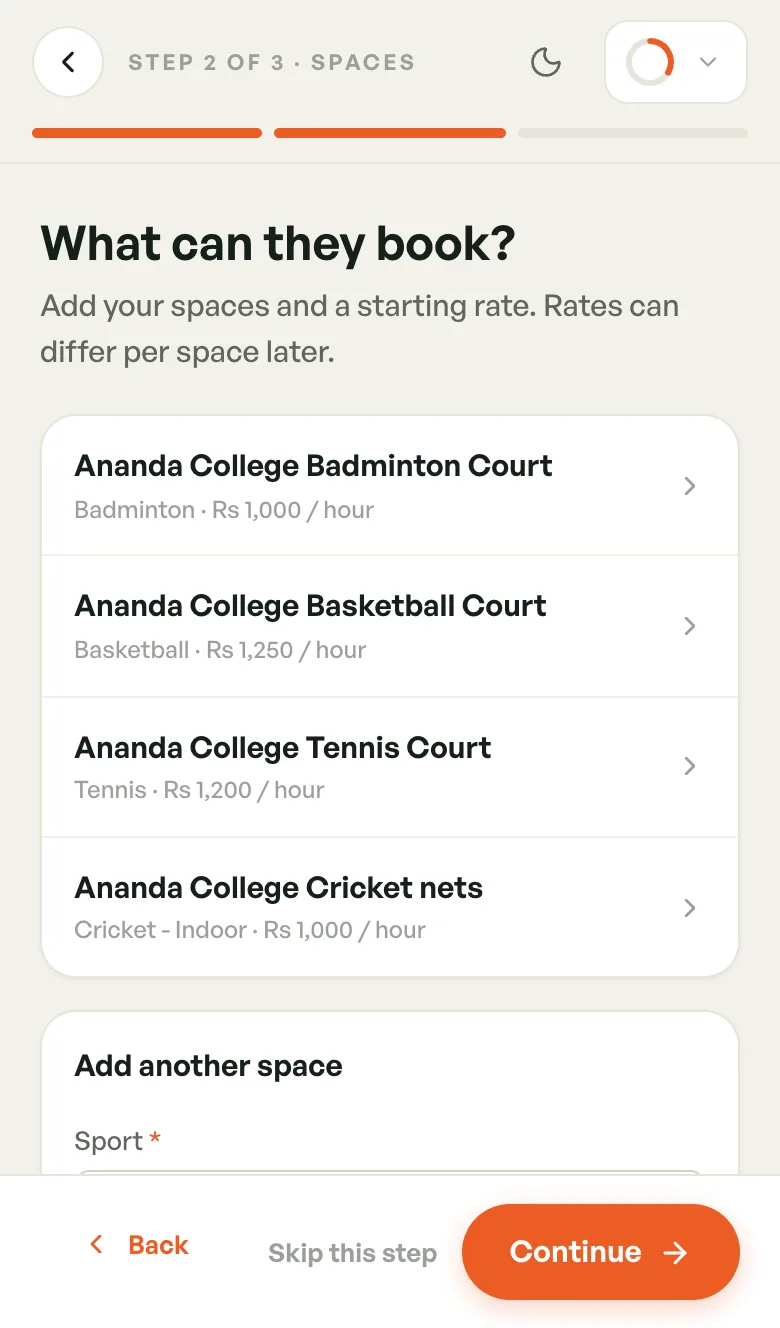
"What can they book?" A space is anything players book: a court, a net, a pitch.
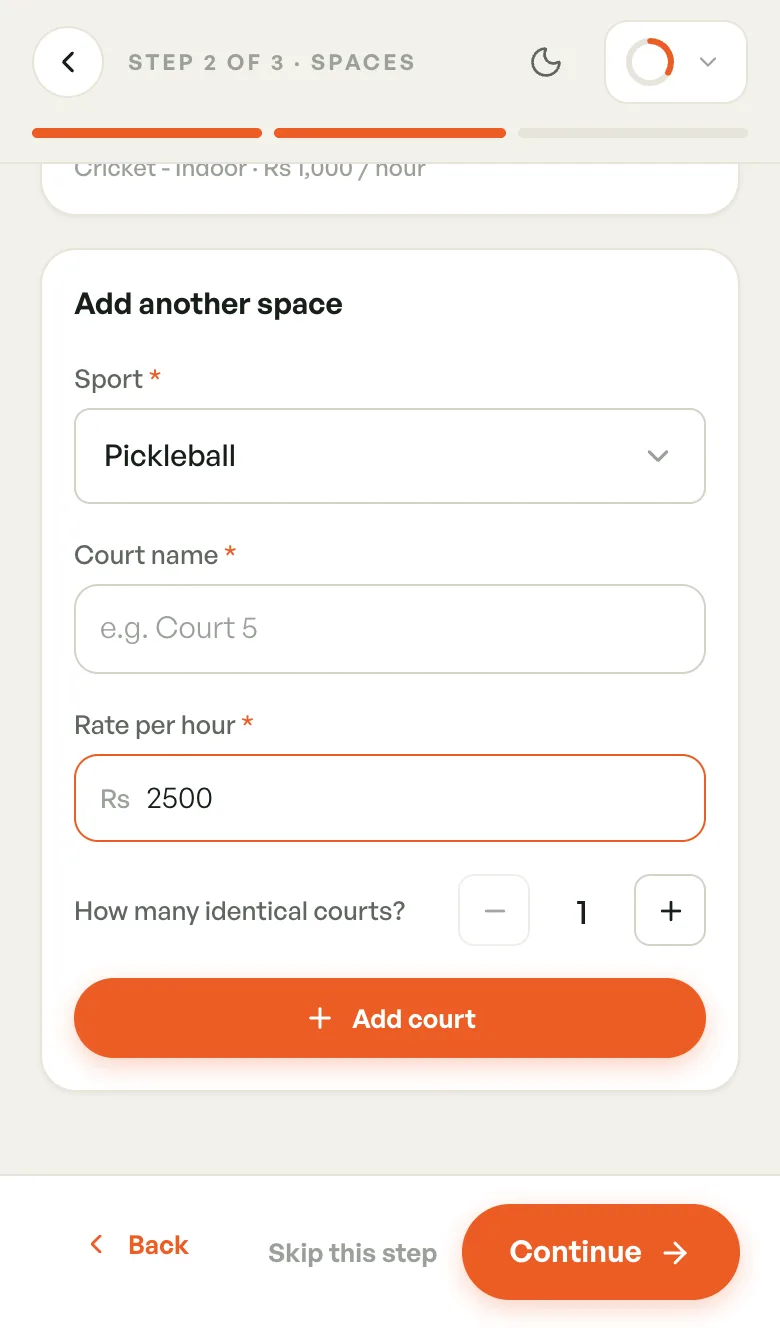
- Tap Select a sport and pick one.
- Enter a Court name (the label follows the sport, so it may say Net name or Space name).
- Enter the Rate per hour in Rs.
- Need several the same? Use + next to How many identical courts?. The name becomes a prefix and each one is numbered: Court 1, Court 2… (up to 12 at once).
- Tap Add court. Repeat for other sports.
- Tap Continue.
Spaces you add show in a list at the top. Tap one to change its name or rate. Added one by mistake? Turn off Bookable to hide it from players.
Some sports aren't priced by the hour. For those, tap Open the full court form, set it up there, and you come straight back. You can also Skip this step and add spaces later in Managing courts.
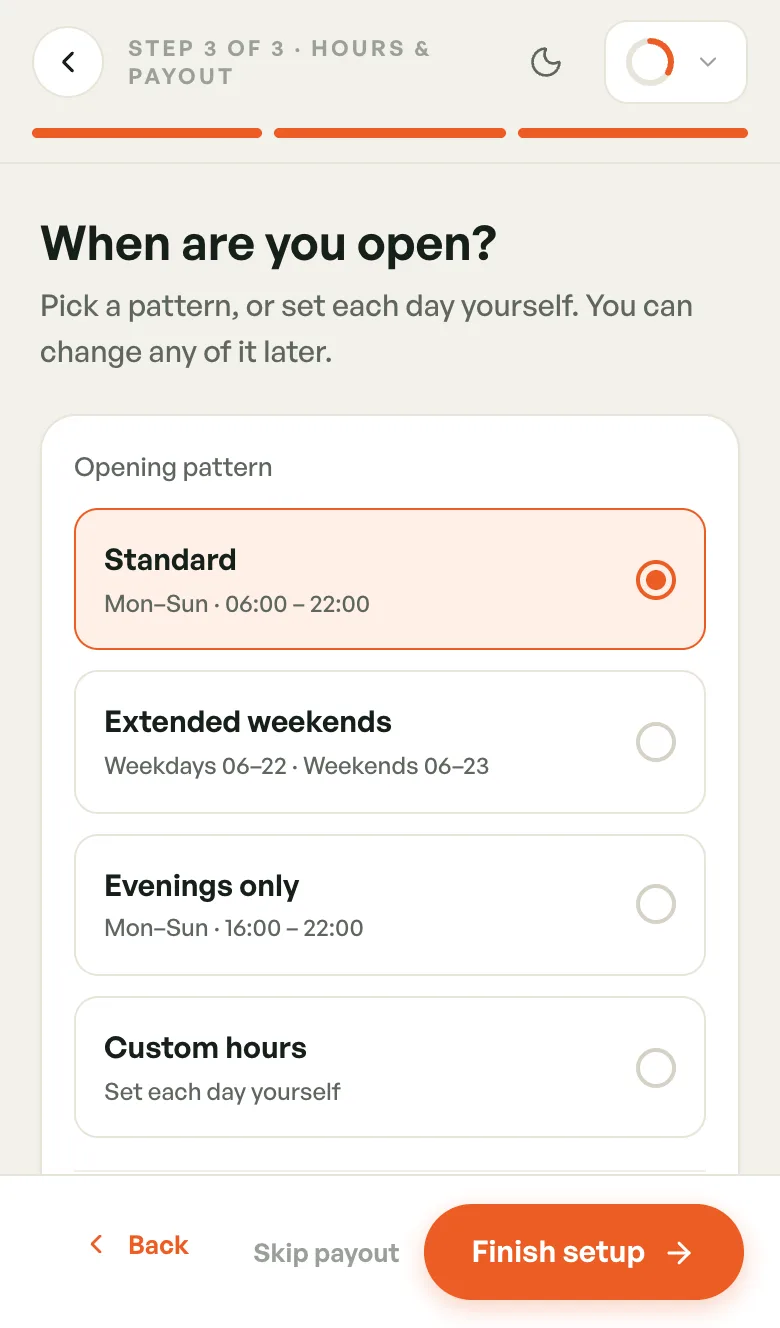
Step 3: Hours & payout
"When are you open?"
- Pick an Opening pattern:
- Standard: Mon–Sun, 06:00–22:00
- Extended weekends: weekdays 06–22, weekends 06–23
- Evenings only: Mon–Sun, 16:00–22:00
- Custom hours: set each day yourself
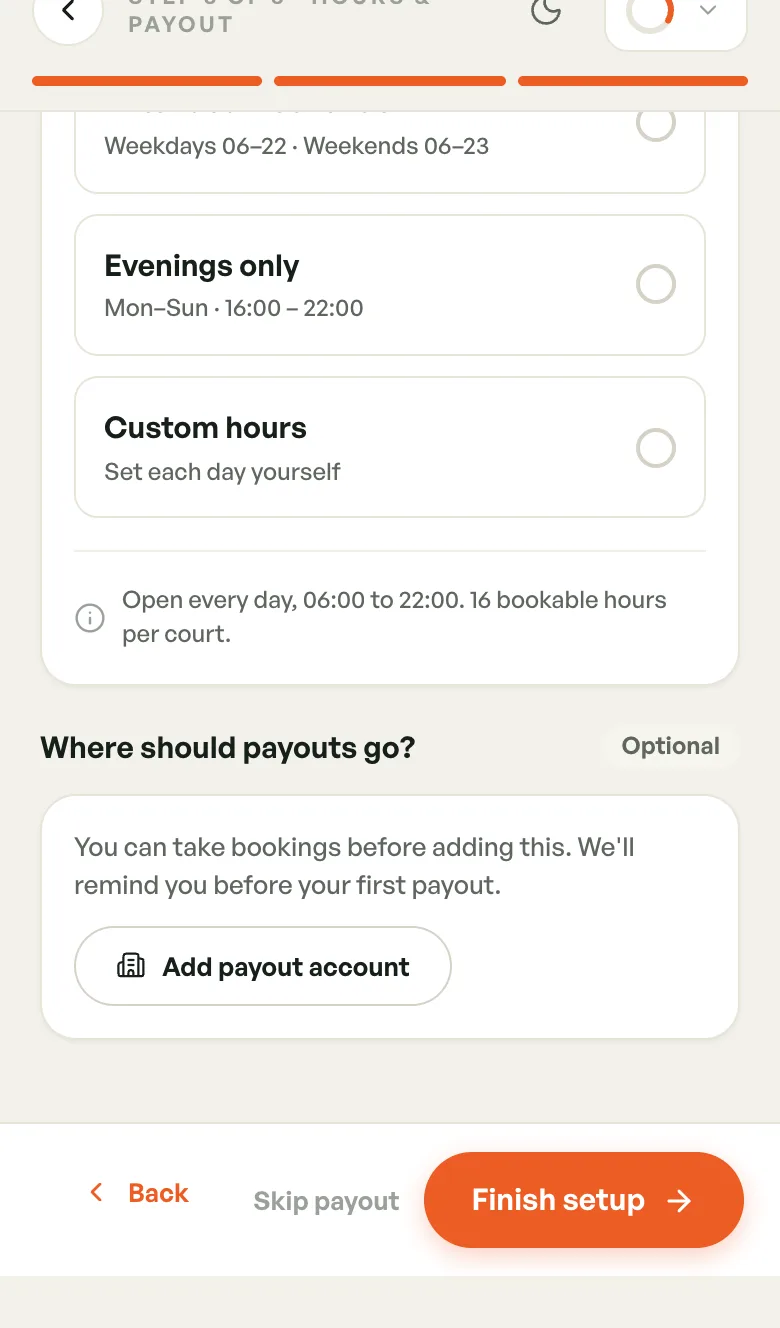
- Under Where should payouts go?, tap Add payout account and enter your bank details. This is optional. You can take bookings first and add it before your first payout.
- Tap Finish setup.
Not ready to add a bank account? Tap Skip payout. Your opening hours are still saved.
More on hours: Operating hours. More on bank details: Payout bank account.
Done: request to publish
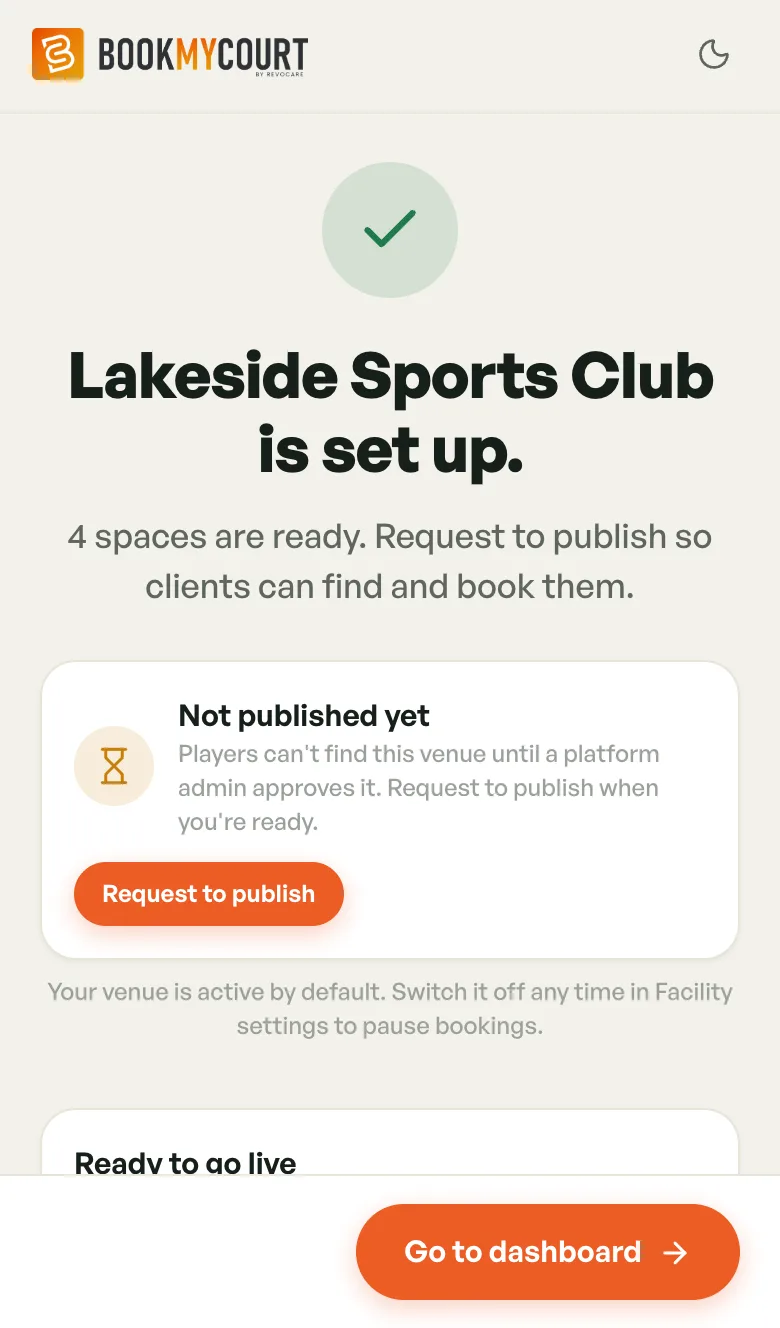
When setup is done you see Your venue name is set up.
A new venue is Not published yet. Players can't find it until a BookMyCourt platform admin approves it.
- Tap Request to publish.
- Add a Note for the reviewer if you like, then tap Request.
- The card changes to Publish request in review. You get a notification once it's decided.
Your venue is active by default. To pause bookings later, switch it off in its facility settings.
Below that, Ready to go live lists what's done and Finish when you're ready lists what's left. Tap any item to do it now, or tap Go to dashboard.
The Finish setup checklist
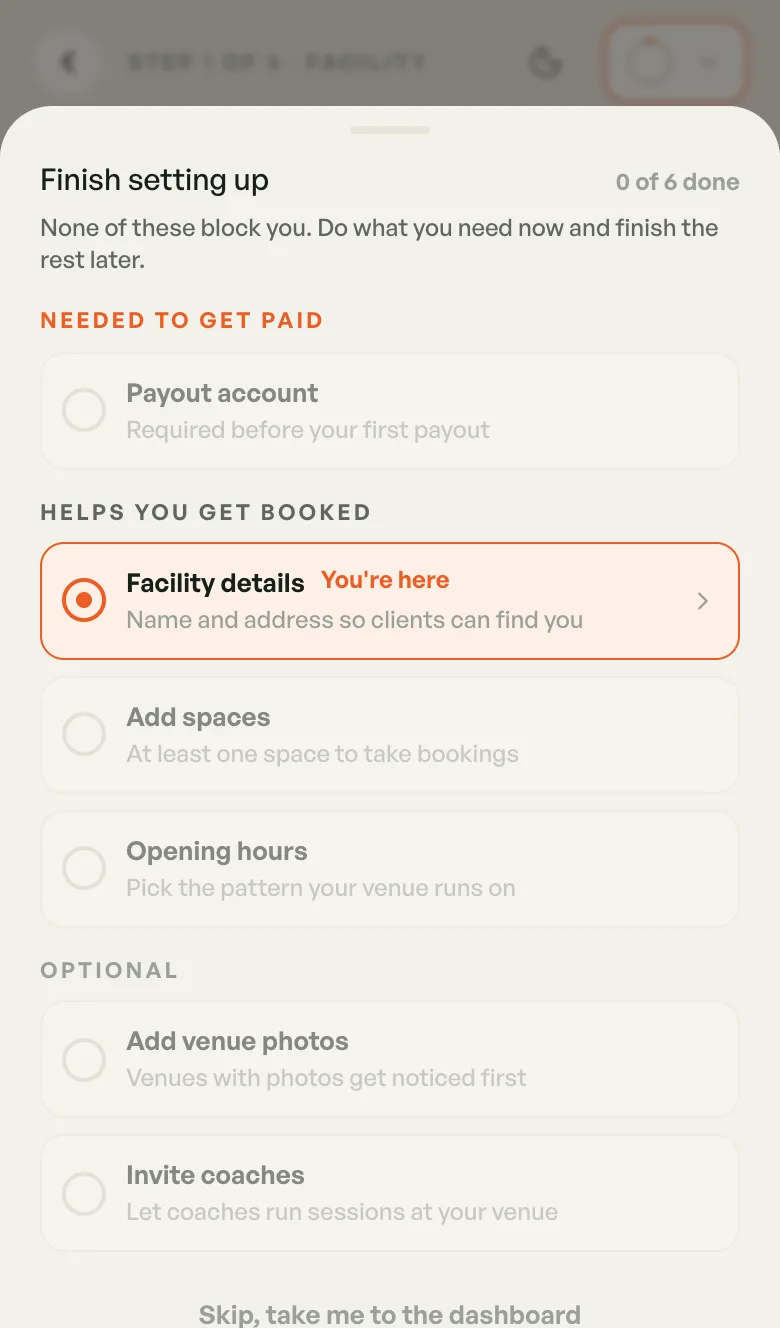
The round progress button at the top of every setup screen opens Finish setting up. It shows six steps and how many are done, for example 0 of 6 done:
- Needed to get paid: Payout account
- Helps you get booked: Facility details, Add spaces, Opening hours
- Optional: Add venue photos, Invite coaches
Tap a step to jump to it. Every step except Facility details unlocks once your facility exists. Skip, take me to the dashboard leaves setup and keeps your progress.
On the dashboard
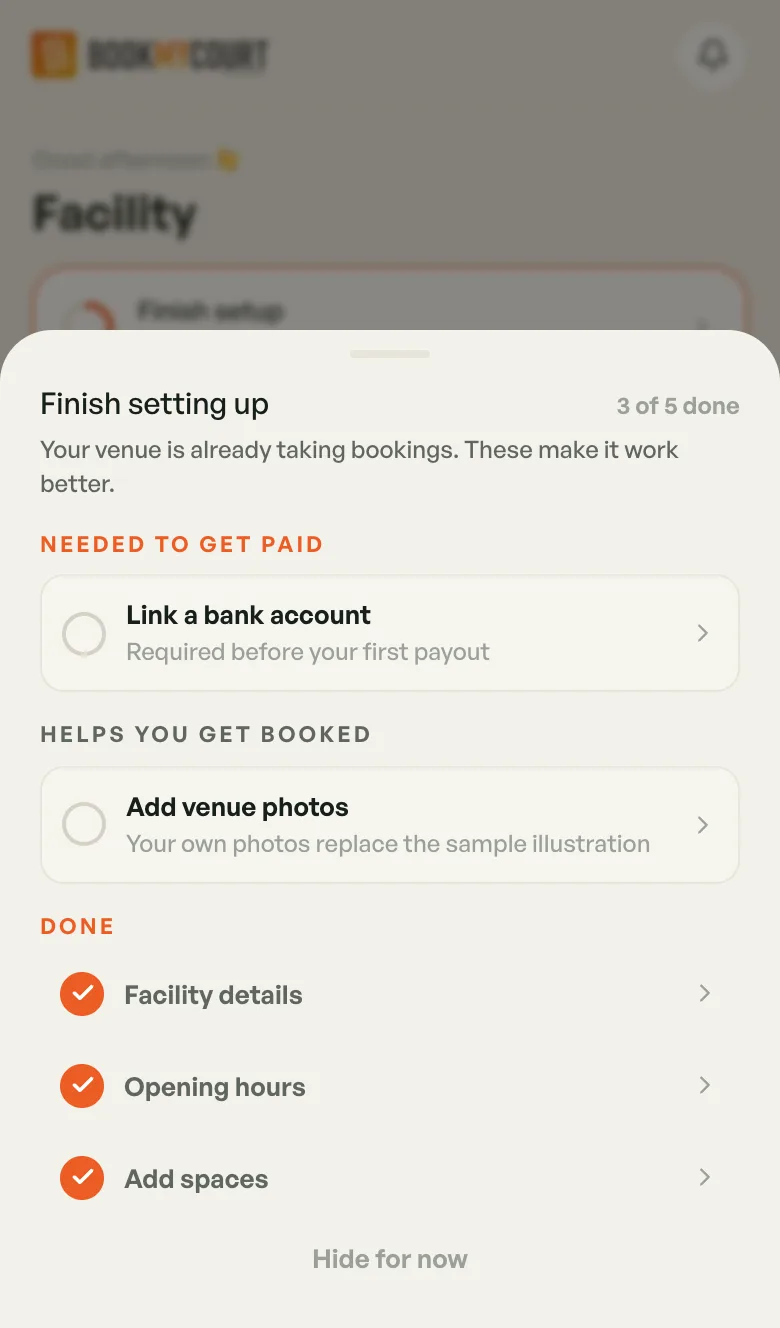
After setup, a Finish setup card sits at the top of your dashboard until everything is done. Tap it to open the list.
Once you have a venue, the card tracks five things:
- Link a bank account: needed before your first payout
- Facility details and Opening hours: ticked as soon as your venue exists
- Add spaces: every venue needs at least one
- Add venue photos: your own photos replace the sample illustration
Tapping an item opens the right screen. Hide for now closes the list. The card disappears for good once every item is ticked.
If you skipped setup before creating a venue, the card shows the full six steps instead. Tap Facility details to start.