Facility Details
Each venue has its own page with its numbers, spaces, hours, coaches and payout account.
Opening it
- Tap Facilities in the bottom bar.
- Tap the venue's card.
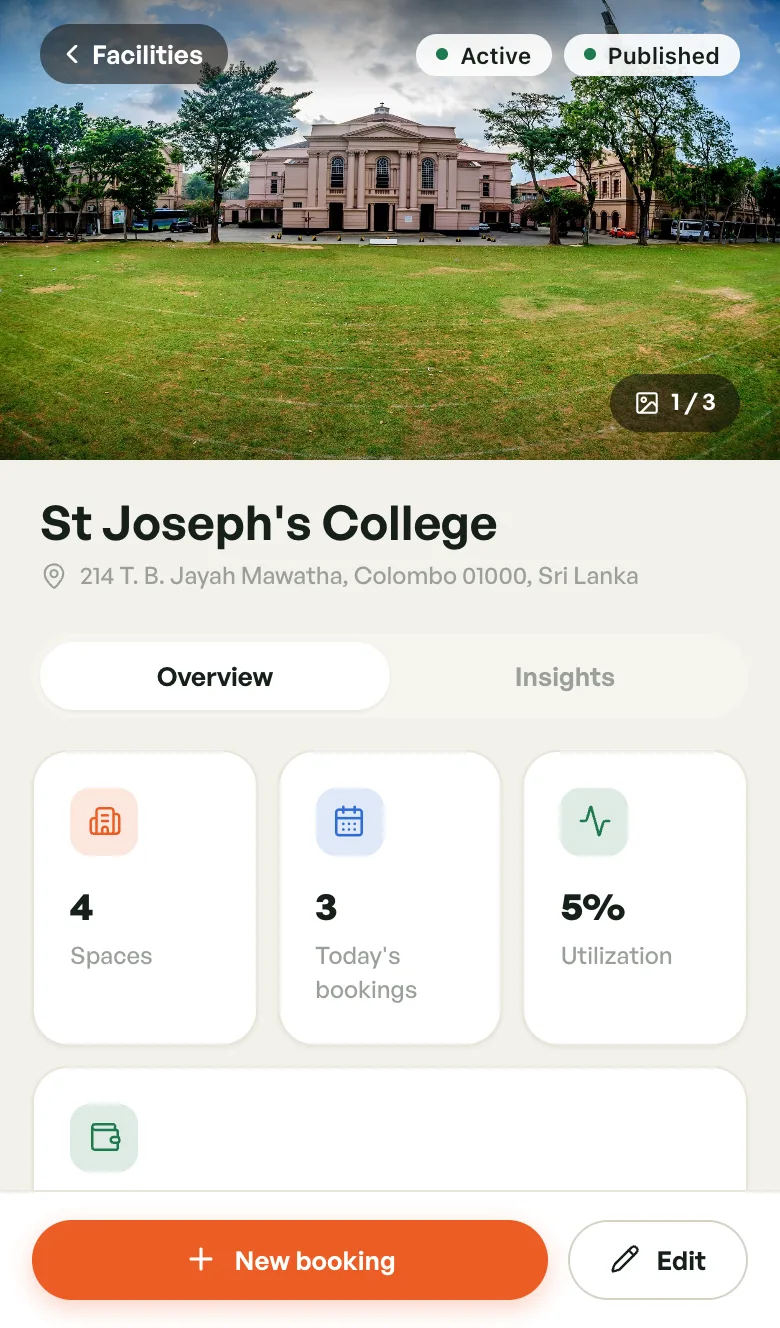
At the top you'll find the venue's photos. Swipe to see more; the counter shows which one you're on. The status badges sit over the photo, and the name, address and star rating (once players have reviewed you) appear below it.
Two buttons stay pinned to the bottom of the screen:
- New booking — book a slot for a player. See Creating a Booking.
- Edit — change the venue's details, photos and visibility. See Editing a facility.
On a computer, Edit and New booking sit next to the venue name instead.
The page has two tabs: Overview and Insights.
Overview
The numbers
- Spaces — how many courts, nets or pitches the venue has
- Today's bookings — bookings today
- Utilization — how much of today's bookable time is booked
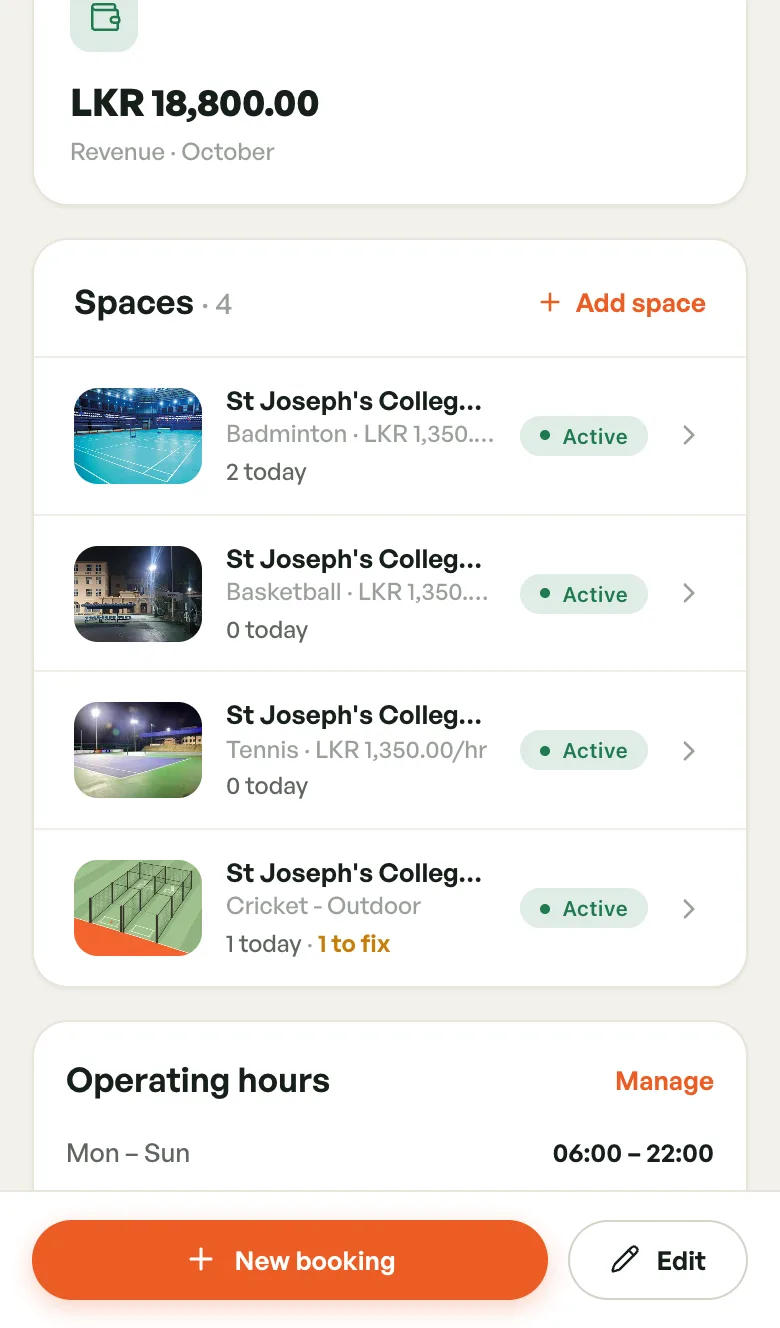
- Revenue · [month] — revenue so far this month
Spaces
Each space shows its photo, name, sport, hourly price, its bookings today, and an Active or Inactive badge.
- Add space — add a court, net or pitch. See Managing Courts.
- Tap a space — open its week view. See Court Availability.
- "1 to fix" in orange — the space has no photos yet. Open it to add some.
Operating hours
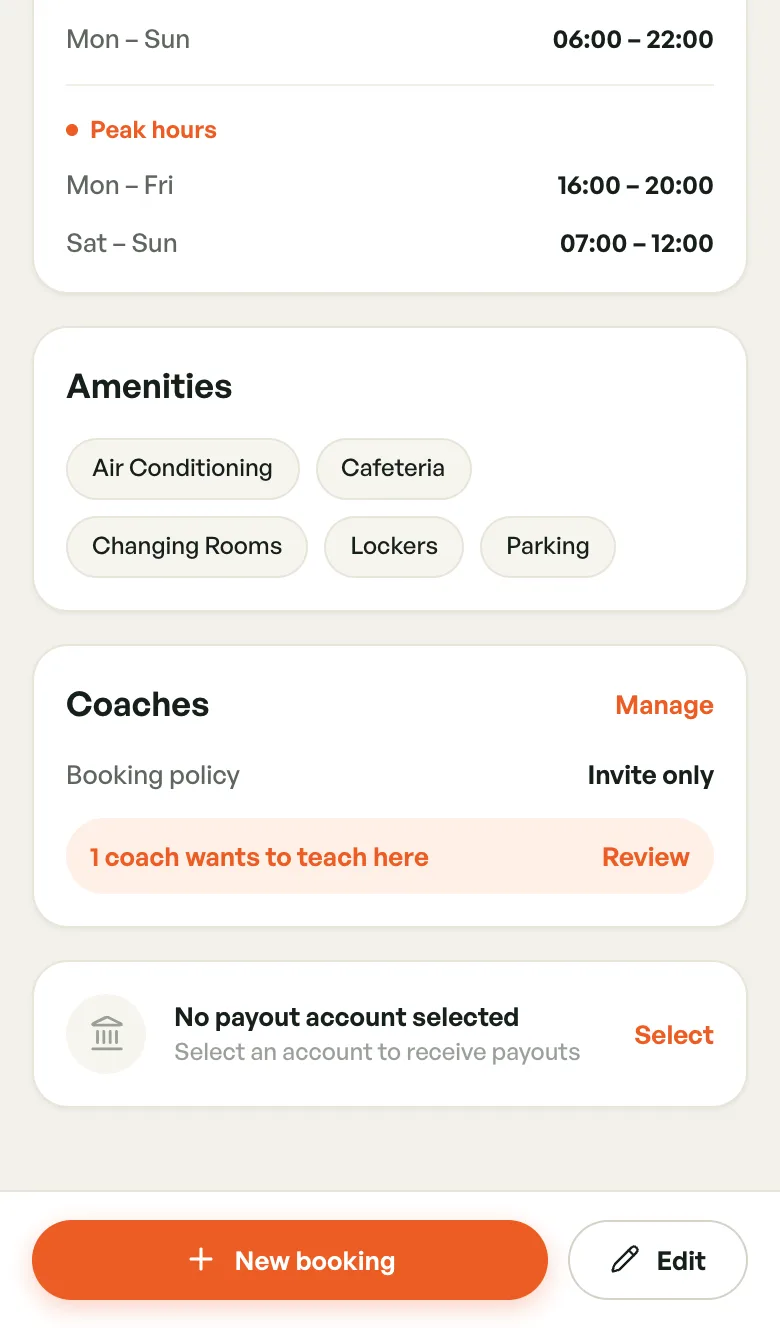
Your opening times, with days that share the same hours grouped together, e.g. Mon – Sun 06:00 – 22:00. Any Peak hours are listed underneath.
Tap Manage to change hours, peak pricing or closures. See Operating Hours.
Amenities
The amenities you ticked, such as Parking or Lockers. Change them with Edit.
Coaches
The venue's coach Booking policy:
- Open to any coach — any coach can be booked here
- Invite only — only coaches you've approved or invited
- Off — coaches can't be booked at this venue
When coaches have asked to teach here, a "1 coach wants to teach here" line appears with a Review link. Tap Manage or Review to answer requests and change the policy. See Coaches at Your Venue.
Payout account
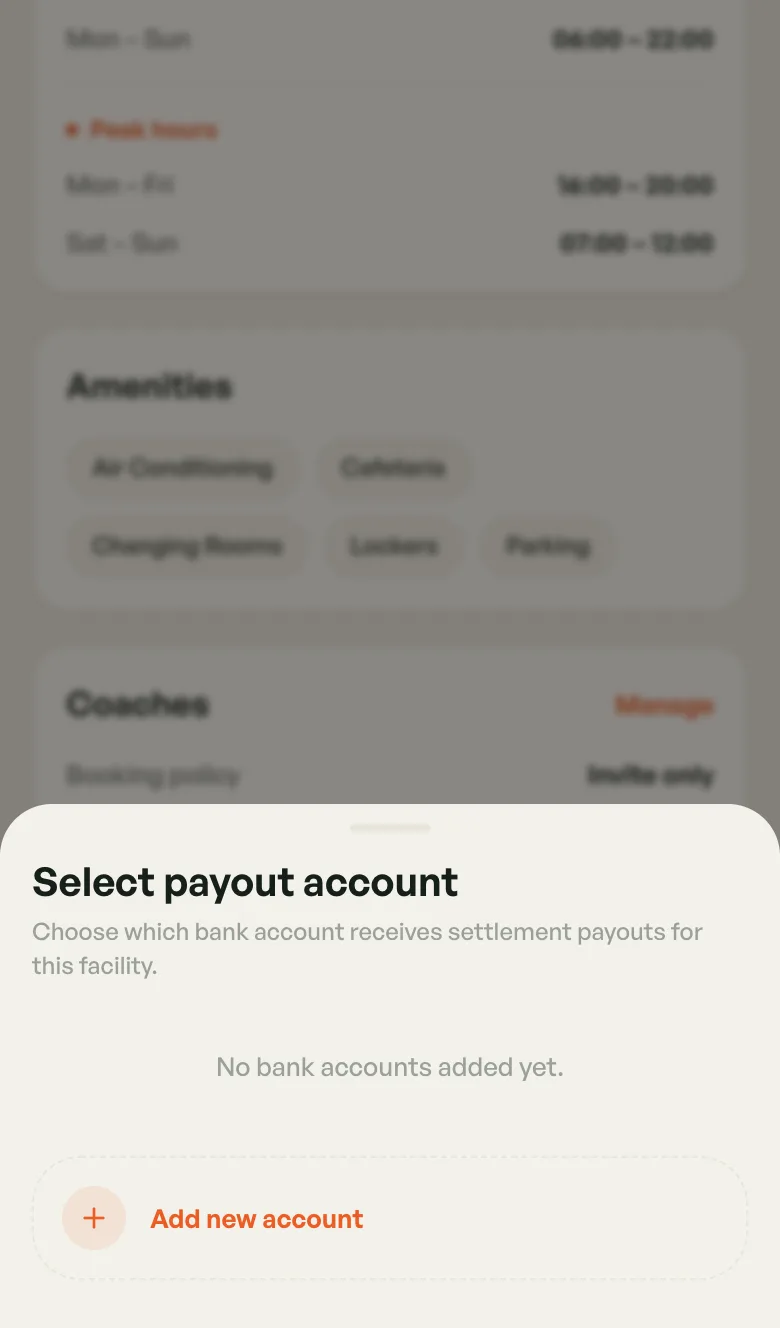
This card shows which bank account receives the venue's settlement payouts. Until you pick one, it reads No payout account selected.
- Tap Select (or Change if an account is already set).
- In Select payout account, tap the account you want. It's saved straight away.
- No account yet? Tap Add new account, fill in the bank details and save. The list opens again so you can pick it.
Once an account is set, the card shows the account name, bank and branch, the last four digits of the number, and the account type (Savings or Current). More in Bank Details.
Publish status
While a venue isn't live yet, a status card appears above the tabs, e.g. Not published yet with a Request to publish button. It disappears once the venue is published. See Going live.
Insights
Tap Insights for the venue's detailed reports. Tap the date button (This month by default) to choose Today, This week, This month or Past 90 days.
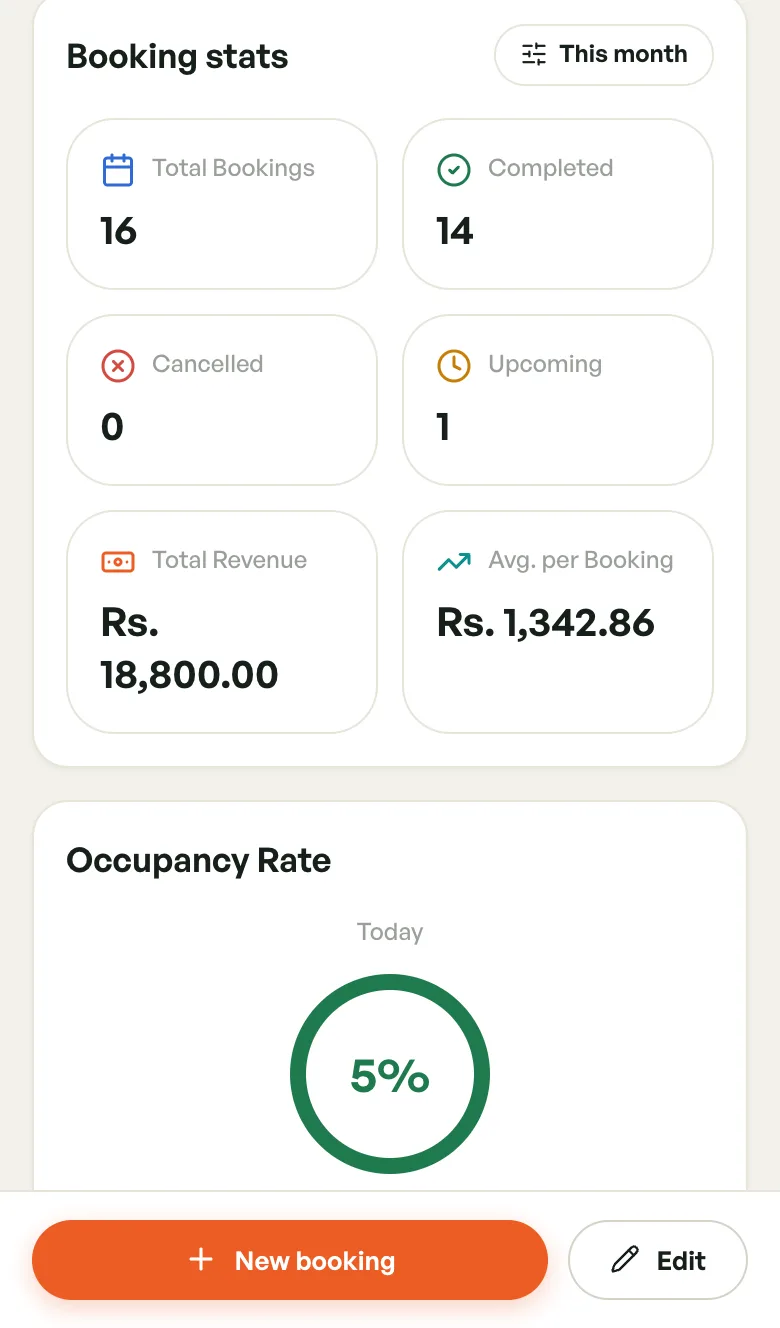
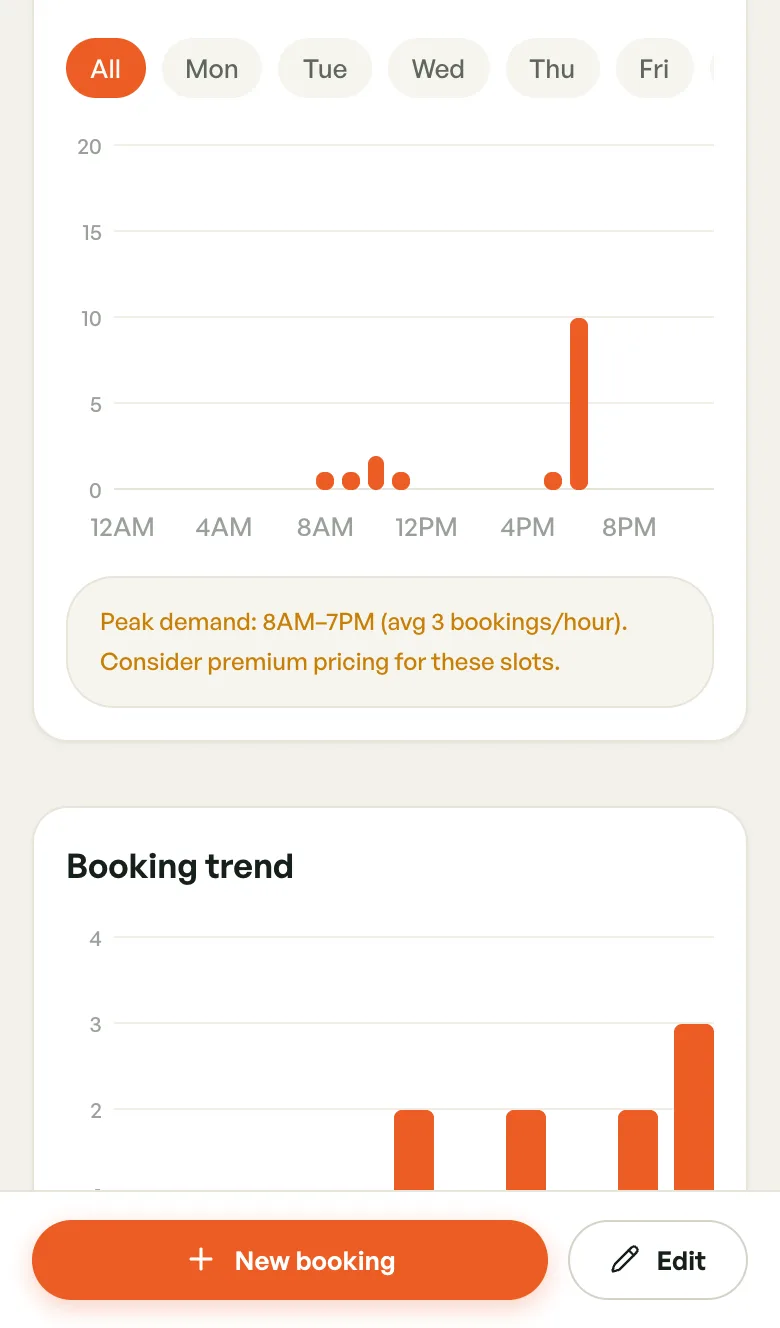
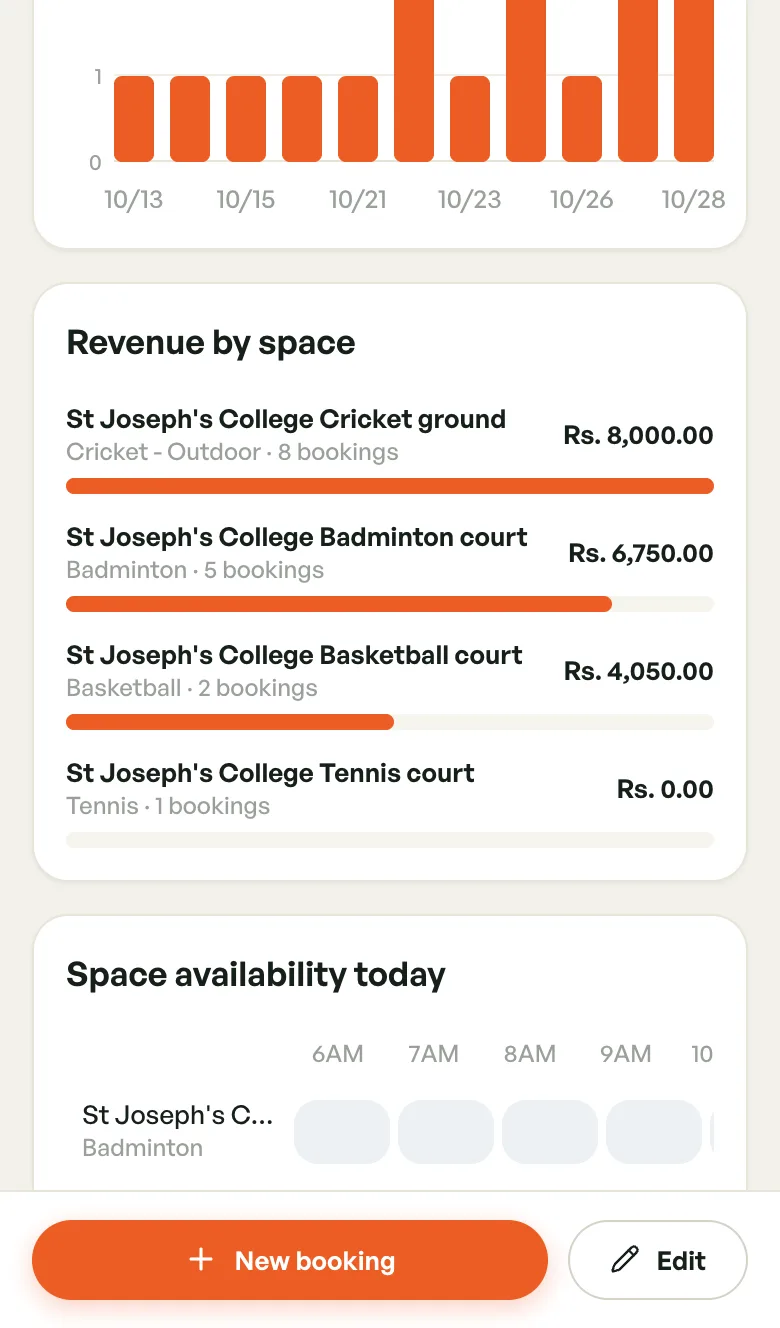
From top to bottom:
- Booking stats — Total Bookings, Completed, Cancelled, Upcoming, Total Revenue and Avg. per Booking
- Occupancy Rate — today's utilization, a Daily Trend chart, and a Court Breakdown for each space
- Peak Hours Analysis — bookings by hour of day. Filter by day, Weekday or Weekend. A tip suggests when premium pricing could pay off.
- Booking trend — bookings per day
- Revenue by space — what each space earned, and from how many bookings
- Space availability today — an hour-by-hour grid for each space: Available, Booked, Past or Closed
- Reviews — your average rating and player reviews. Sort by Latest, Highest or Lowest, and reply to a review.
- Activity Log — recent changes made at the venue, and who made them
Booking trend and Revenue by space only appear once there are bookings in the chosen period.
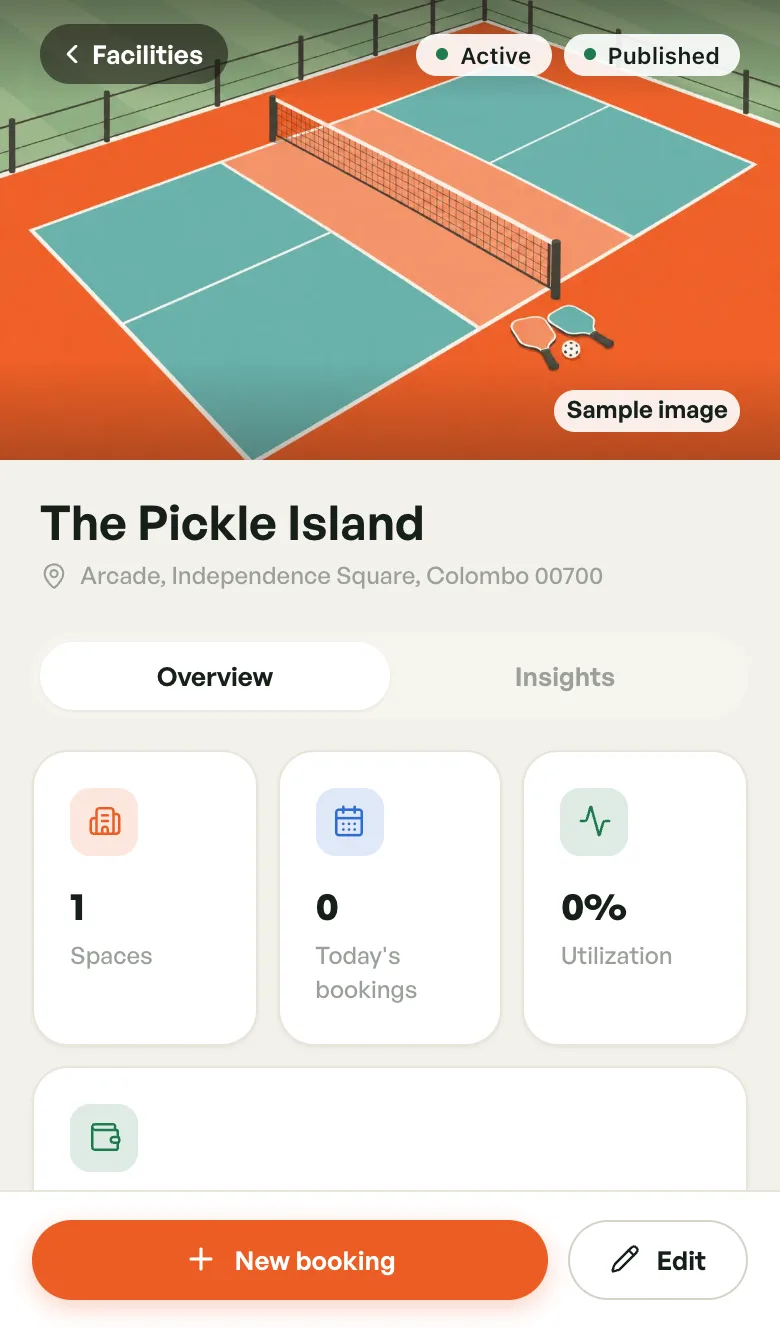
A venue without photos
Until you upload photos, the banner shows an illustration of the venue's first sport, marked Sample image. Players see the same picture. Add your own photos from Edit → Photos.