Coaches at Your Venue
Decide which coaches can teach at each of your facilities, and answer coaches who ask to join.
When a player books a court, they can add a coach to the same session. Only coaches your facility allows show up in that step. Coaches you approve also list your venue on their coach page.
Opening the Coaches screen
- Tap Facilities in the bottom bar.
- Open the facility.
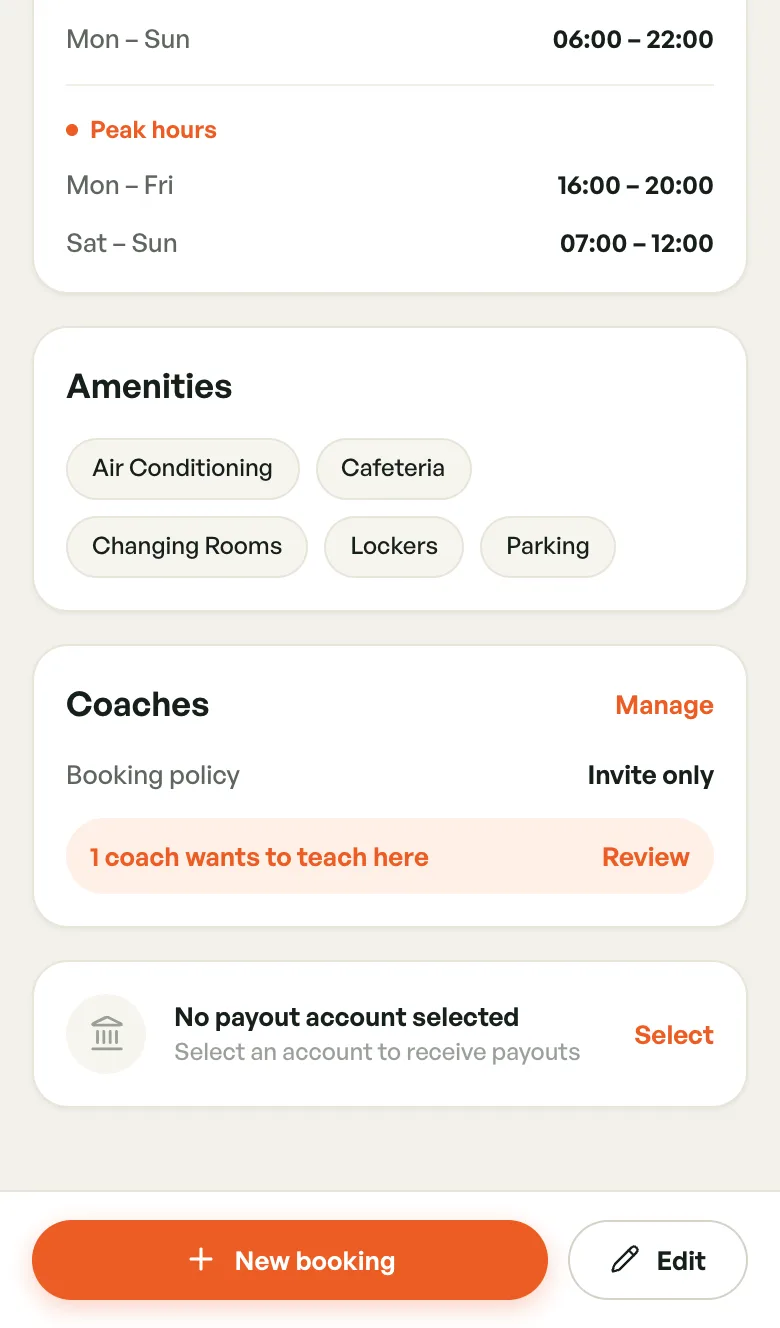
- Scroll to the Coaches card and tap Manage.
The card shows the current Booking policy. When coaches are waiting, it also says how many, for example 1 coach wants to teach here, with a Review button.
A red number on Facilities in the bottom bar (or the desktop sidebar) counts the coach requests waiting across all your facilities.
Who can teach here
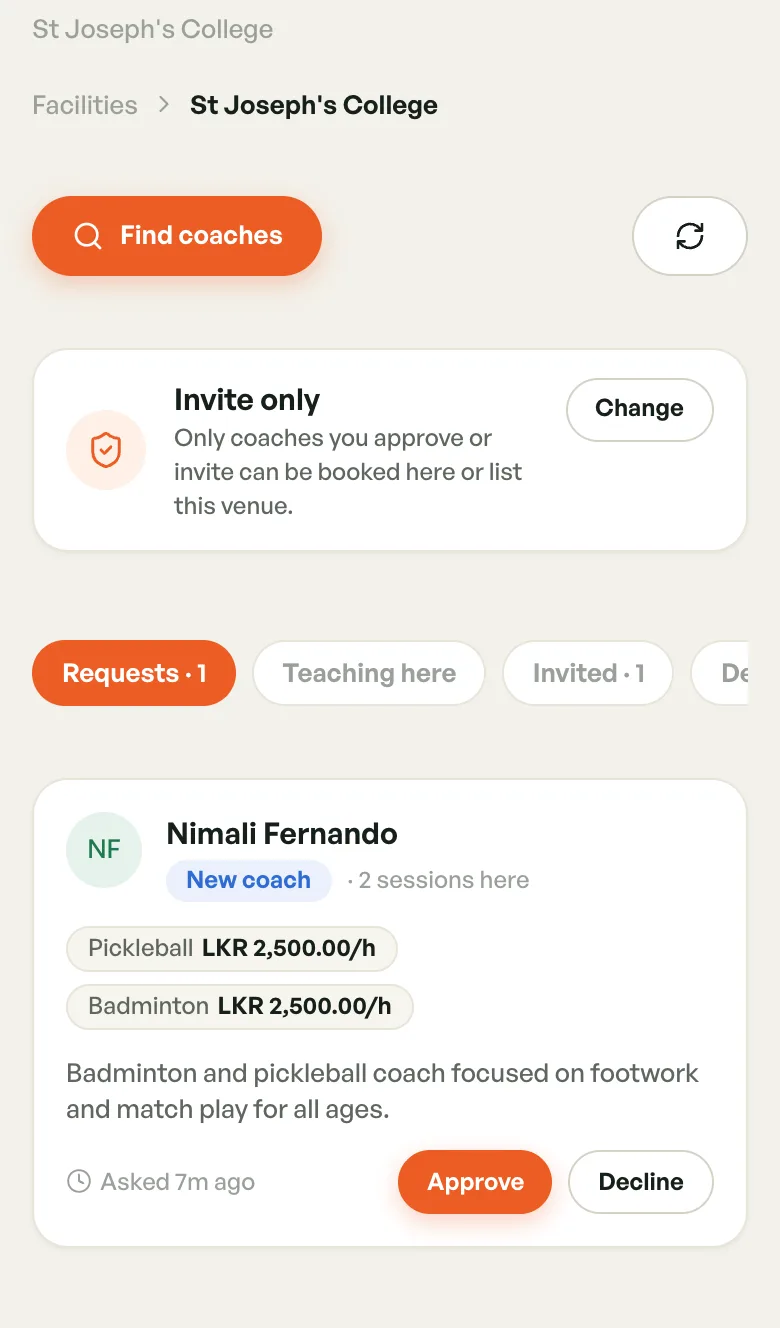
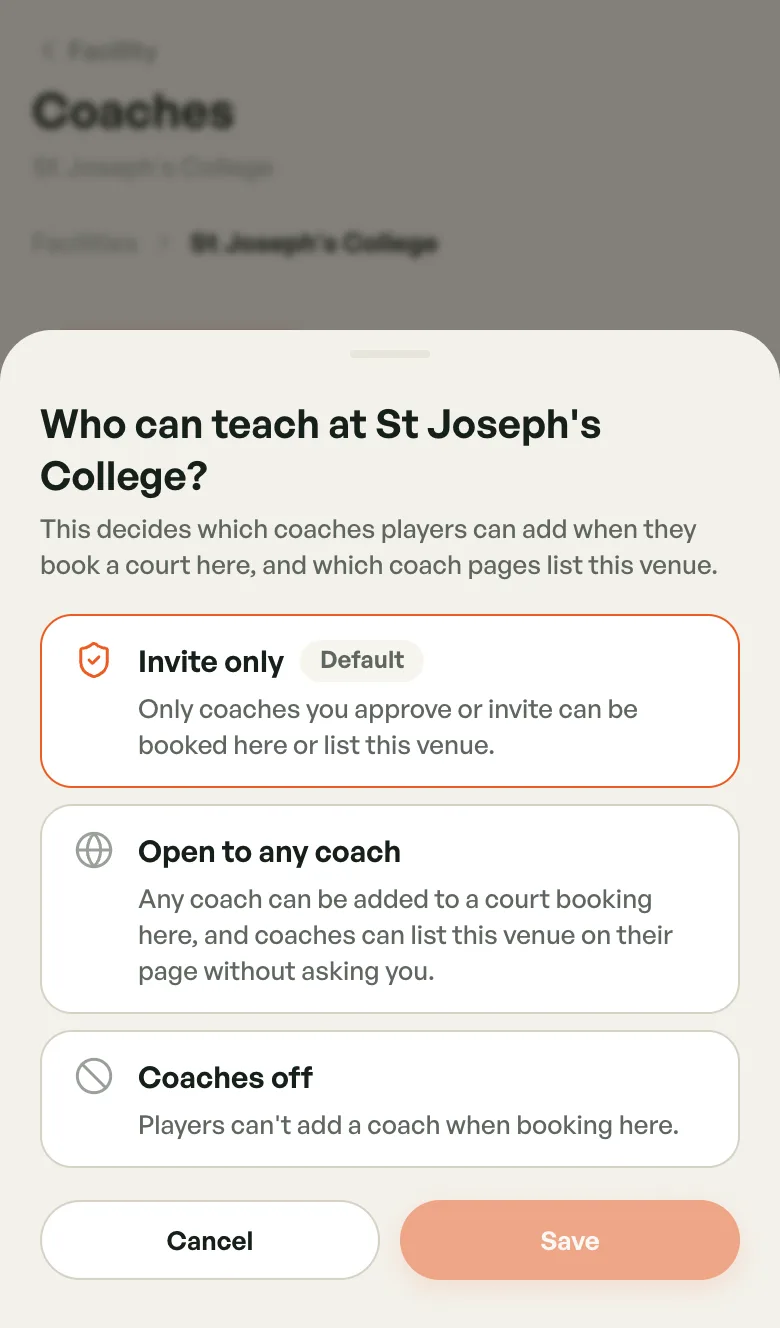
The card at the top of the Coaches screen shows your setting. Tap Change to pick another one:
- Invite only (the default) — only coaches you approve or invite can be booked here or list this venue.
- Open to any coach — any coach who teaches one of your sports can be added to a court booking here, and can add your venue to their page without asking you.
- Coaches off — players can't add a coach when booking here.
Pick an option, tap Save, then tap Switch to confirm. The confirmation spells out what changes.
Switching never removes anyone:
- Turning Coaches off keeps your coaches linked. They come back when you turn coaches on again.
- Switching to Open to any coach leaves pending requests for you to answer.
- Coached bookings already made stay booked in every case.
The four tabs
Coaches are grouped by where they stand with your venue. A number shows how many are in each tab.
- Requests — coaches who asked to teach here. Each card says Asked … ago and may include a Note from the coach.
- Teaching here — coaches players can add when they book here.
- Invited — invites you sent that the coach hasn't answered yet.
- Declined — requests you declined, and invites the coach declined.
The screen opens on Requests when someone is waiting, otherwise on Teaching here. Tap the refresh button next to Find coaches to reload the list. In the phone app you can also pull down.
Approving or declining a request
- Open the Requests tab.
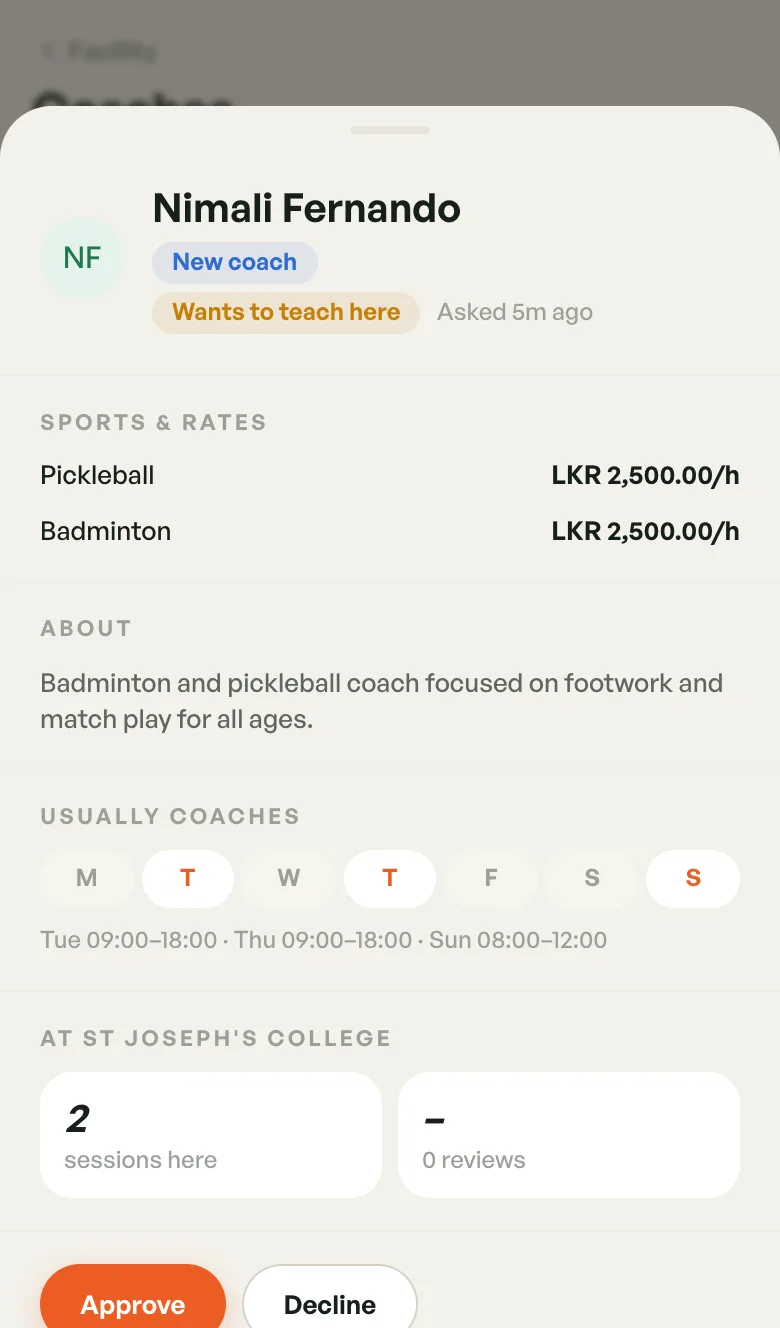
- Tap a coach's card to see their full profile: Sports & rates, About, Session photos, the days they Usually coaches, and how many sessions they've run at your venue.
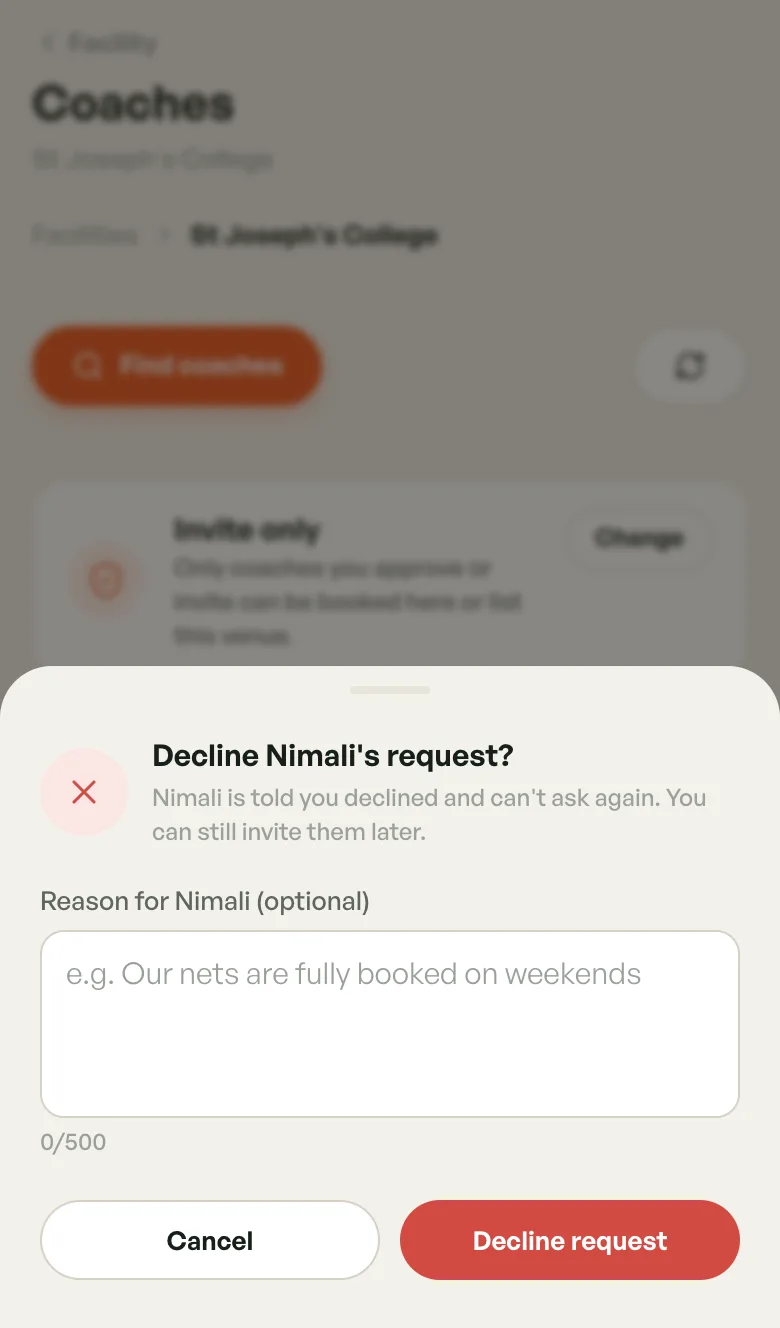
- Tap Approve or Decline, then confirm.
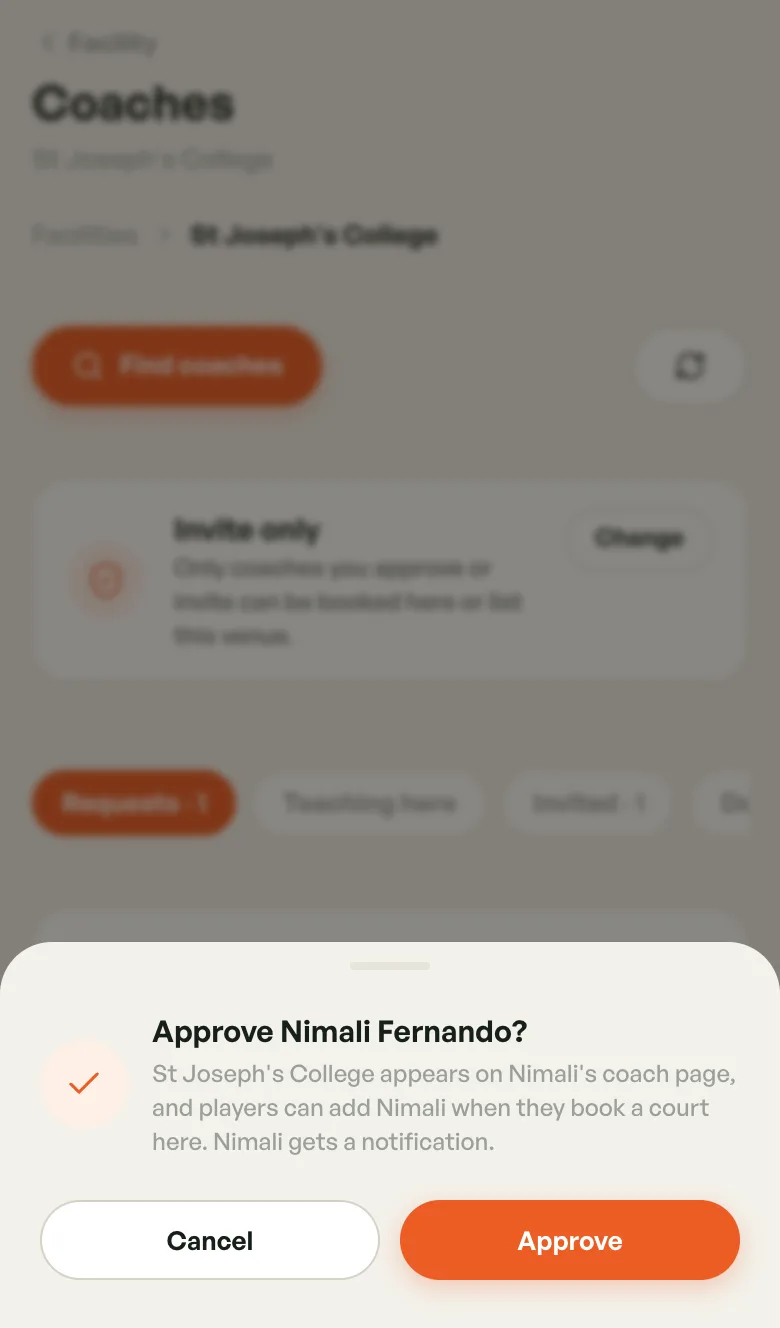
Approve puts your venue on the coach's page, and players can add them when they book a court here. The coach gets a notification.
Decline lets you add an optional reason (up to 500 characters). The coach is told, and can't ask again. You can still invite them later.
A request nobody answers lapses after 30 days. The coach is told and can ask again.
Inviting a coach
- On the Coaches screen, tap Find coaches.
- Search by name, or tap a sport chip to narrow the list.
- Tap a card to see the coach's profile, or tap Invite and confirm with Send invite.
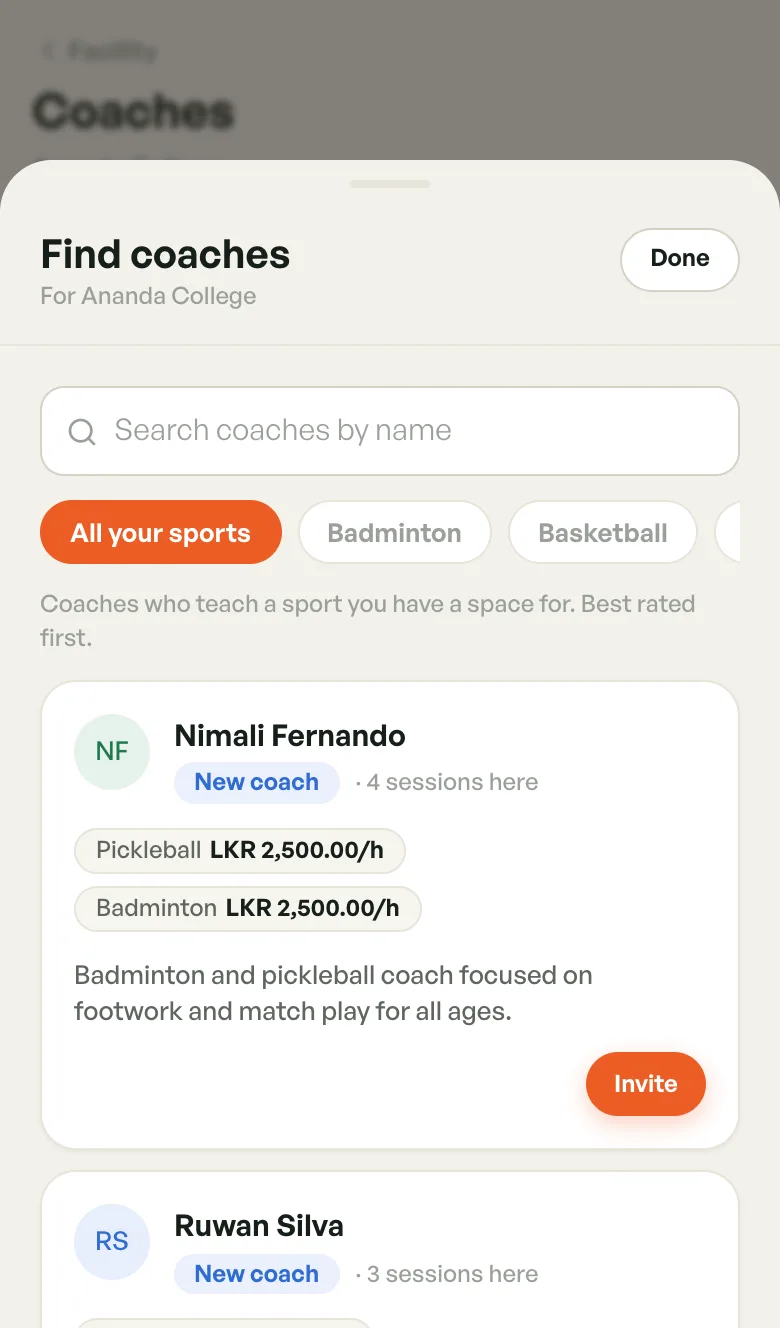
The list only shows coaches who teach a sport you have a space for, best rated first. Coaches already teaching here, or who have asked to, aren't in it. A coach you already invited shows Waiting for them to accept.
The invite moves to the Invited tab. Once the coach accepts, they move to Teaching here and your venue shows on their page.
Other actions
The buttons on each card depend on the tab:
- Teaching here — Remove from venue. Your venue comes off the coach's page and players can't add them to new bookings here. Sessions they already ran stay in your history, and coached bookings already made stay booked.
- Invited — Cancel invite. The coach can still ask to teach here.
- Declined (you declined) — Invite anyway, or Let them ask again, which clears your decline without telling the coach.
- Declined (they declined your invite) — Invite again.
Every action asks you to confirm first.
Why a sport is missing from Find coaches
Coaches can only be added to a space that has an hourly rate for the whole space, because a coached session is priced from it. Spaces that only have day bookings or per-net prices can't take coaches.
If some of your sports are left out for this reason, Find coaches says so, for example: Not listed: Cricket - Outdoor. The space's own screen shows a similar warning. To fix it, add an hourly whole-space option to the space (see Managing Courts).
Coaches booking your courts
Coaches can also book one of your courts themselves for a session they run. Those bookings arrive in your Bookings like any other. For the coach's side, see Venues in the Coach Guide.