Comparing Facilities
See how your venues are doing side by side.
You need two venues
If your account has only one facility, the screen says Need at least two facilities.
Opening it
- Tap Facilities in the bottom bar.
- Tap Compare facilities, the third button above the search box.
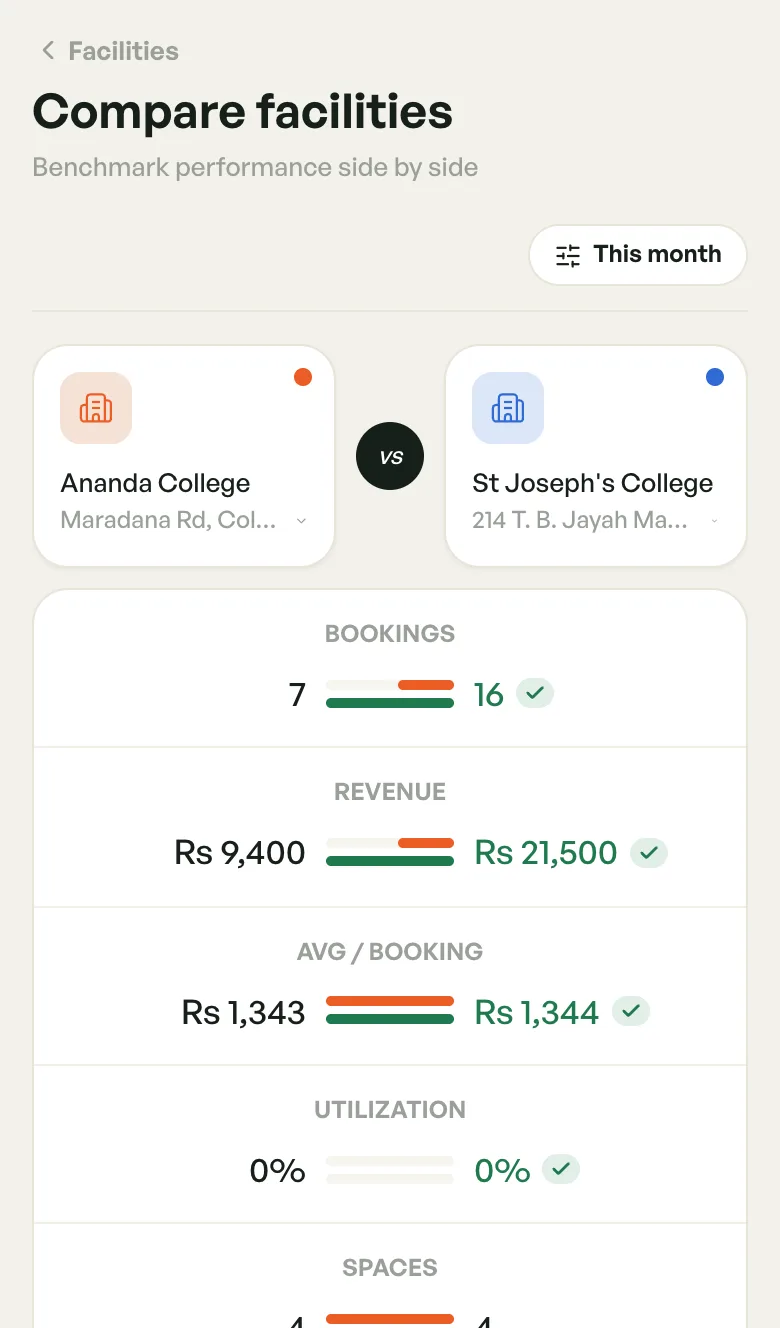
The screen opens on your first two venues (in A–Z order) for This month.
On a phone: A vs B
Your phone shows two venues head to head. For each measure, the better figure is green with a tick.
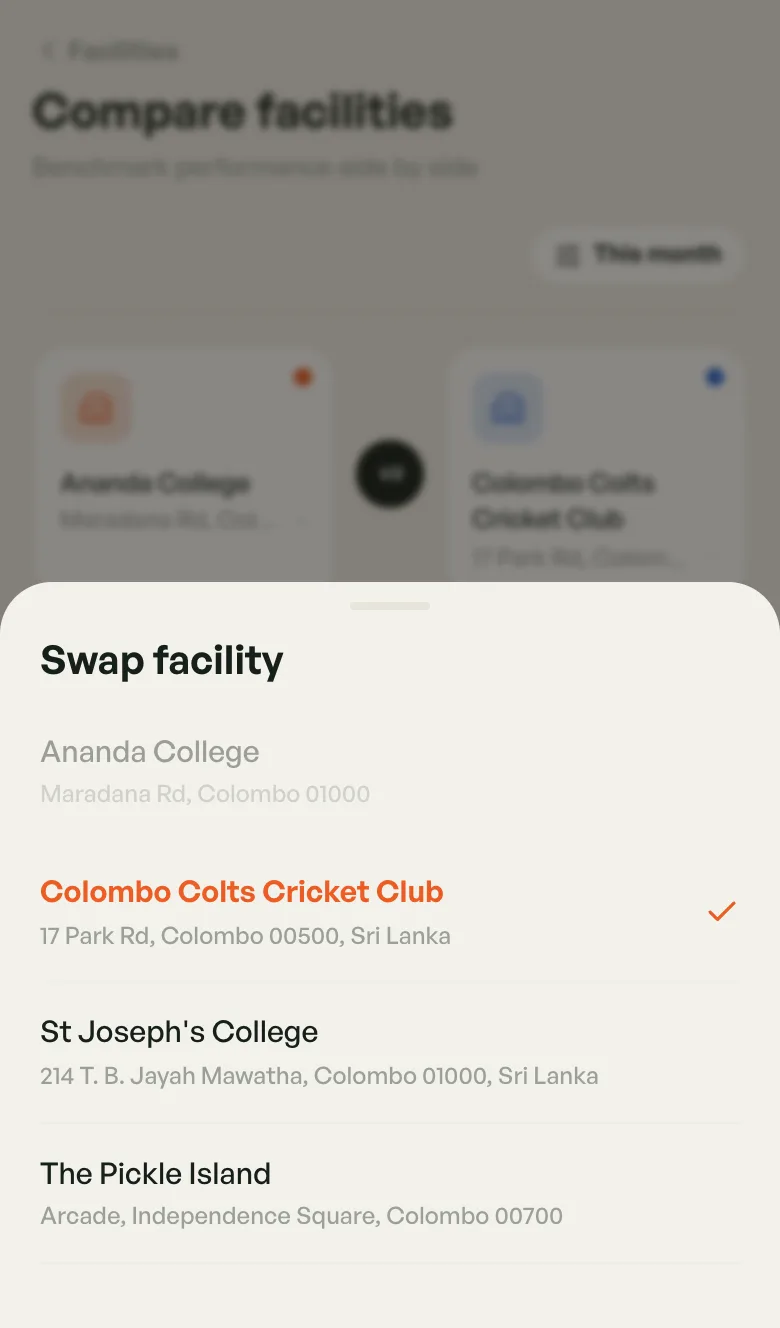
- Change a venue — tap its card at the top, then pick another venue in Swap facility.
- Change the period — tap the date button (This month), then pick Today, This week, This month or Past 90 days.
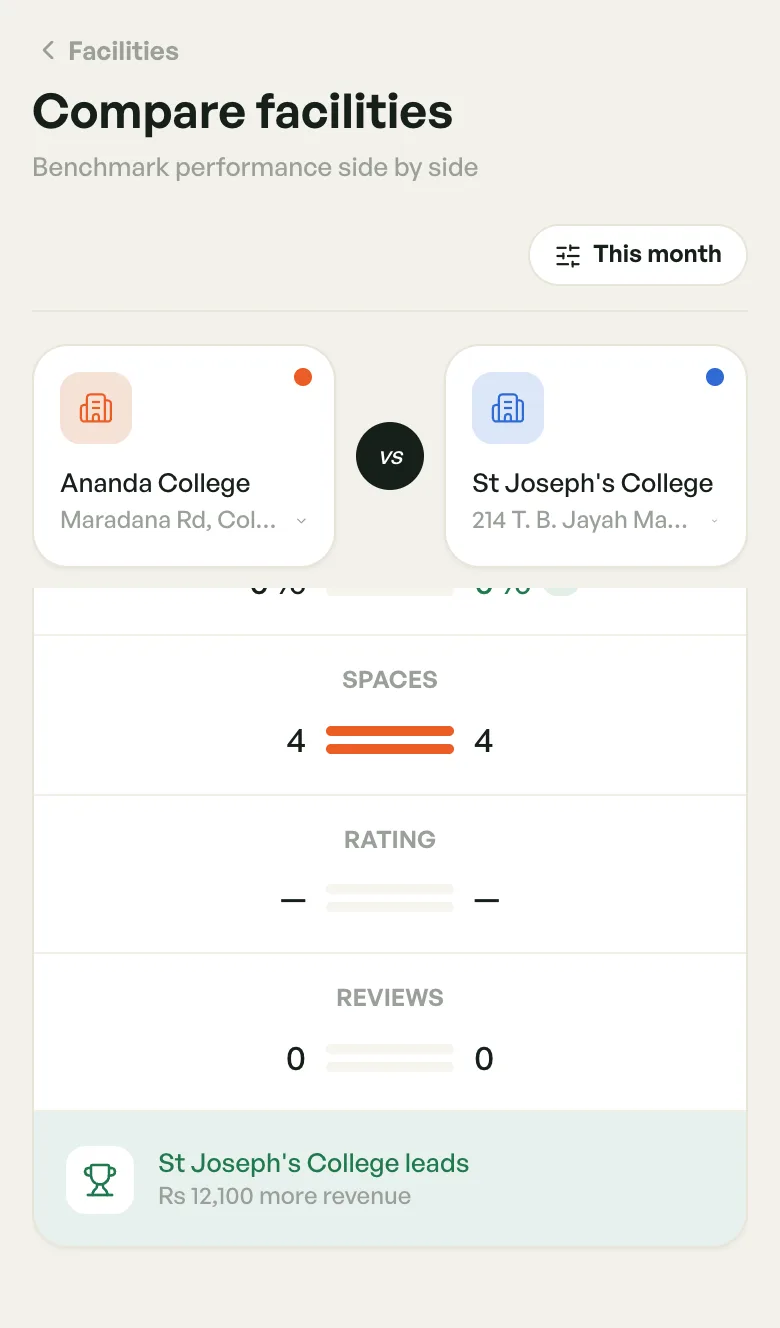
The two venue cards stay at the top while you scroll. At the bottom, a summary names the venue with the higher revenue (… leads) and shows how much more it took.
On a computer: up to three
On a computer each venue gets its own column, and you can compare up to three.
- Click Add facility to add a third venue.
- Click the × on a venue's chip to remove it (you always keep at least two).
What gets compared
- Bookings — bookings in the period
- Revenue — what the venue took in the period
- Avg / booking — revenue divided by bookings
- Utilization — how much of the bookable time was booked
- Spaces — how many courts, nets or pitches it has
- Rating — average player rating (a dash means no reviews yet)
- Reviews — how many reviews it has
Utilization is the fairest measure between venues of different sizes. A small venue with fewer bookings but higher utilization is working harder, not underperforming.