Managing Courts
Courts are what players book, so a venue can't take bookings until it has at least one with a price.
The app calls them spaces when a venue has several sports. Once a sport is picked, the app uses that sport's own word: a court for badminton, a ground for outdoor cricket, and so on.
Your Courts List
- Tap Facilities in the bottom bar
- Open a venue
- Scroll to Spaces
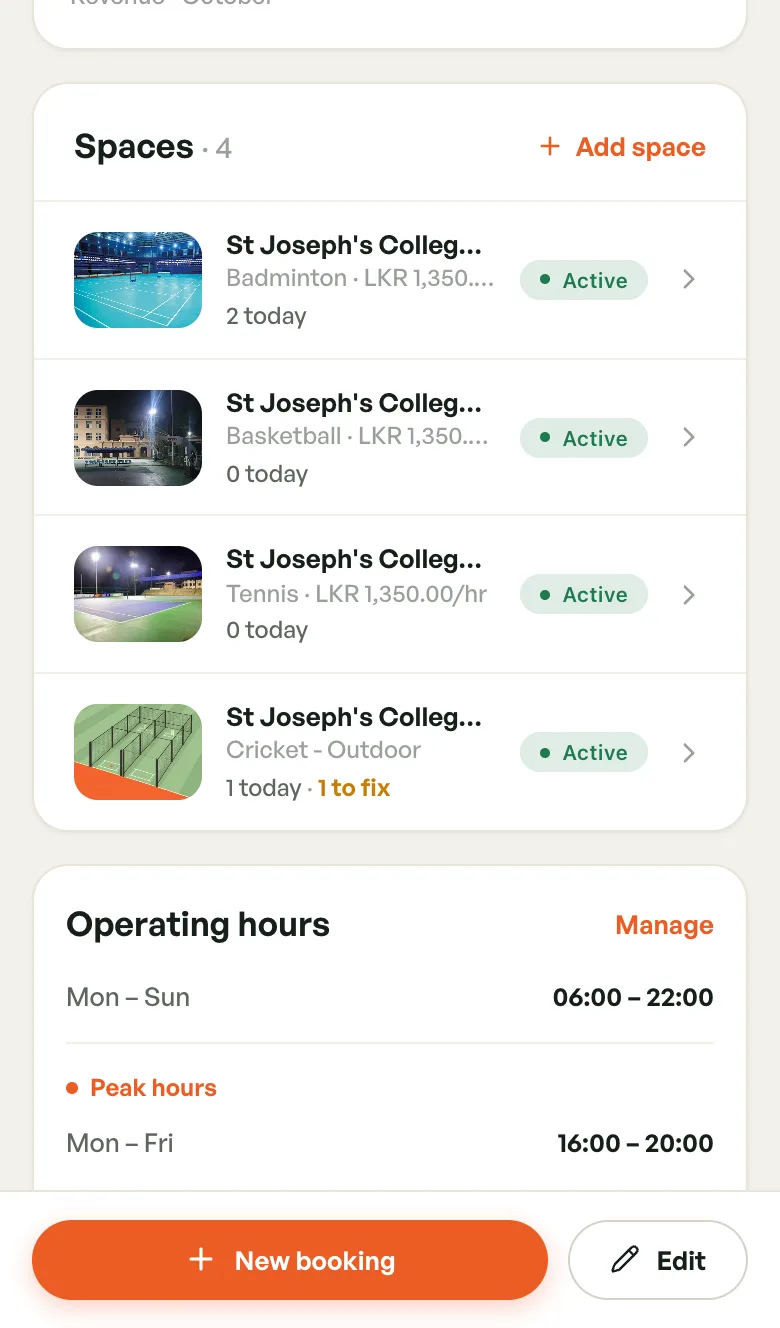
Each row shows the photo, name, sport, the hourly price (when the court has one), how many bookings it has today, and an Active or Inactive badge. An orange 1 to fix means the court has no photos yet.
The Court Page
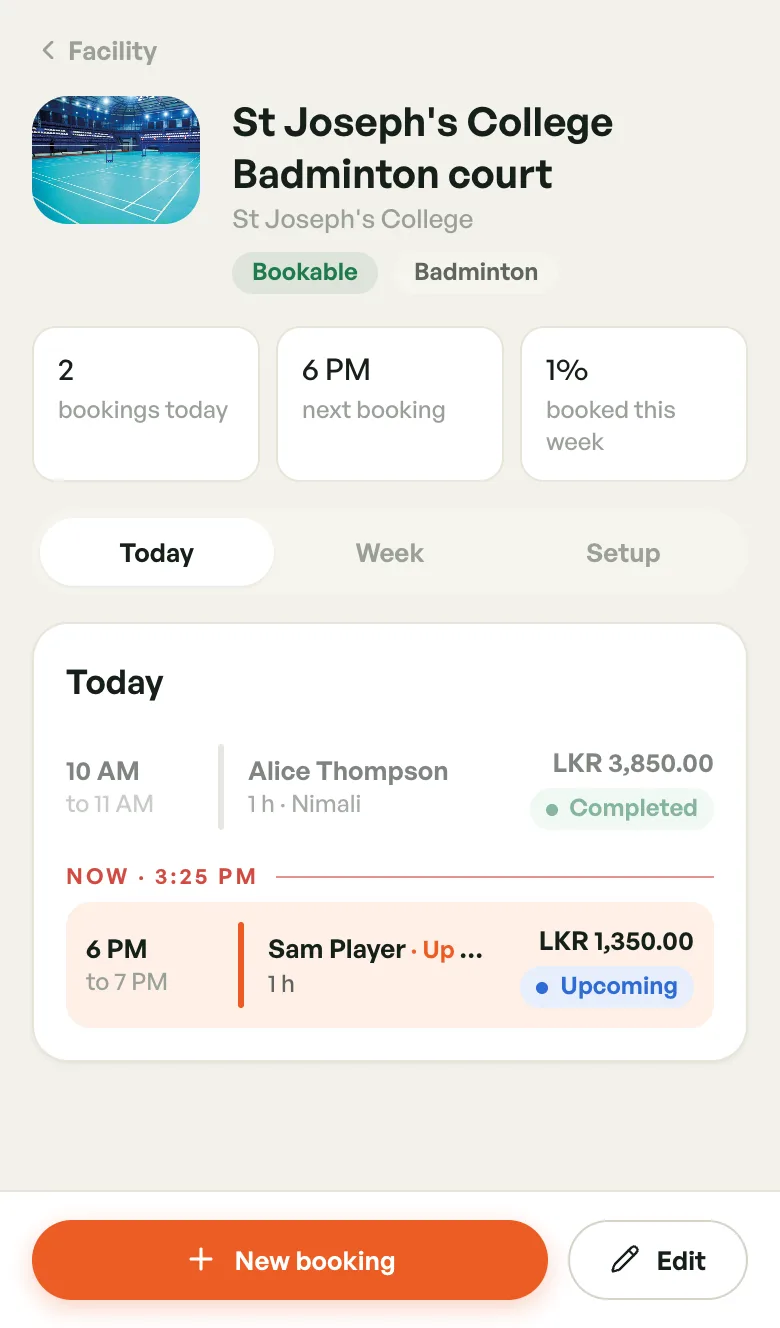
Tap a court to open its page. At the top you'll see its name, venue, a Bookable or Paused badge and the sport.
Three numbers sit under the name:
- bookings today
- next booking — the start time of the next one today
- booked this week — the share of this week's bookable hours that are taken
On desktop you also get still free today, in hours.
If something needs attention, a banner says so, with a button to fix it:
- No price set. — players can't book the court yet. Tap Set price.
- Bookings paused. — the court is switched off. Tap Edit status.
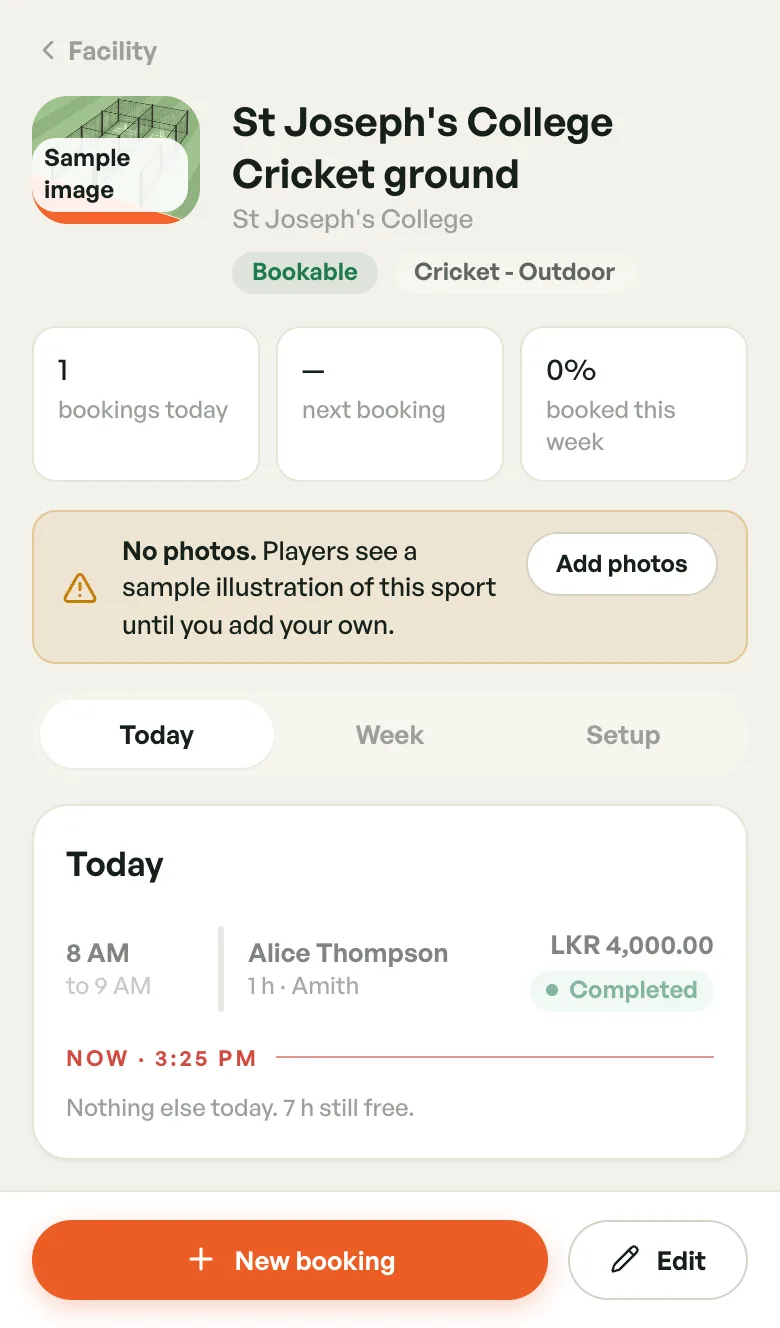
- No photos. — players see a sample sport illustration. Tap Add photos.
On a phone, the rest of the page is split into three tabs:
- Today — today's bookings in time order, with a red Now line and the next one marked Up next. Tap a booking to open it.
- Week — the court's week, hour by hour. See Court Availability.
- Setup — prices, photos and details.
On desktop, Today and Week sit side by side with the Setup cards in a column on the right.
Use New booking at the bottom to book this court, and Edit to change it. On desktop these are New booking and Edit court at the top. Staff accounts see the page but not the edit buttons.
Checking Prices
Open the Setup tab. What players can book lists each booking option for the court's sport, marked On or Off, with your prices.
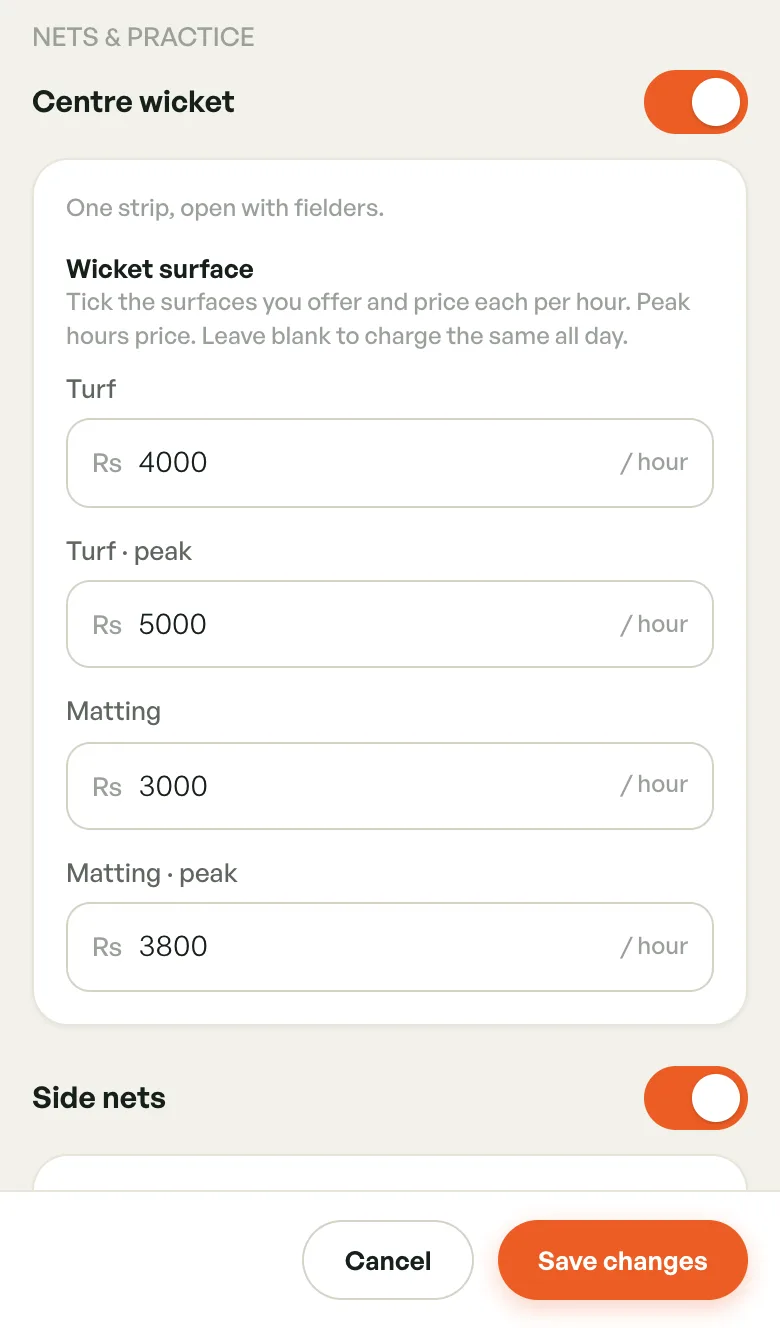
A peak price shows after the normal one, for example LKR 4,000.00 / hour · peak LKR 5,000.00.
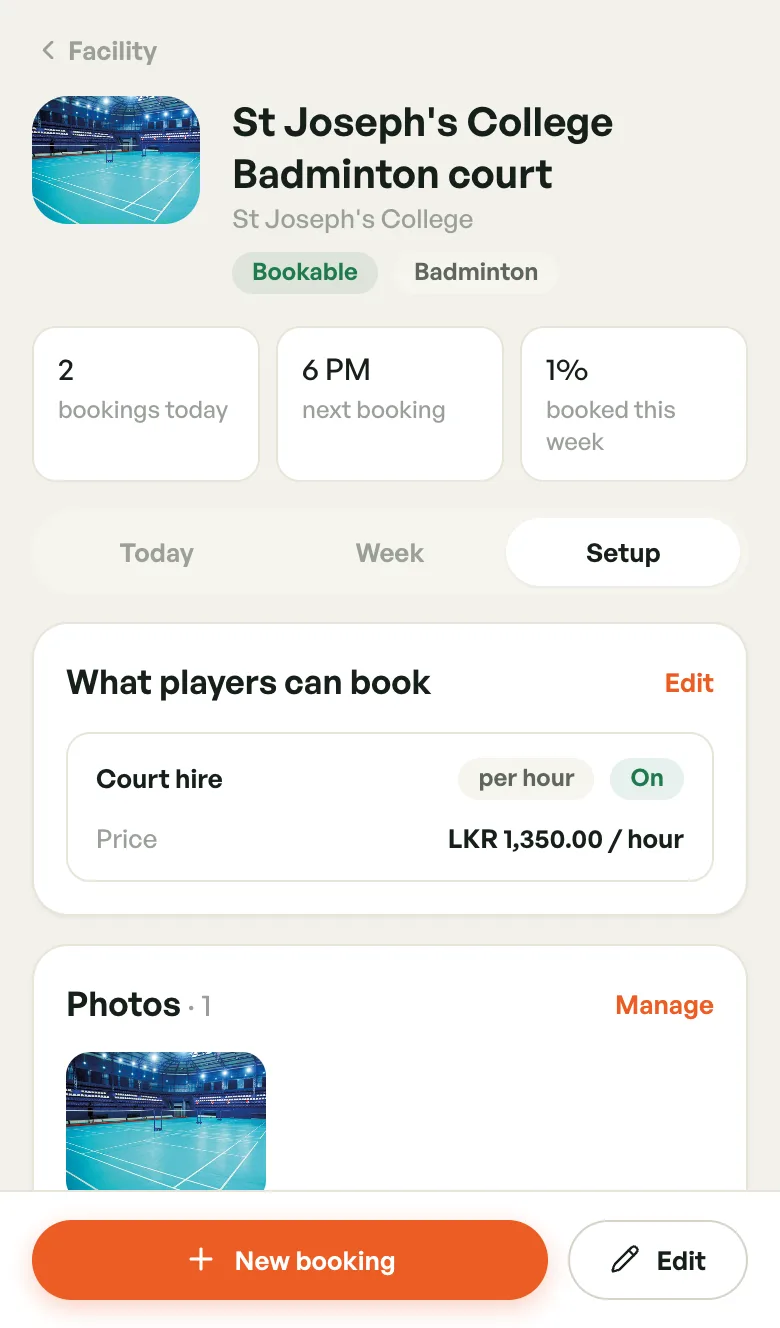
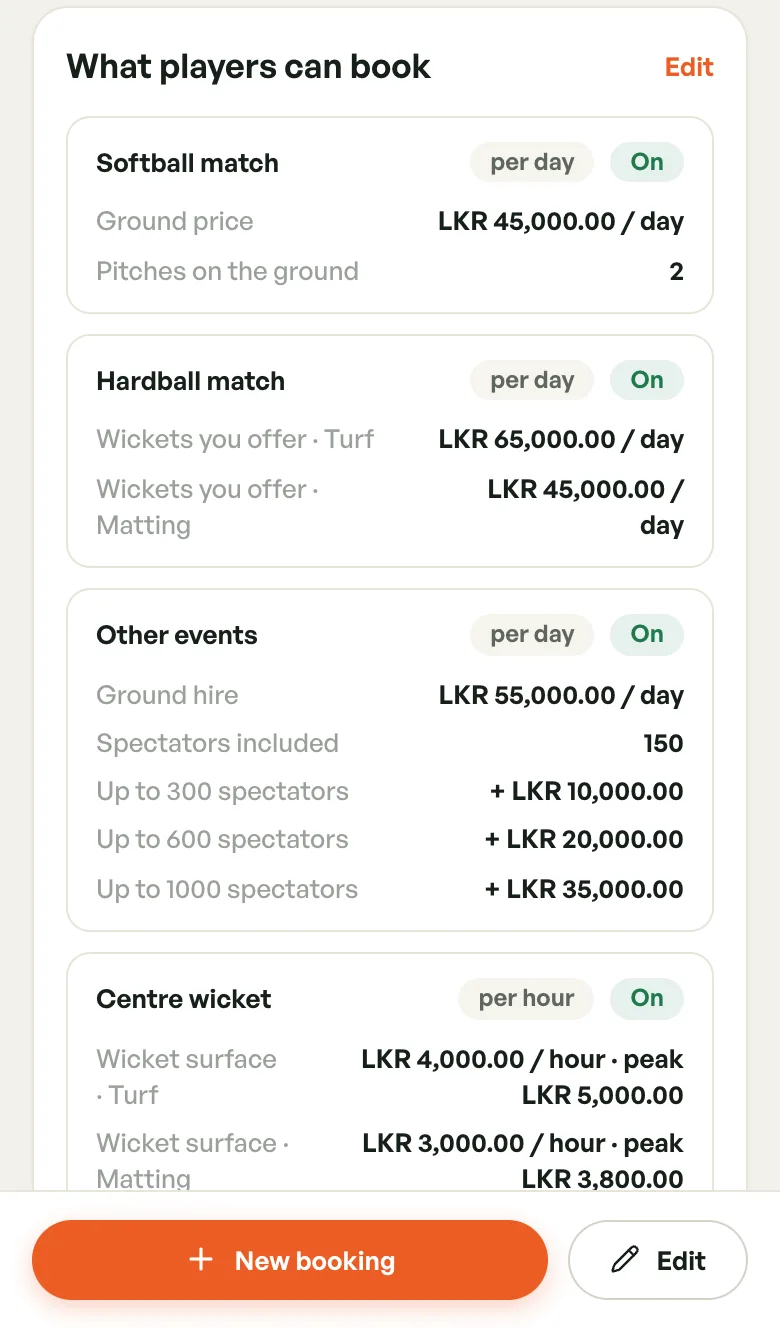
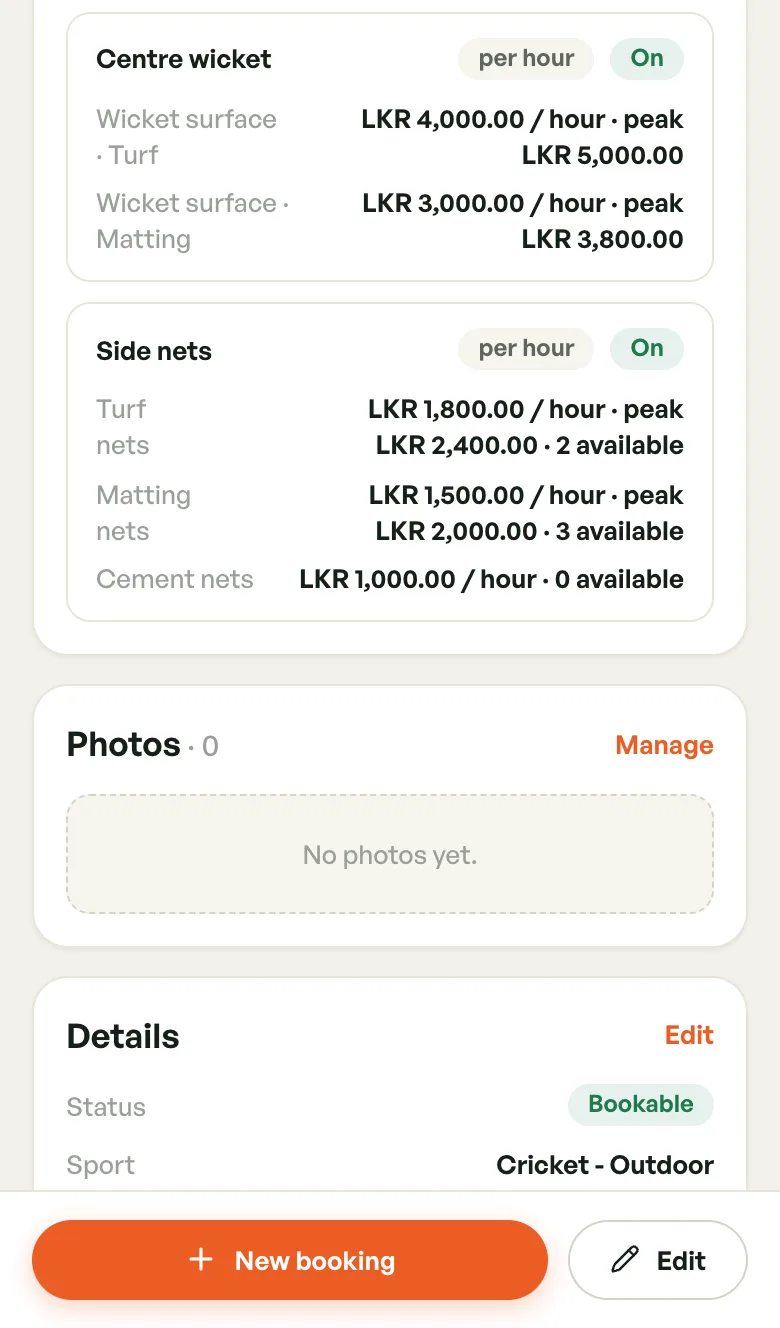
Below the prices you'll find Photos (tap Manage to change them) and Details: status, sport and Hours this week.
Adding A Court
- Open the venue and tap Add space on the Spaces card
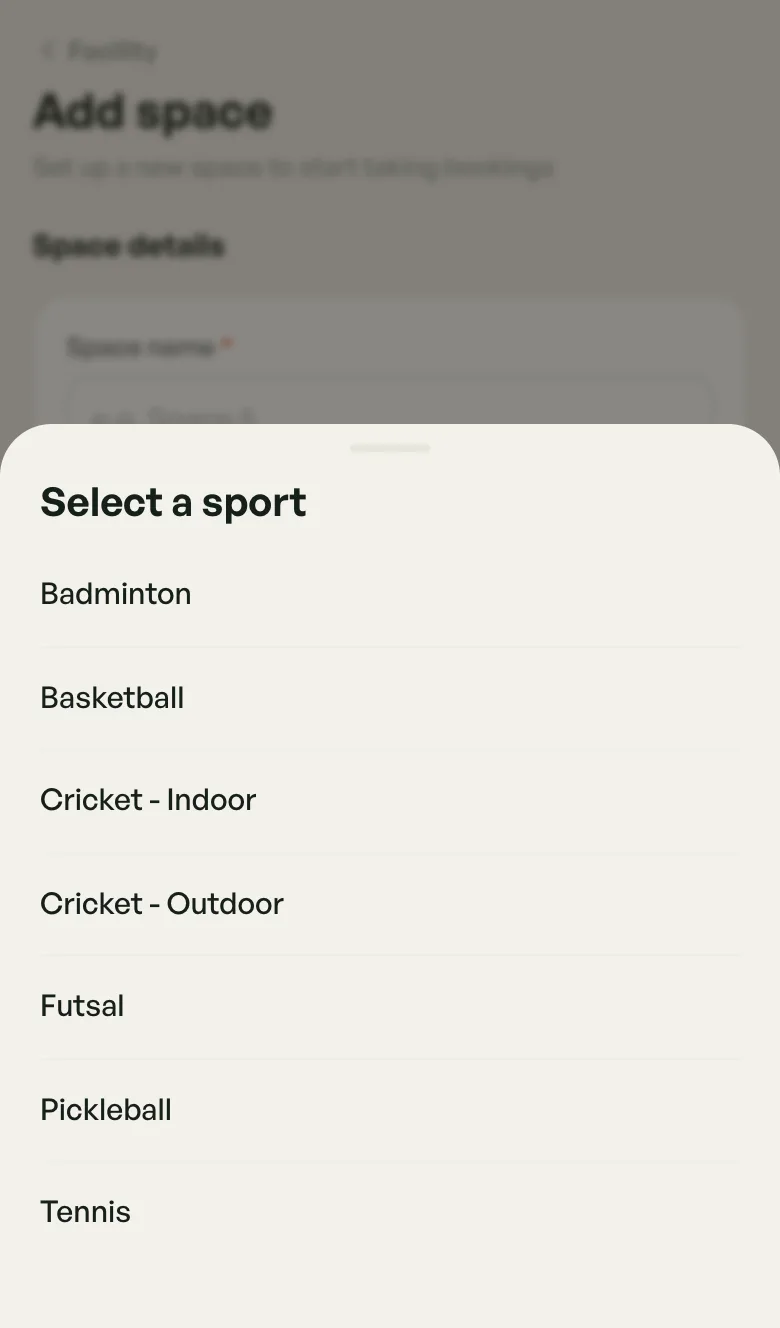
- Tap Sport and pick one from the list
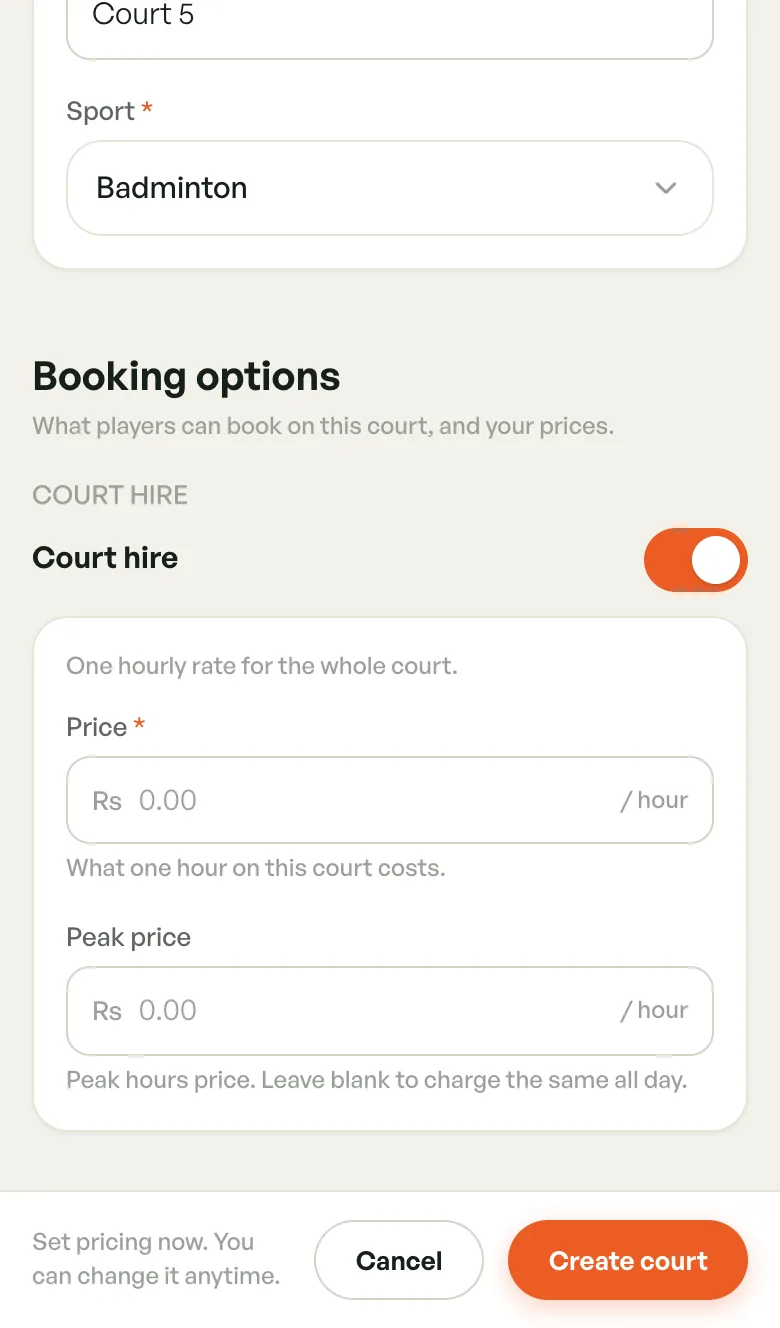
- Type a name, such as Court 5
- Under Booking options, switch on at least one option and fill in its prices
- Tap Create court (or Create ground, and so on)
The court is bookable as soon as it's created. If a required field is missing, the form scrolls to it and highlights it.
During first-time setup you can add a batch of courts with a shared name prefix. They're numbered for you: Court 1, Court 2, and so on.
Booking Options
What a player can book depends on the sport. BookMyCourt sets up each sport's options; you choose which ones to offer and set the prices.
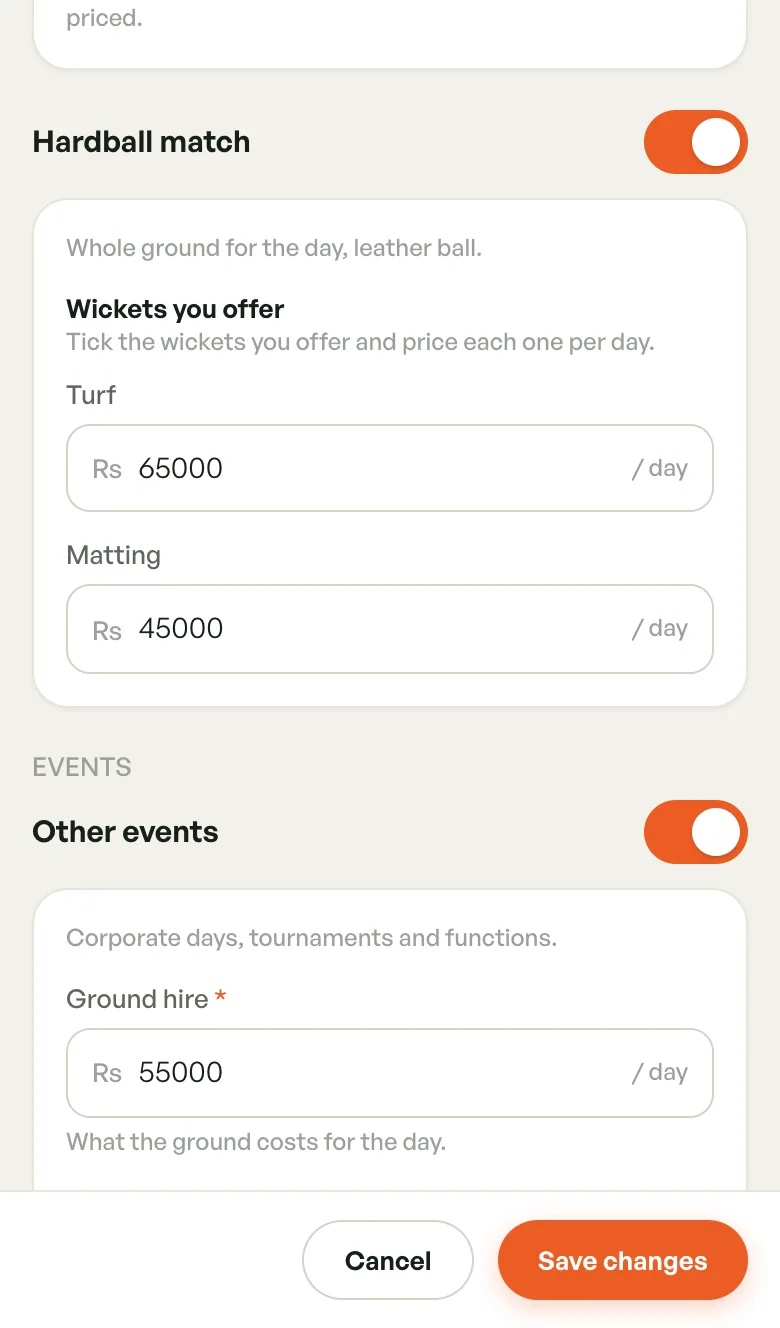
A badminton court has one option, Court hire, with a Price per hour. An outdoor cricket ground has match days, events, a centre wicket and side nets, each with its own fields.
Each option has a switch. When it's off, players can't book that option, but your prices are kept for when you turn it back on. At least one option must stay on.
The fields you may see:
- A price — per hour, day, slot or person, as shown after the box (for example Rs … / day)
- A price per choice — for example Turf and Matting wickets. Leave a choice blank to not offer it.
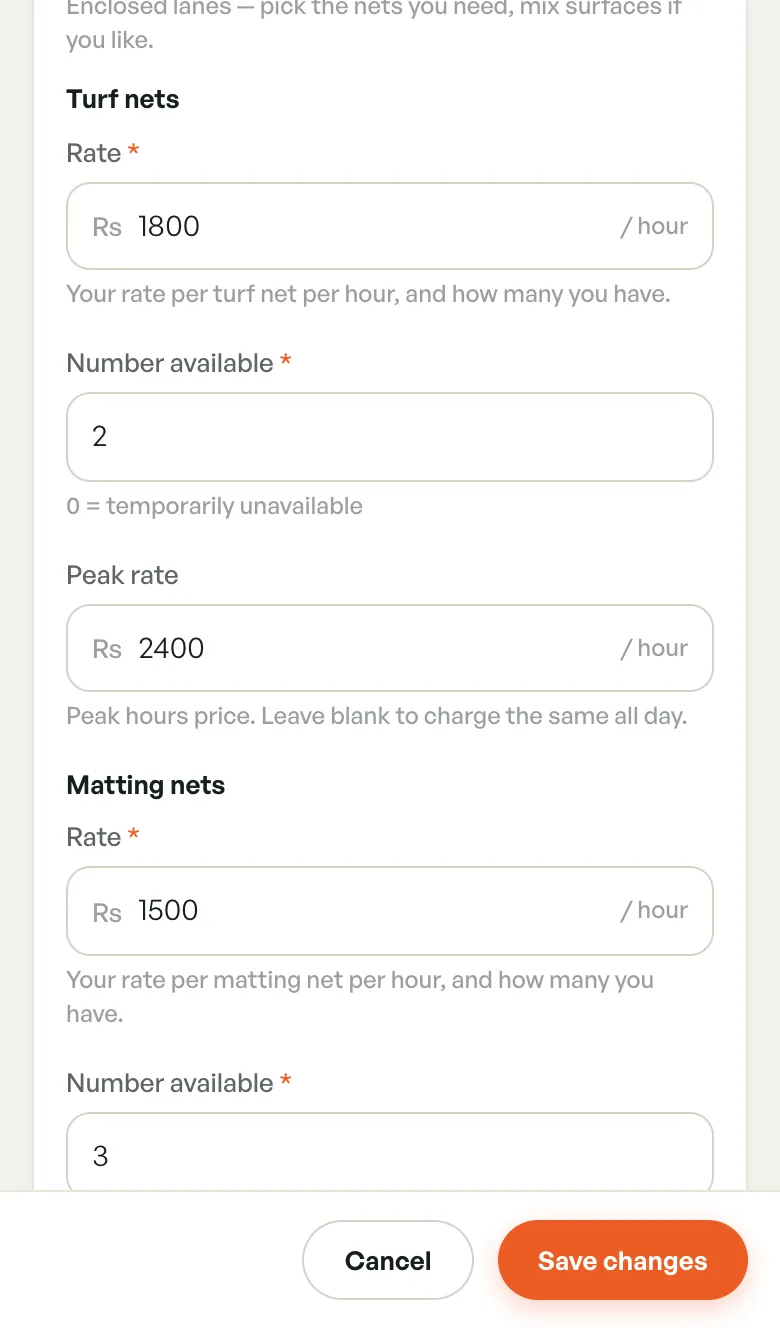
- Rate and Number available — for things you have several of, like nets. Set the number to 0 to make them temporarily unavailable.
- A count or note — information shown to players, such as Pitches on the ground. Never priced.
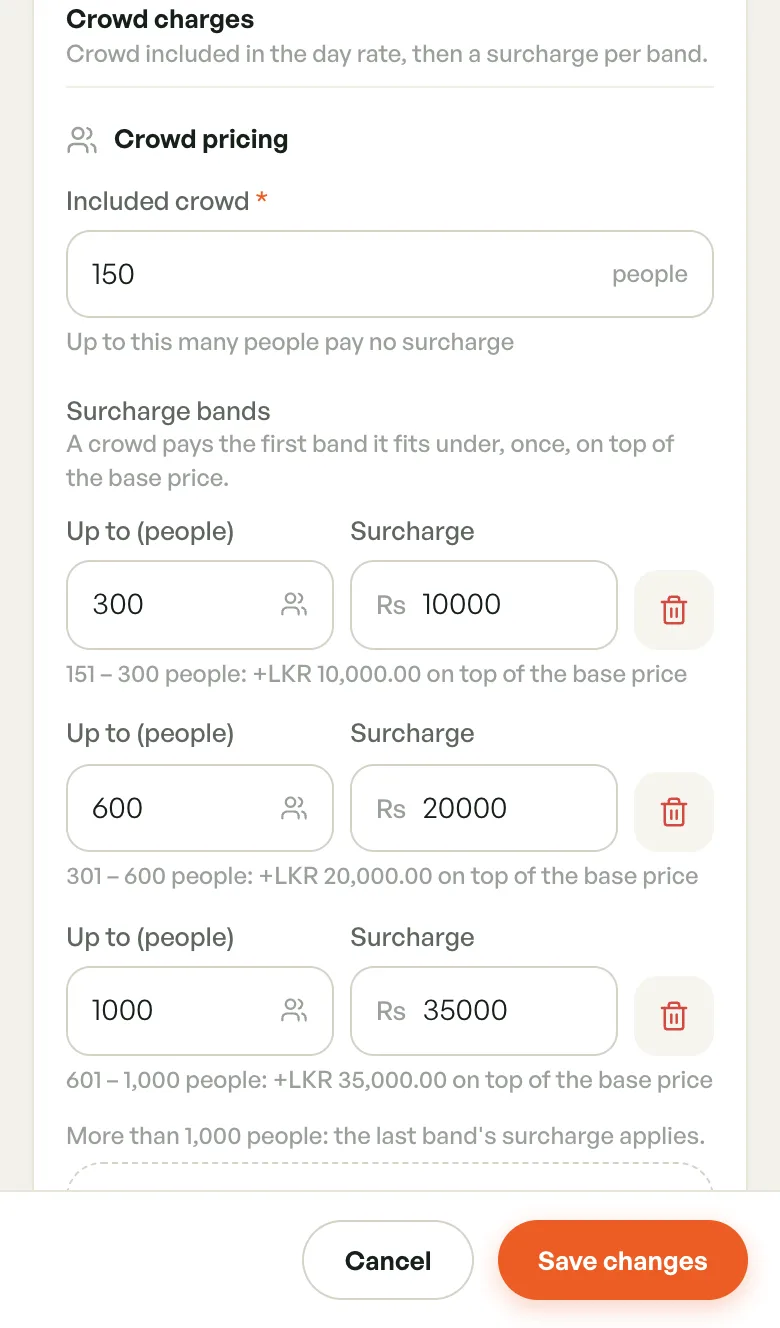
- Crowd pricing — an Included crowd, then Surcharge bands. A crowd pays the first band it fits under, once, on top of the base price. Tap Add surcharge band for more.
Peak Prices
Peak pricing lets you charge more at busy times. It has two parts:
- When — the venue's peak hours, set in Manage hours
- How much — a peak price on each court, in its booking options
A Peak price (or Peak rate) box appears next to hourly prices when peak pricing is available for that option. Leave it blank to charge the same all day. Every other open hour uses the normal price.
Editing A Court
- Open the court
- Tap Edit
- Change what you need
- Tap Save changes
You can change the name, booking options and prices, photos and status. The sport can't be changed after the court is created.
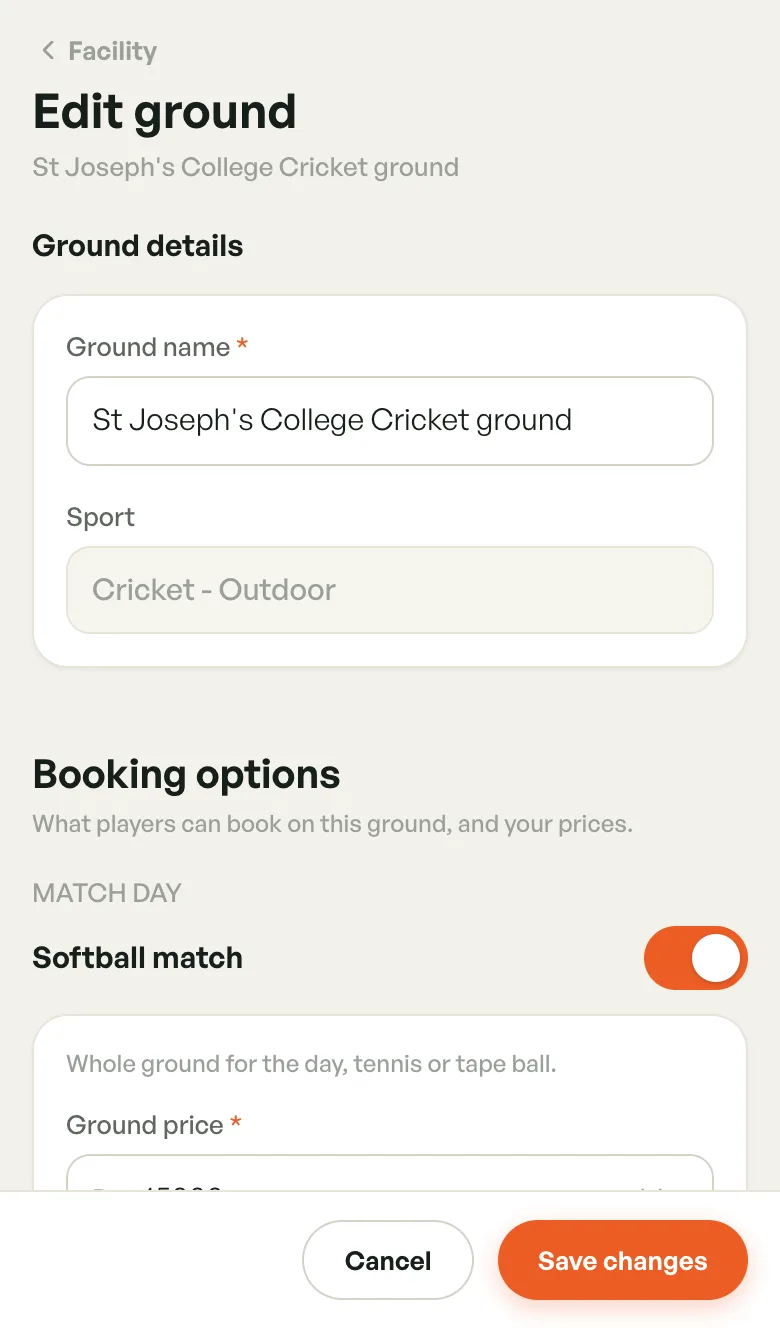
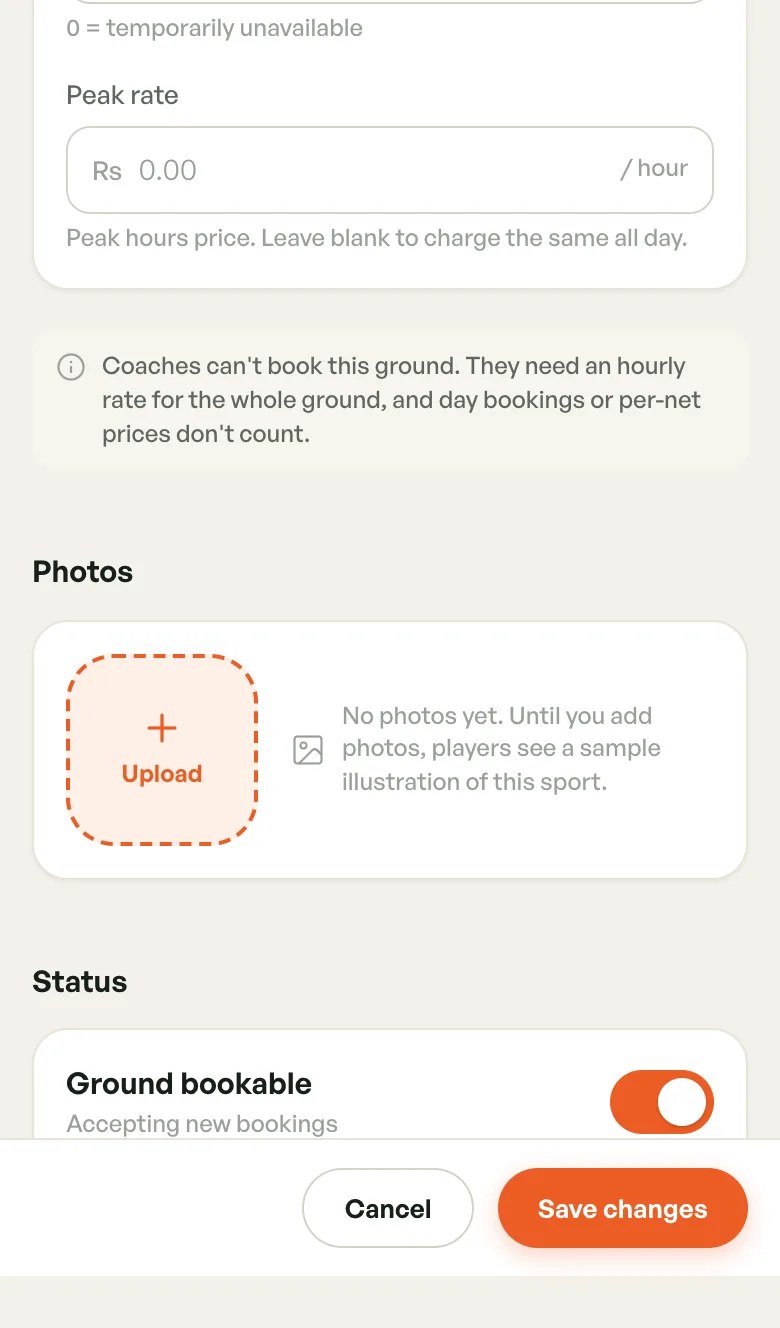
New prices apply to new bookings. Bookings already made keep the price they were taken at.
Coaches can only book a court that has an hourly rate for the whole court. Day bookings and per-net prices don't count, and the edit form tells you when coaches can't book a court.
Photos
Under Photos, tap Upload to add pictures. Tap a photo to see it larger, or the × on it to remove it. Changes are saved when you tap Save changes.
Until you add photos, players see a sample illustration of the sport, marked Sample image in the app.
Pausing A Court
At the bottom of the edit form, turn off the bookable switch (for example Court bookable) and tap Save changes.
- Active / Bookable — players can book it
- Inactive / Paused — players can't make new bookings on it
Bookings already made on a paused court still stand, so move or cancel them yourself. To stop bookings for a set time, such as a holiday, add a closure instead.