Court Availability
The Week view on a court page shows every hour of the week on that court: who has it, what's free and what's closed.
Opening It
- Tap Facilities in the bottom bar and open the venue
- Tap a court in the Spaces list
- Tap the Week tab
On desktop there are no tabs. The week sits under Today on the court page.
On A Phone — Day By Day
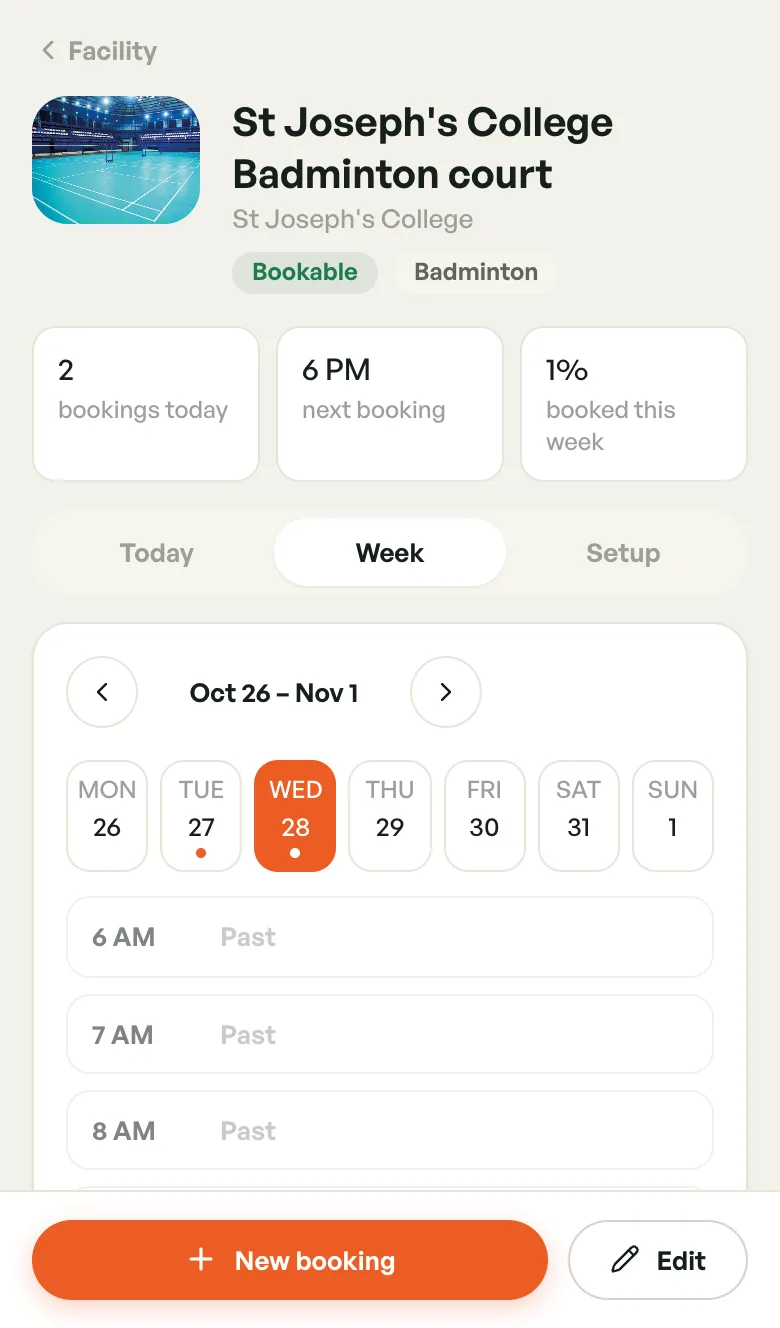
Pick a day from the strip at the top. A dot under a day means it has bookings.
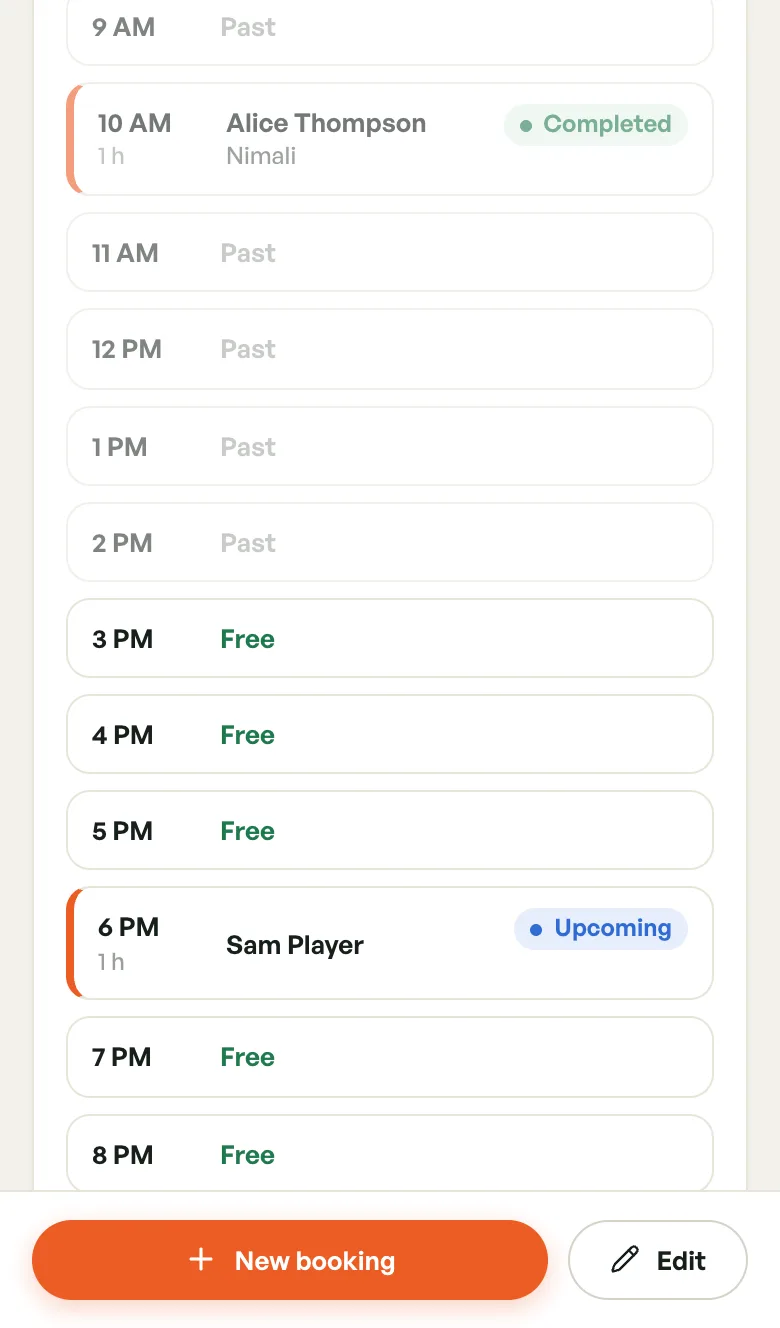
Below it, each open hour is listed:
- Free — open and not booked
- Booked — someone has it. The row shows the player's name, the length, any coach and the booking status.
- Closed — a closure covers it
- Past — already gone
Tap a booking to open its details without leaving the page.
On Desktop — The Week Grid
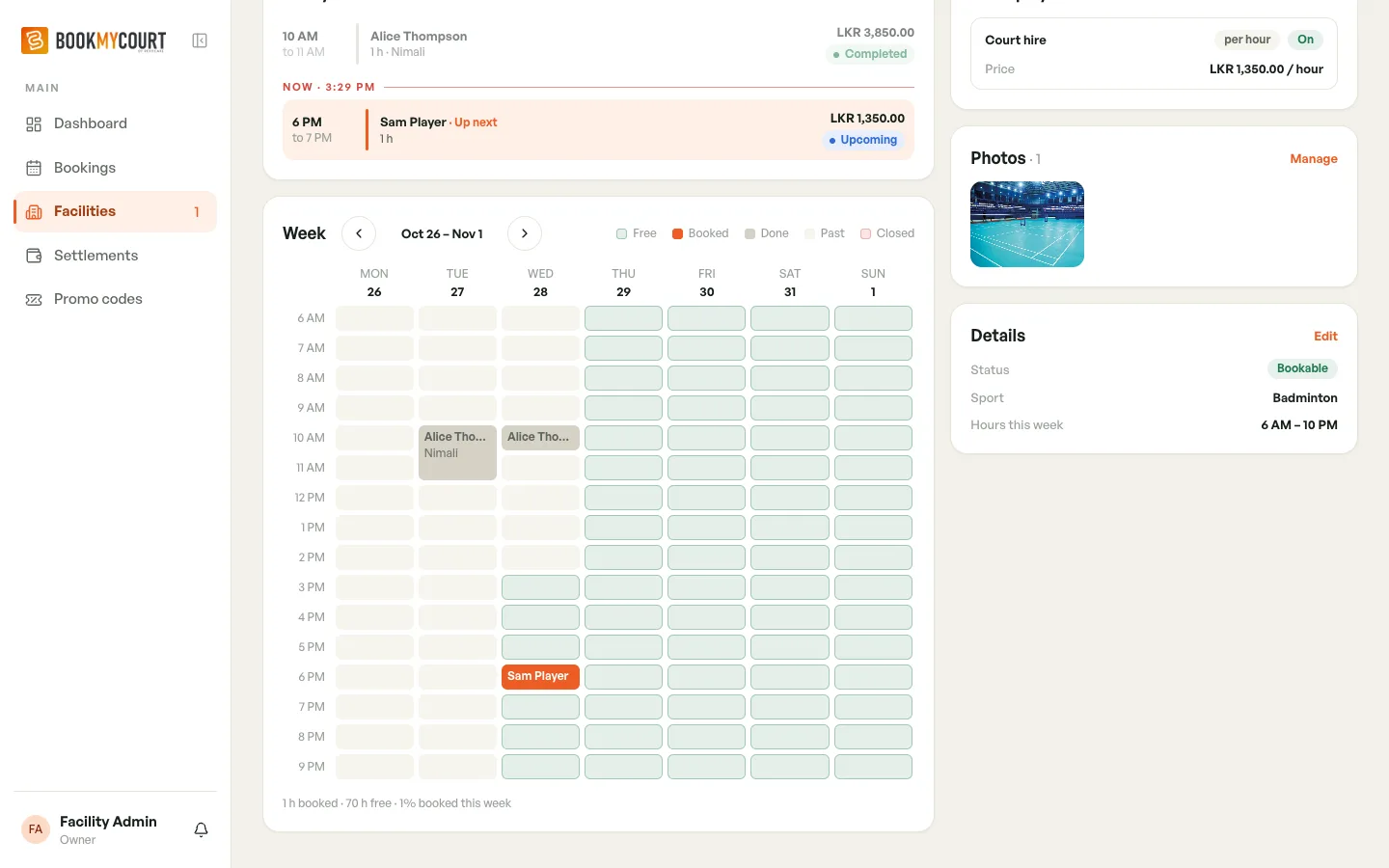
Days run across and hours run down. Bookings appear as blocks with the player's name, so you can see who is on the court all week.
The legend shows the colours: Free, Booked, Done (a booking that has finished), Past and Closed.
Moving Between Weeks
- Tap the arrows beside the dates to go back or forward a week
- Tap This week (shown once you've moved away) to come back to the current week
How Busy Is It?
Under the week you'll see a line like 1 h booked · 70 h free · 1% booked this week. It counts only hours that are still bookable, so past hours don't drag the number down.
The booked this week figure at the top of the court page always shows the current week, whichever week you're viewing.
If A Court Looks Empty
- Check its operating hours cover the times you expect to sell
- Check it isn't paused, and that it has a price (see Managing Courts)
- To book it yourself, tap New booking at the bottom of the court page