Creating a Booking
Add a walk-in or phone booking yourself, in four short steps.
Starting
- Tap Bookings in the bottom bar.
- Tap the orange + button at the top. On a computer, click New Booking.
The wizard shows STEP 1 OF 4 at the top. Tap ‹ to go back a step without losing anything, or × to throw the booking away.
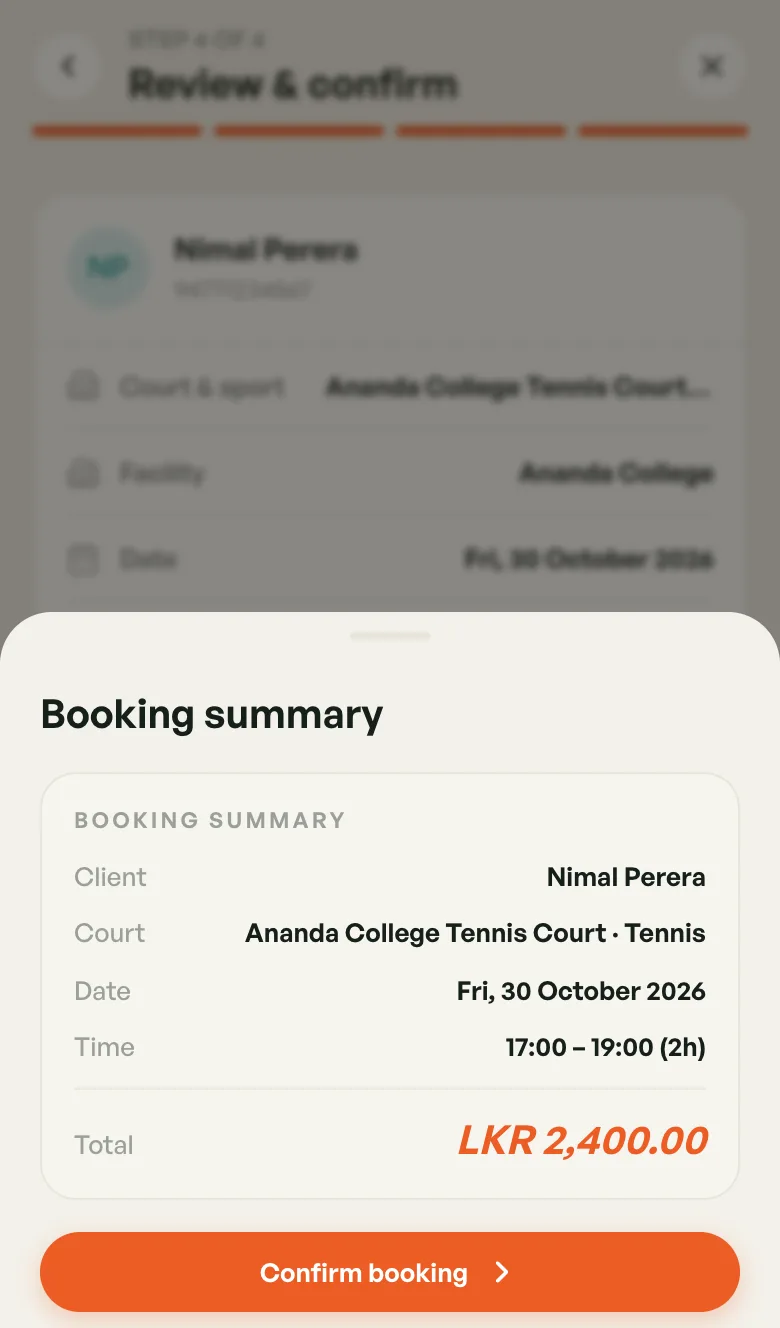
At the bottom, the Running total updates as you go. On step 4 it becomes Total to collect. Tap Summary to see everything you've picked so far.
Step 1 — Who is this booking for?
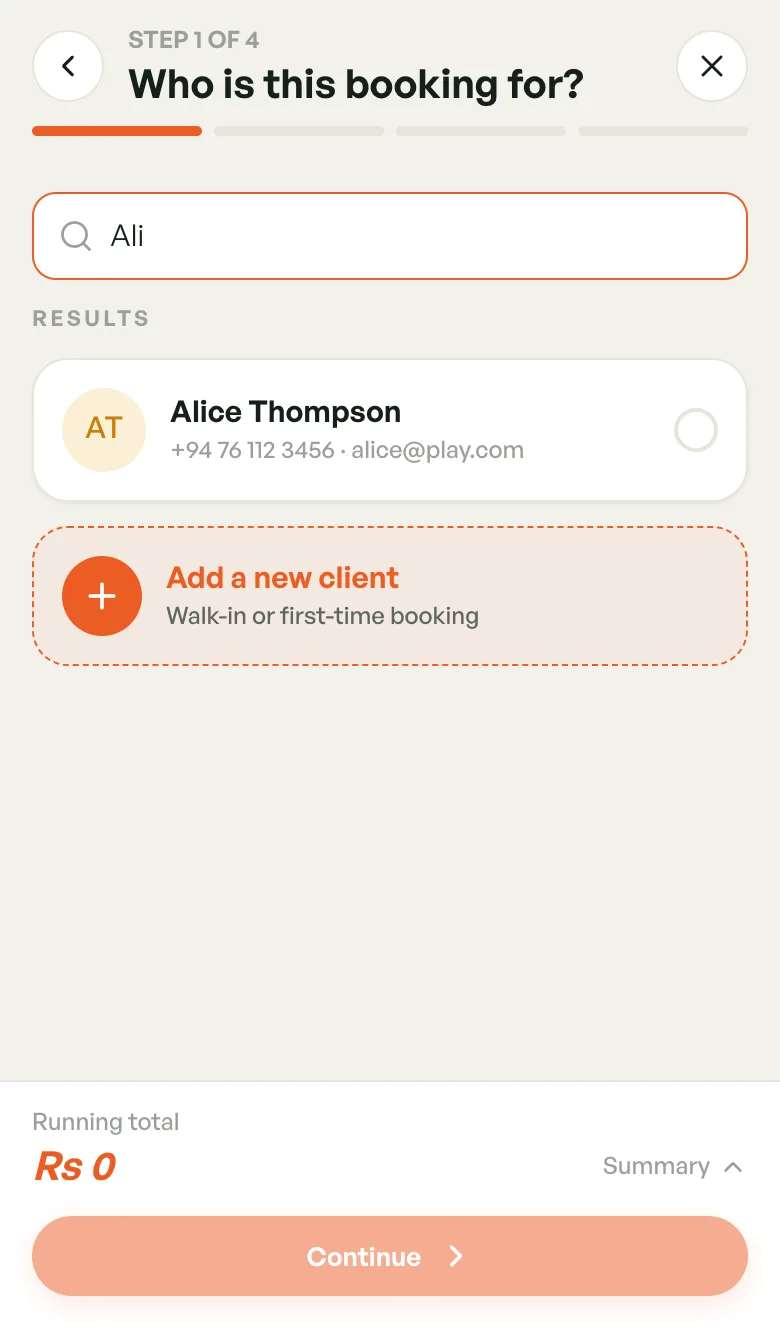
For a player who has booked before:
- Type at least two letters of their name, or their phone number.
- Tap their name in Results.
For someone new:
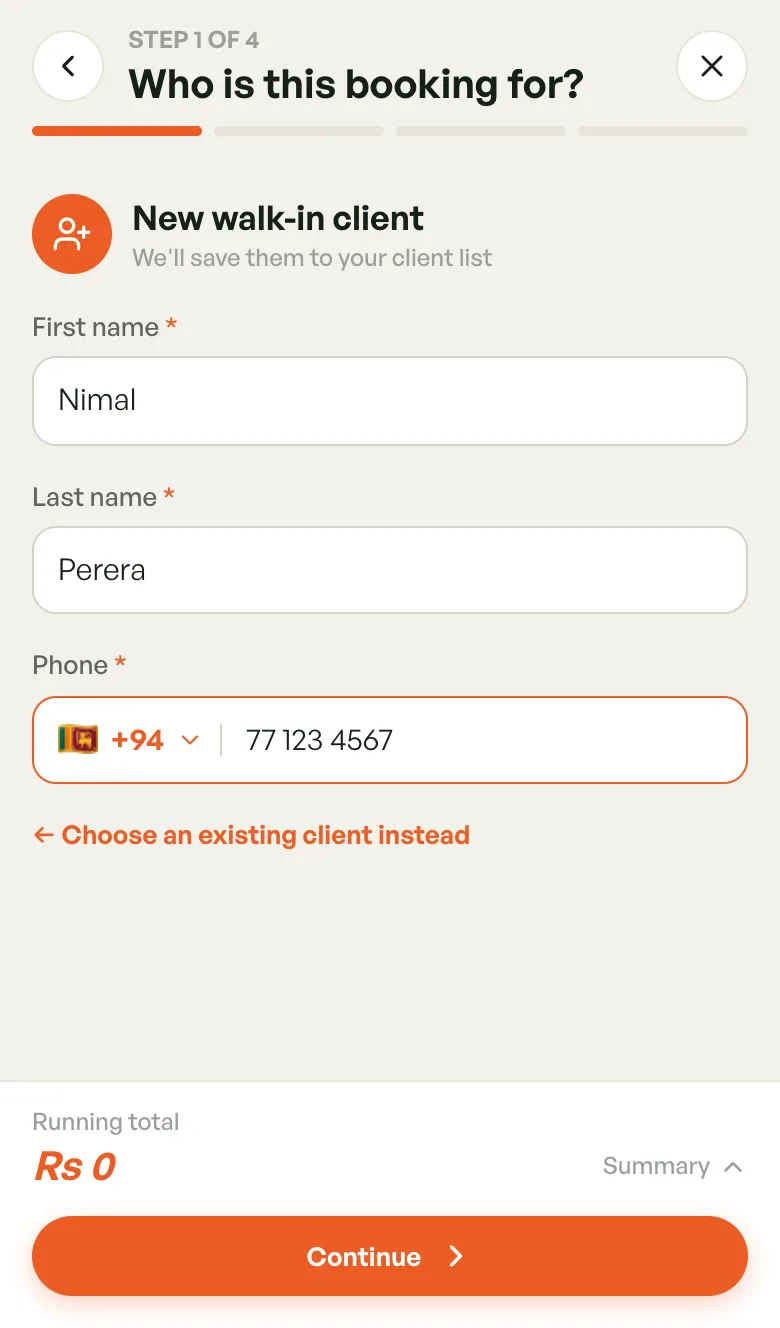
- Tap Add a new client (Walk-in or first-time booking).
- Enter First name, Last name and Phone.
- Tap Continue.
New walk-ins are saved to your client list, so you can find them next time. To go back to searching, tap ← Choose an existing client instead.
Step 2 — Pick a space & date
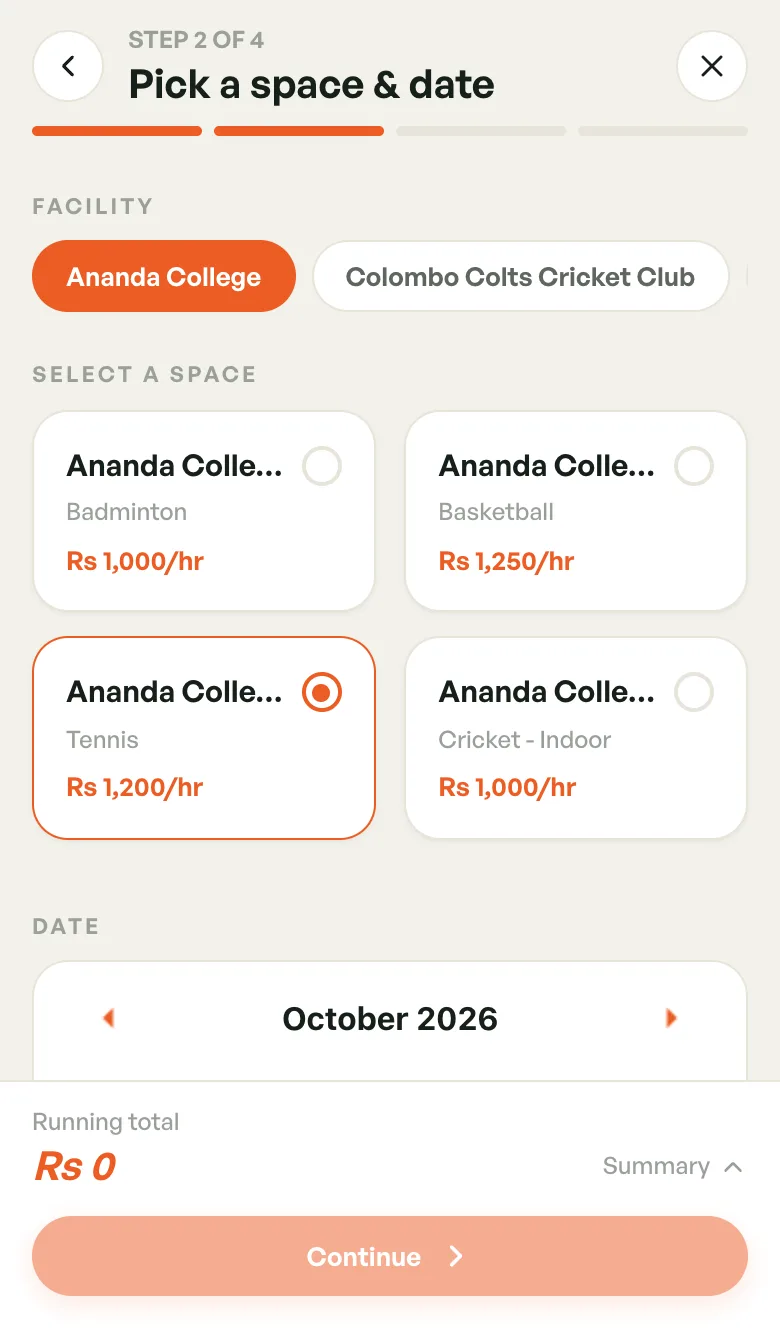
- If you have more than one venue, tap the Facility first.
- Under Select a space, tap the court. Each one shows its sport and hourly price.
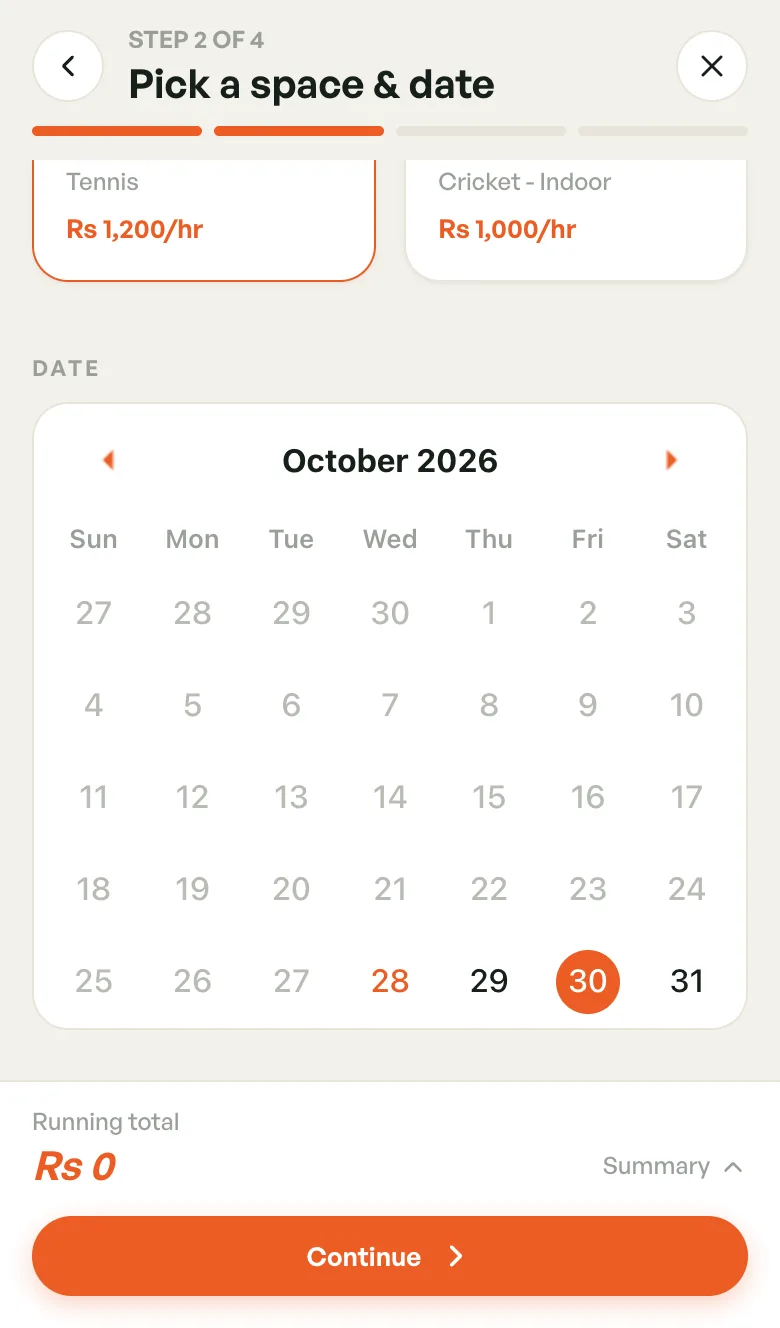
- Under Date, tap the day. Past days can't be picked.
- Tap Continue.
Only active courts are listed. If you see No active spaces, switch a court on first. See Managing Courts.
Step 3 — Choose time & duration
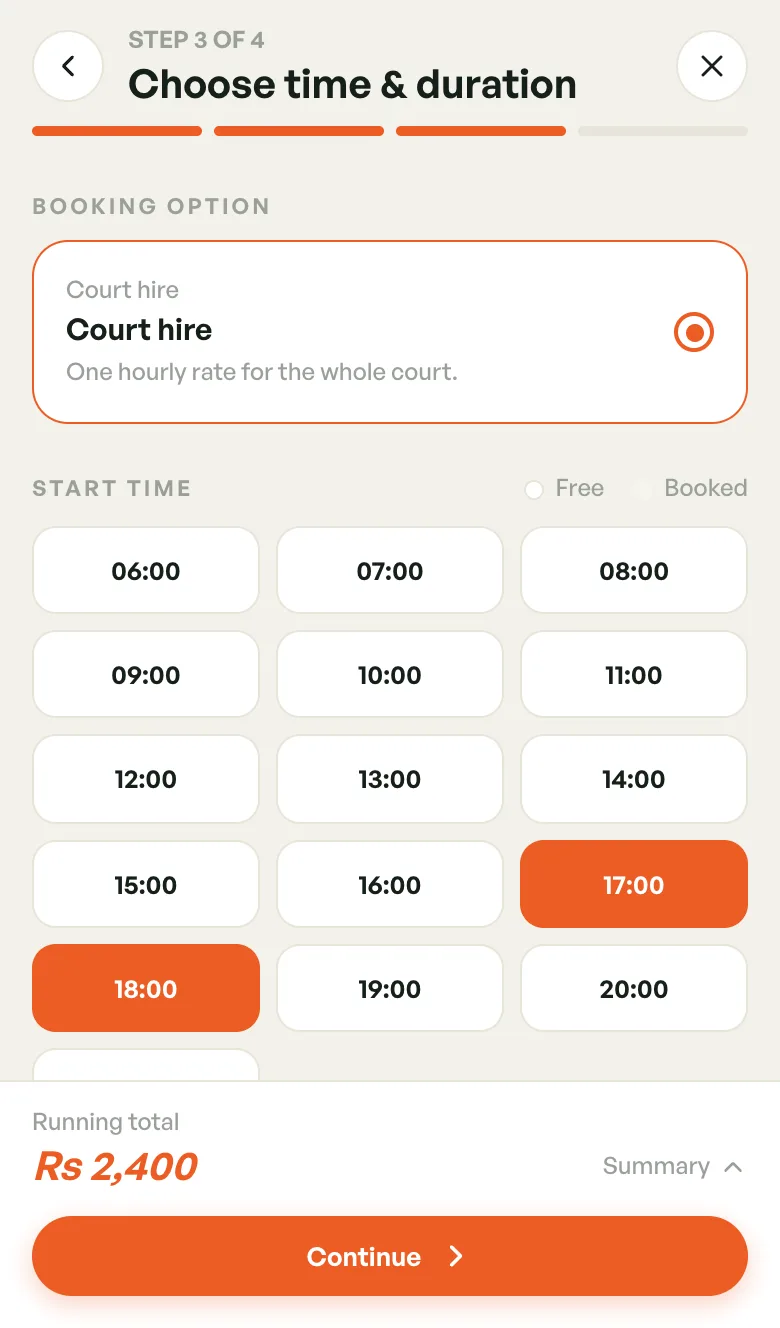
- Under Booking option, tap how the court is sold, for example Court hire. Answer any questions it asks.
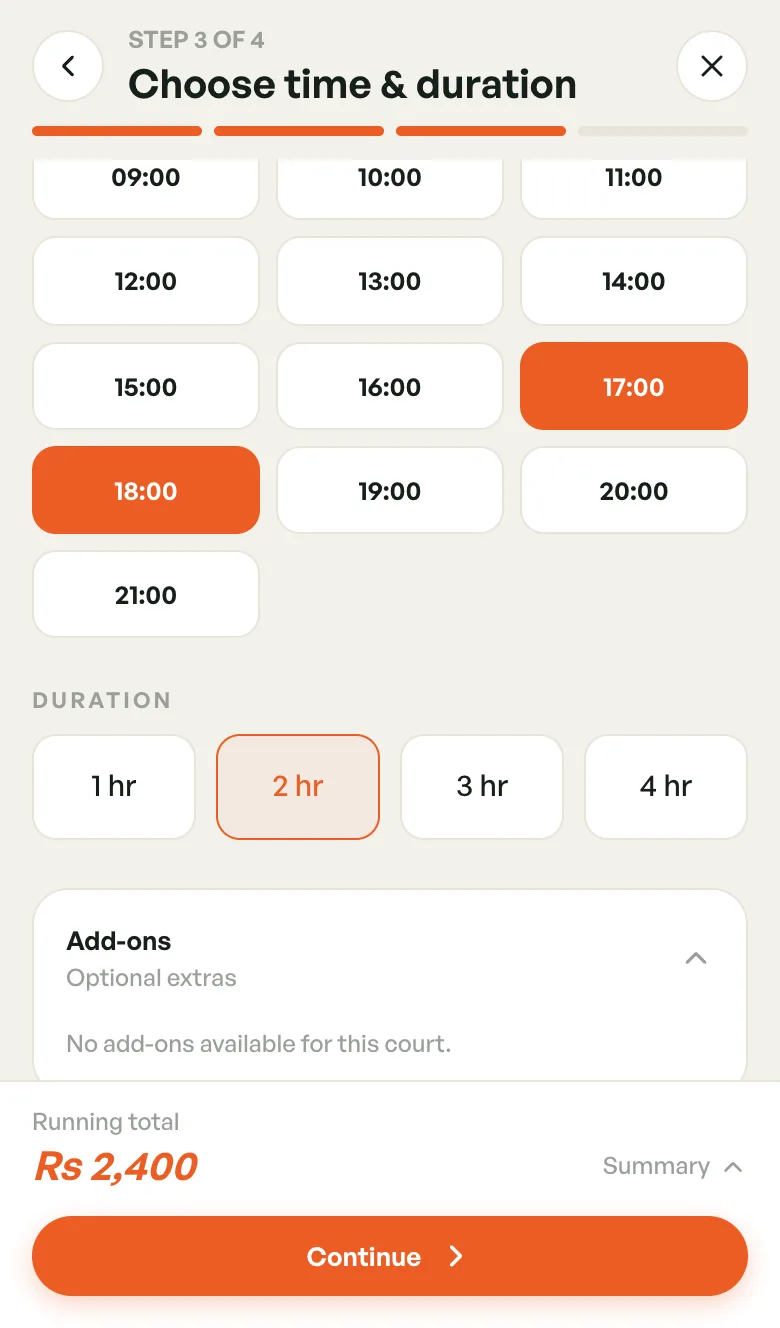
- Under Start time, tap the first hour.
- Under Duration, tap 1 hr, 2 hr, 3 hr or 4 hr.
- Optionally, open Add-ons to add extras such as equipment.
- Tap Continue.
Hours that are already booked or past are greyed out and crossed through. A duration is greyed out when it would run into a booked hour.
Some options book the Whole day. Then you don't pick hours: the court must be free for all its opening hours that day.
If you see No slots available. The facility may be closed on this day., check your Operating Hours. If you see This space has no booking options, the court needs a booking option and price set up first.
Step 4 — Review & confirm
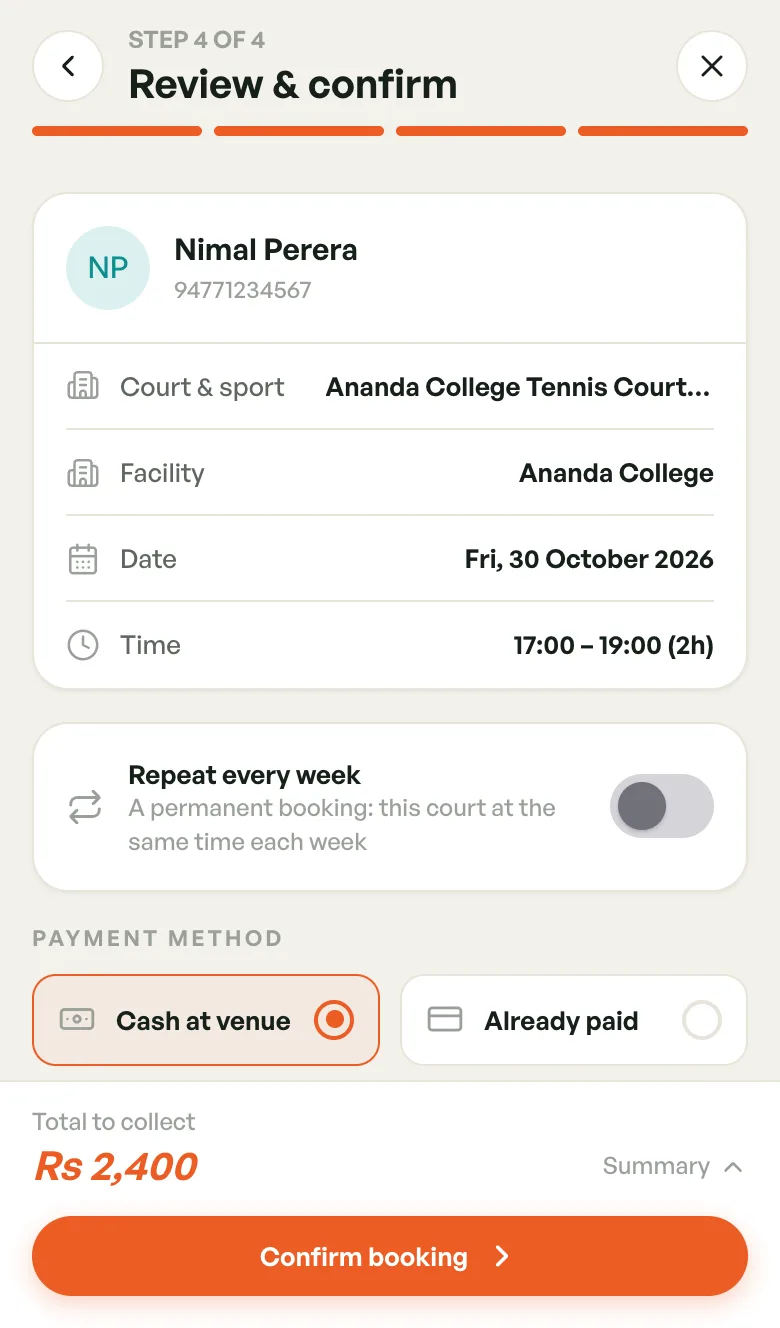
- Check the player, Court & sport, Facility, Date and Time.
- Under Payment method, tap Cash at venue if the player will pay on the day, or Already paid if you've taken the money.
- Check the Price. Add-ons and tax have their own lines, and peak hours are noted under the price.
- If you agreed a different price, type it in Adjust total (optional).
- Tap Confirm booking.
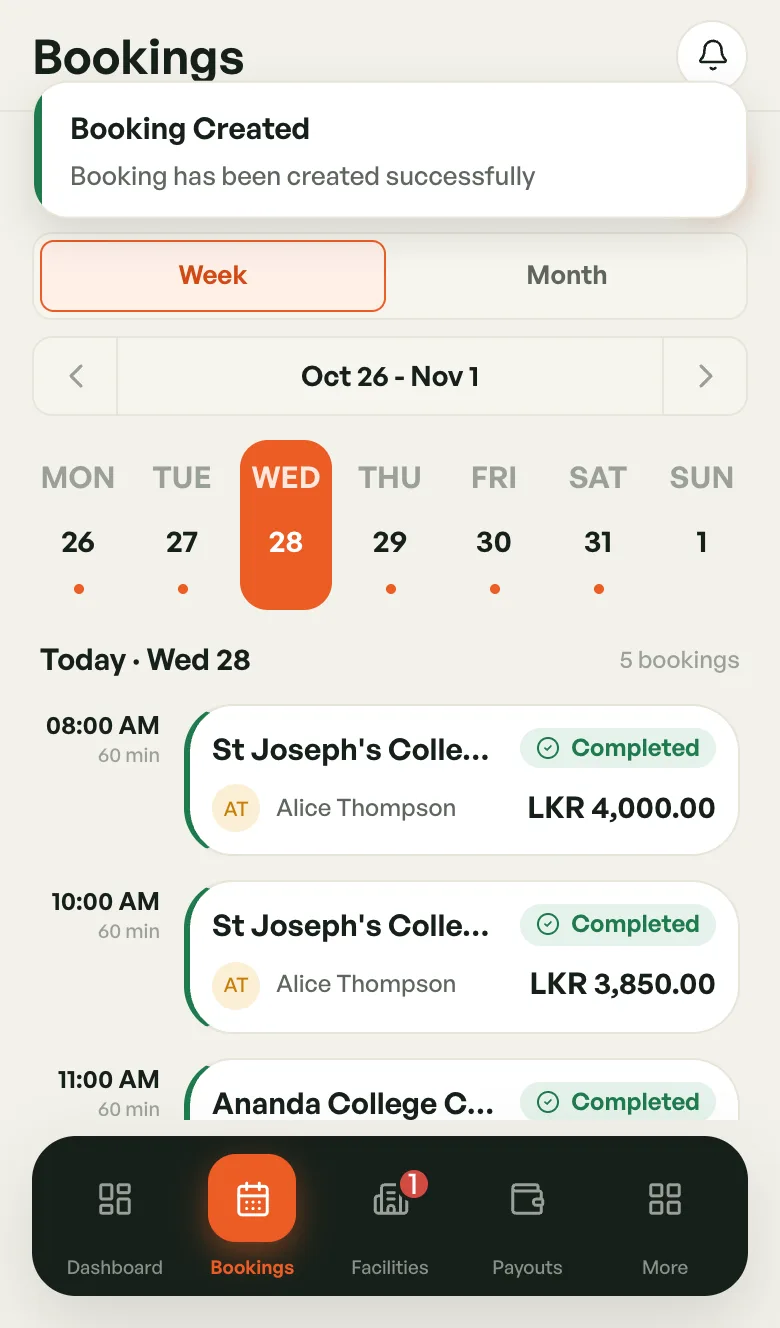
You're taken back to Bookings with a Booking Created message. The booking is Upcoming in the calendar and list straight away.
Already paid bookings count as paid at once. For Cash at venue, tap Mark payment received on the booking when the player pays. See Booking Details.
Repeat every week
Use this for a regular player or team who has the same court at the same time every week. It is called a permanent booking.
- On step 4, turn on Repeat every week.
- Under Every, tap the weekday. The first date moves to the next one of that day.
- Under For, tap how long: 1 month to 1 year, or Pick end date.
- Check the coloured squares, one per week. Green weeks are free. Red weeks are already taken and will be skipped.
- Tap Book N weeks, for example Book 14 weeks.
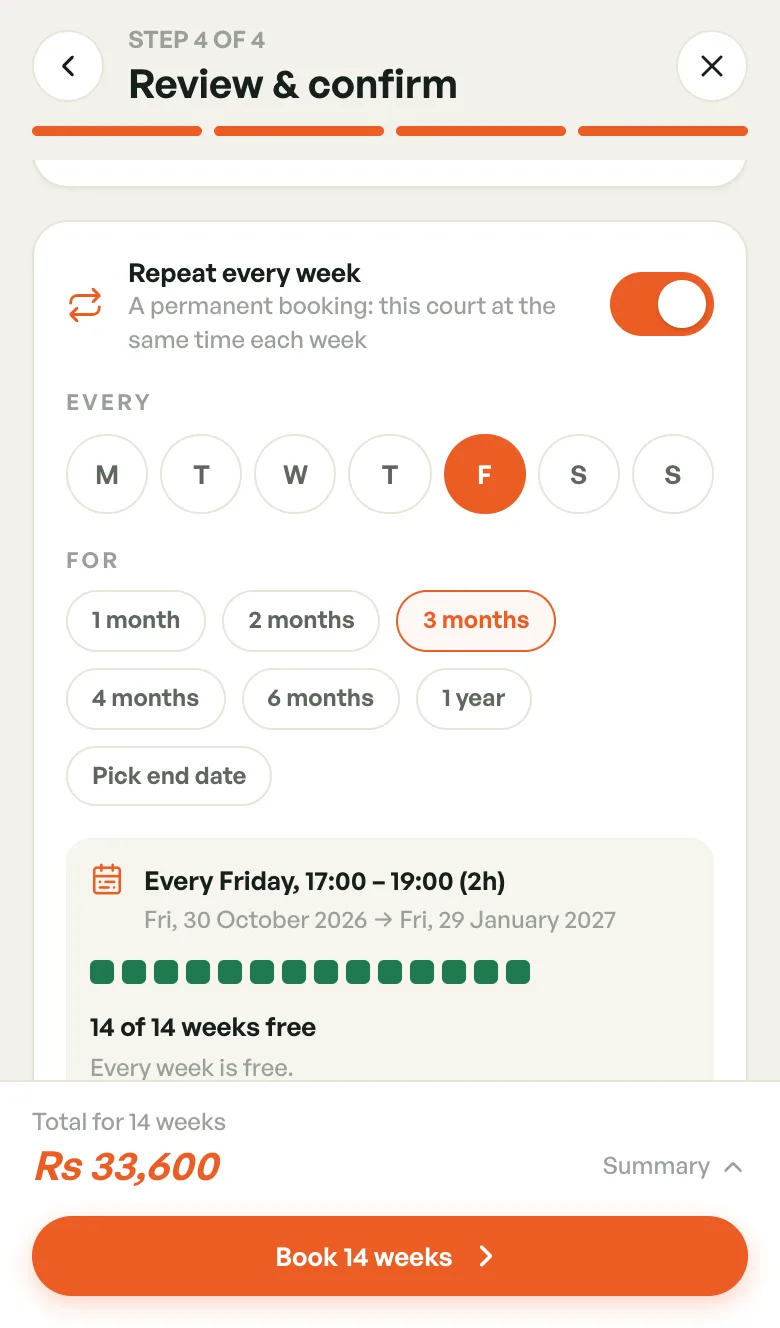
The price shows as Total per week, with the total for all the weeks below it. To agree a different price, use Adjust weekly total (optional). A permanent booking can run for up to a year.
If the chosen hours don't work on the new weekday, for example the venue is closed, a red message appears. Pick another day, or tap Change time.
Each week becomes its own booking. To cancel one week or all the rest, see Permanent bookings.
A Whole day booking option can't repeat weekly.