Managing Bookings
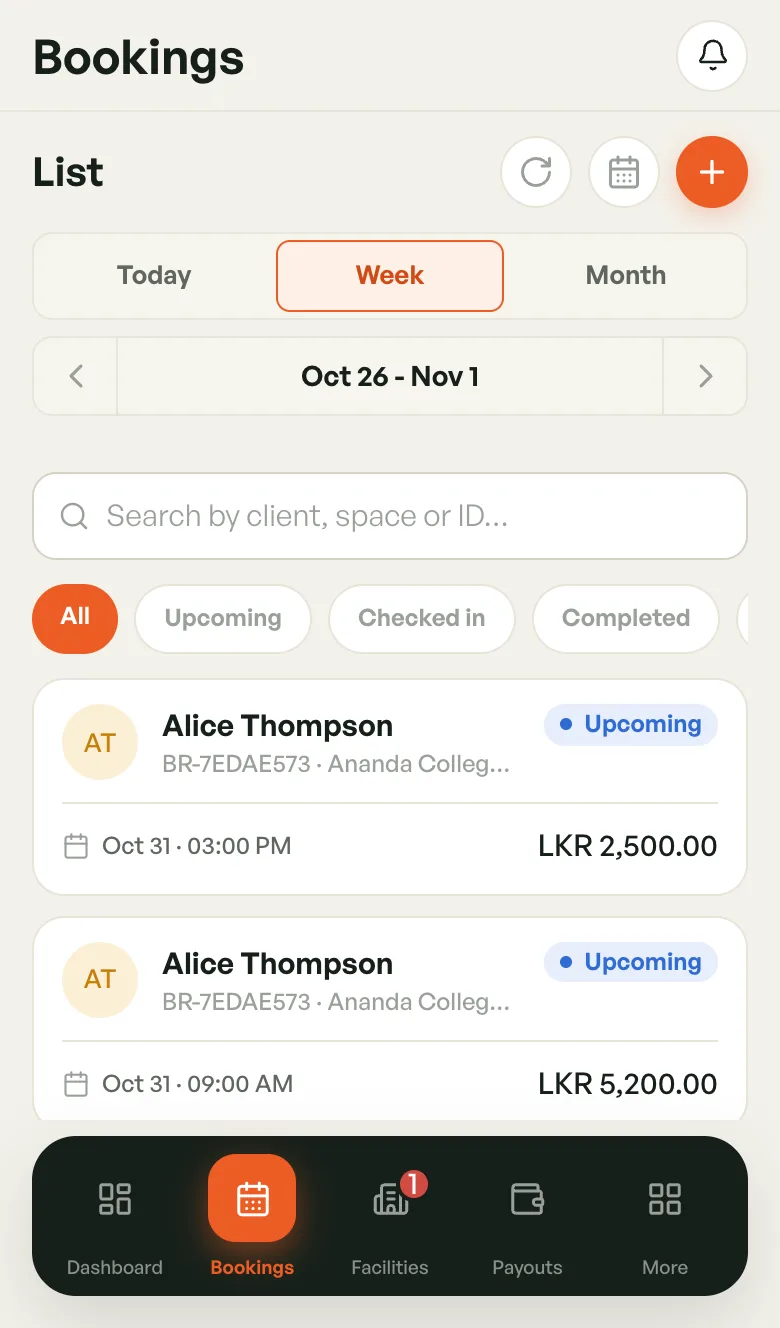
The bookings list lets you search, filter by status, and work through bookings one by one.
Opening the list
- Tap Bookings in the bottom bar.
- Tap the list icon (three lines) at the top of the calendar.
- To go back to the calendar, tap the calendar icon in the same place.
On a computer, click List View in the toolbar, and Calendar View to go back.
Choosing the dates
The list shows one range of dates at a time.
- Tap Today, Week or Month to jump to that range.
- Tap ‹ or › to step one range back or forward.
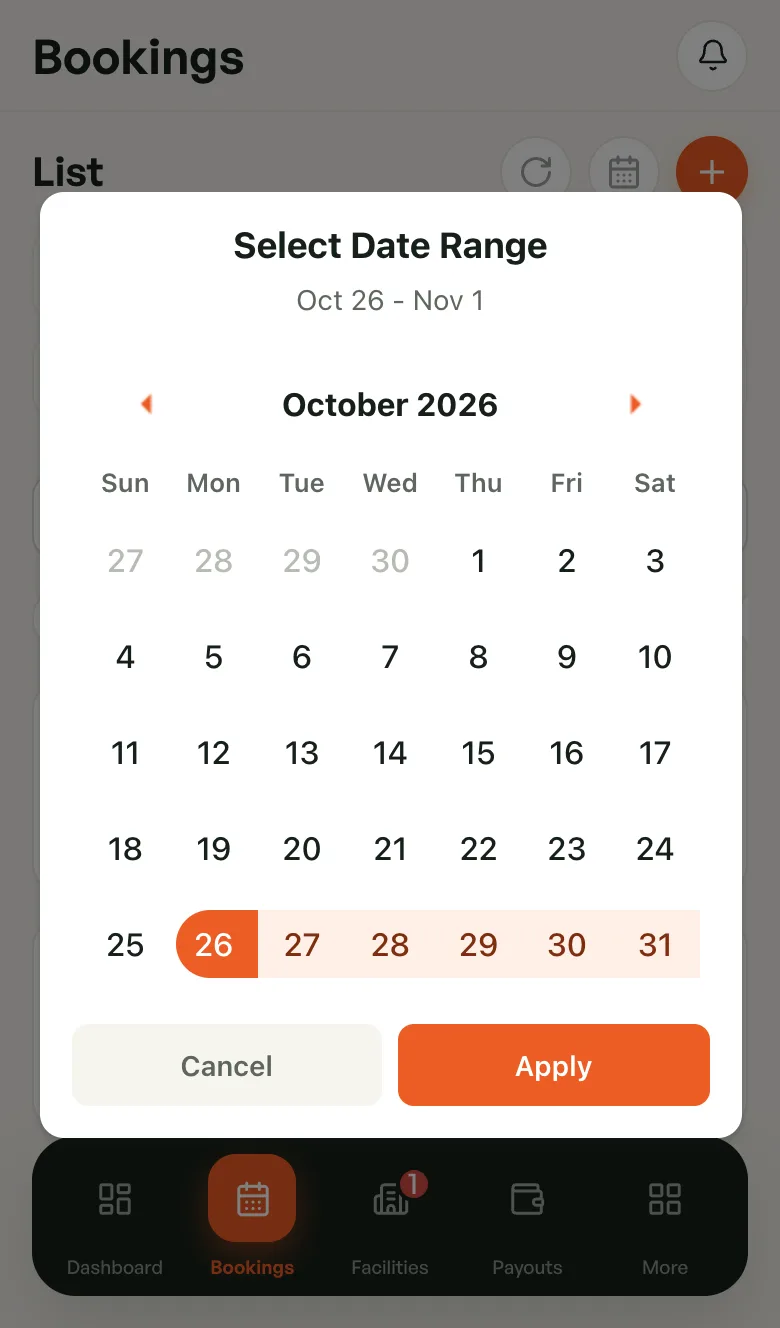
- Tap the dates in the middle to pick any range, then tap Apply.
Searching
Type in Search by client, space or ID… to find a booking by the player's name, the court, or the booking reference (for example BR-7EDAE573). Results update as you type.
Filtering by status
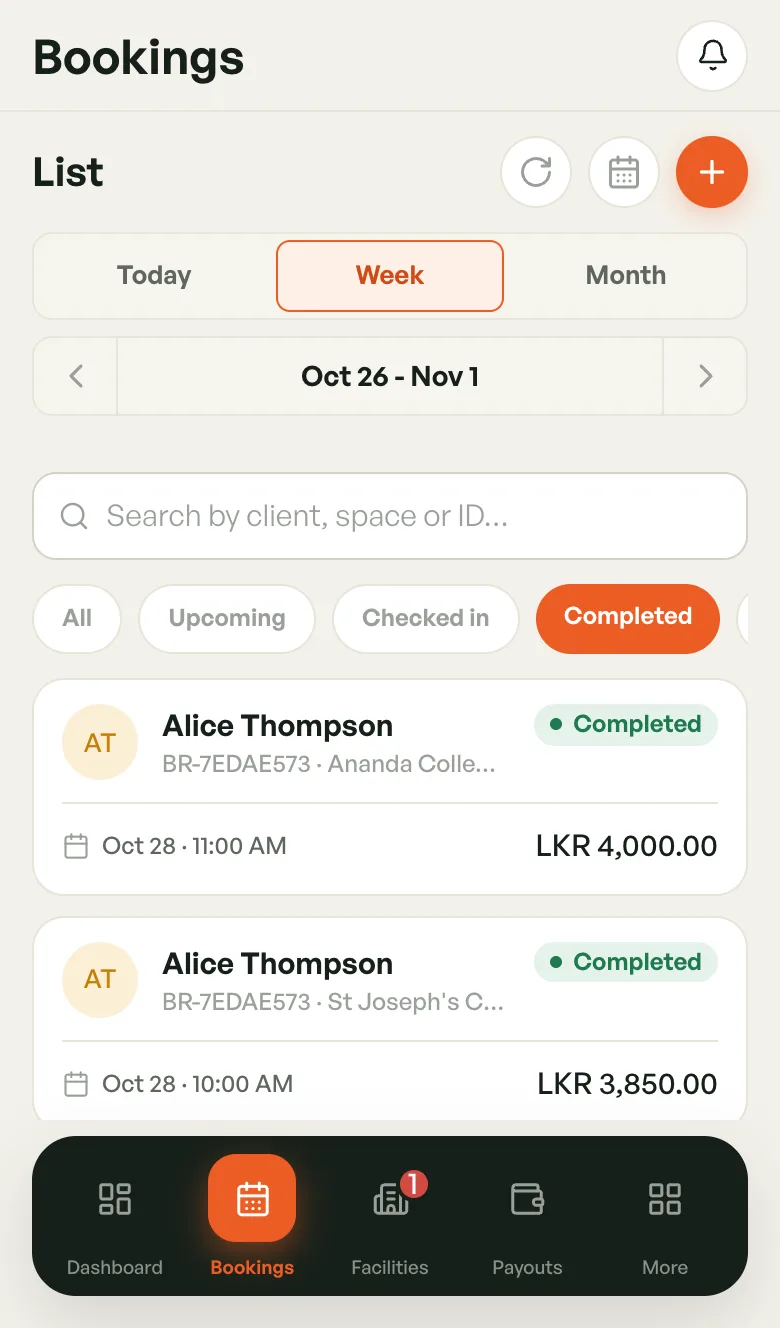
Tap a chip under the search box. Swipe the chips sideways to see them all.
- All — every booking in the range
- Upcoming — booked, not played yet
- Checked in — the player has arrived
- Completed — finished sessions
- Cancelled — cancelled bookings
- No-show — the player never came
Only one chip is active at a time. Tap All to clear the filter.
Reading a booking card
Each card shows the player's name, the booking reference and venue, the date and start time, the amount, and the status badge.
Tap a card to open its booking detail sheet. It is the same sheet the calendar opens.
On a computer the list is a table with the same information in columns.
Refreshing and loading more
- Pull down on the list, or tap the refresh button, to reload it.
- Scroll to the bottom to load more bookings. If Load more appears, tap it.