The Bookings Calendar
The calendar shows your bookings day by day, so you can see at a glance who is playing and when.
On your phone
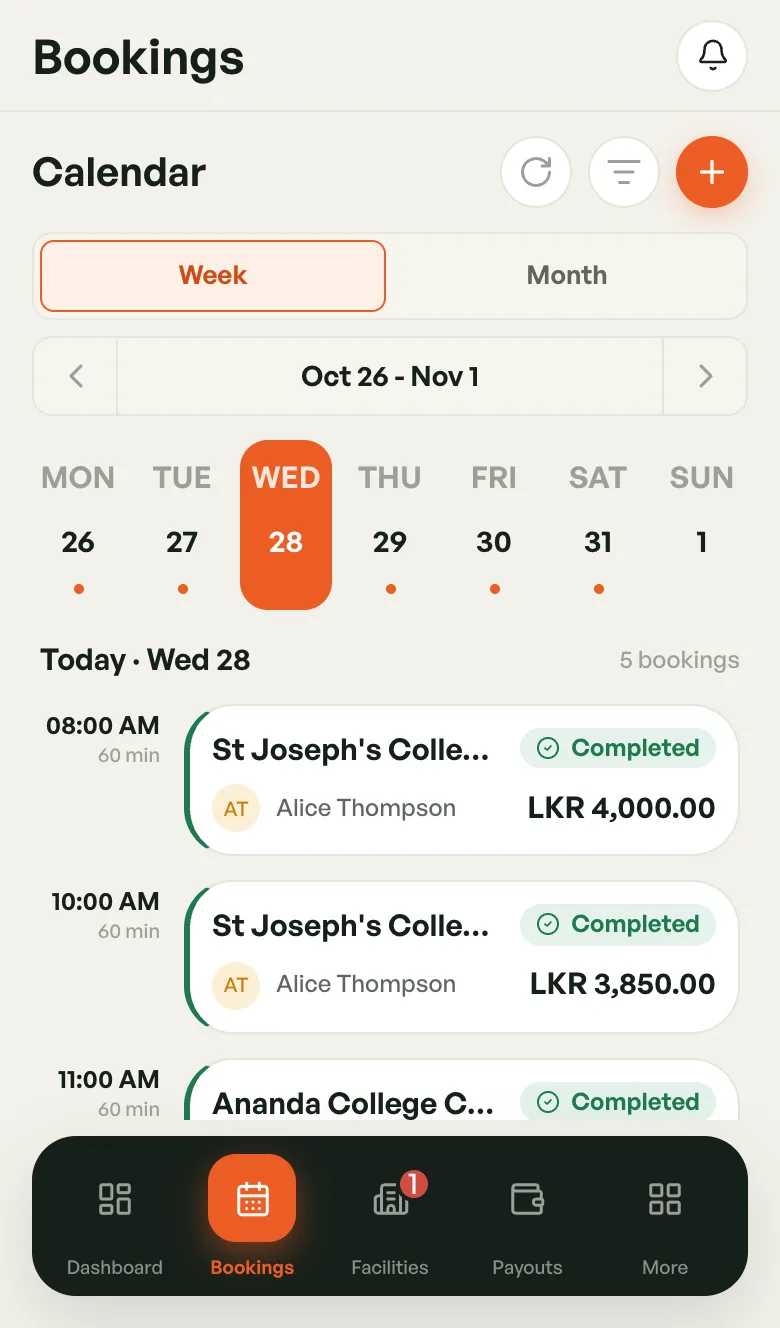
- Tap Bookings in the bottom bar. The Calendar opens on this week.
- Tap a day in the week strip to see that day's bookings below it.
- Use the ‹ and › arrows to move a week back or forward.
A dot under a day means it has bookings. The heading shows the day and how many bookings it has, or Free day when there are none.
Week and Month
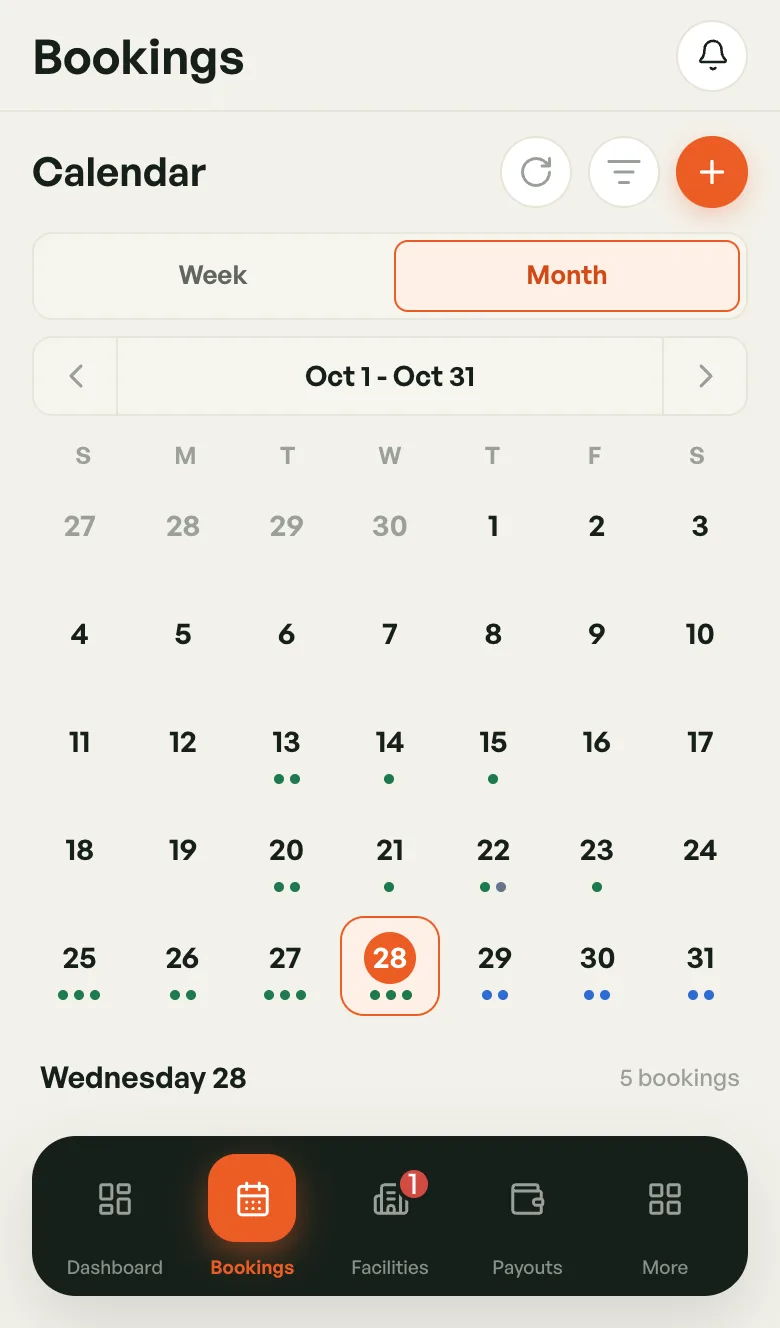
Switch with the Week / Month buttons under the heading.
- Week — the seven days of the week, Monday first, with the chosen day's bookings below.
- Month — the whole month as a grid. Each dot is one booking, coloured by its status. Tap a day to list its bookings underneath.
Reading a booking card
Each booking shows:
- The start time and length, for example 03:00 PM · 120 min
- The court and sport
- The status badge and a coloured bar on the left in the same colour
- The player's name and the amount
Tap a card to open its booking detail sheet.
The buttons at the top
- Refresh (circular arrow) — reloads the bookings.
- List (lines icon) — switches to the bookings list.
- + — starts a new booking.
You can also pull down on the calendar to refresh it.
On a computer
On a wider screen, the calendar becomes a time grid. Hours run down the left, and days run across.
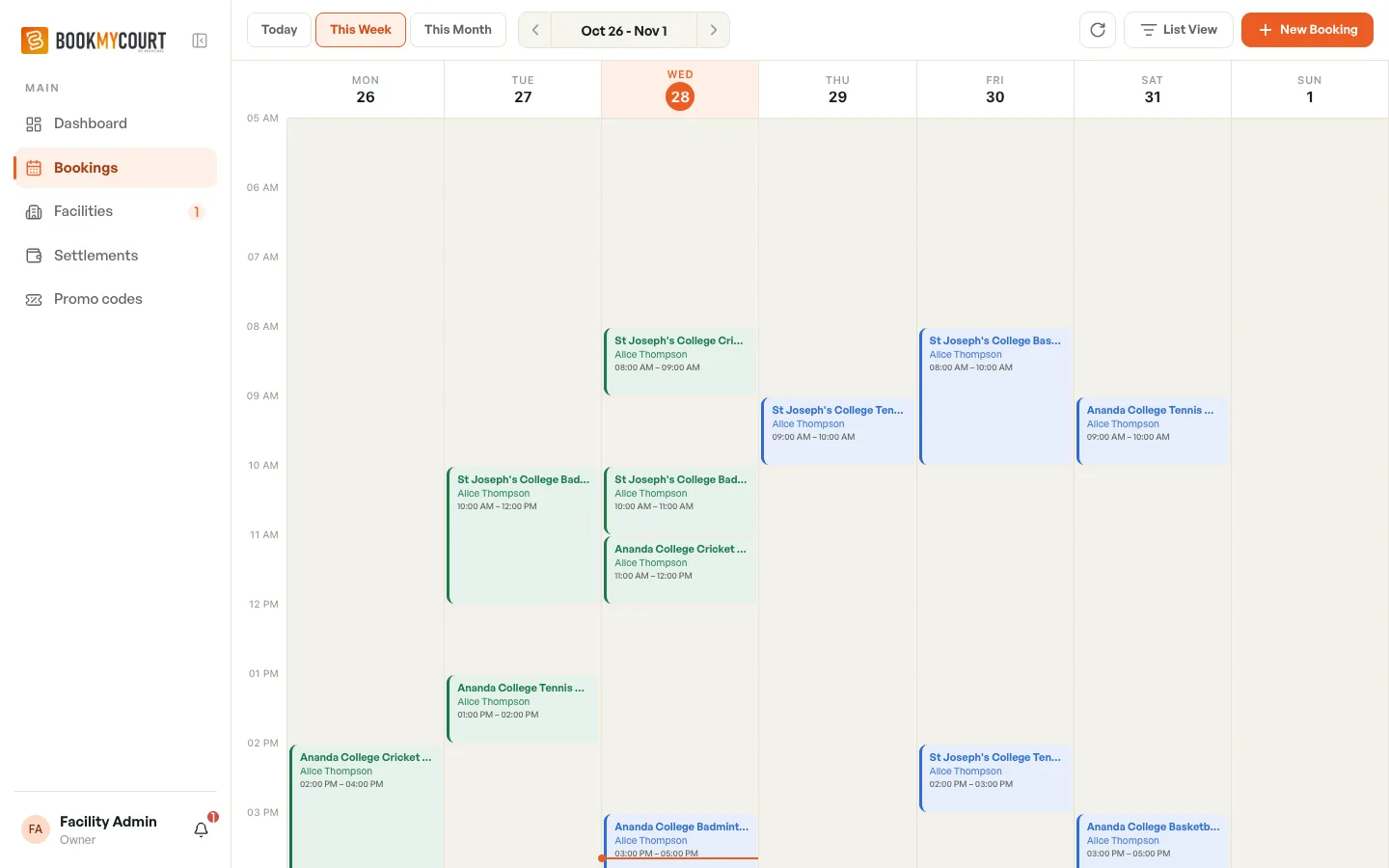
The toolbar along the top has:
- Today, This Week and This Month — jump to that range.
- ‹ › — step one range back or forward. Click the dates between them to pick any range.
- List View — switch to the list.
- New Booking — start the booking wizard.
Click a day's heading to see just that day. In the single-day view, each court gets its own column, so you can see which courts are free.
Moving a booking (computer only)
You can reschedule an Upcoming or Checked in booking by dragging it.
- Press and hold the booking block, then drag it.
- Drop it on the new time. In the week grid you can move it to another day or time on the same court. In the single-day view you can also move it to another court.
- The block snaps to whole hours and moves straight away.
The booking keeps its length and its price. The player gets a notification about the new time, and so does the coach if the booking has one.
If the move isn't allowed, the block goes back and a message explains why. For example, the slot is already booked, the venue is closed that day, or the booking's coach isn't free at the new time.
On a phone you can't drag bookings. To move one, open the web admin at admin.bookmycourt.lk on a computer.