Booking Details
Tap any booking, in the calendar or the list, to open its detail sheet. This is where you check players in, record payments and cancel.
On a phone the sheet slides up from the bottom. On a computer it opens in the middle of the screen. Tap × to close it.
What the sheet shows
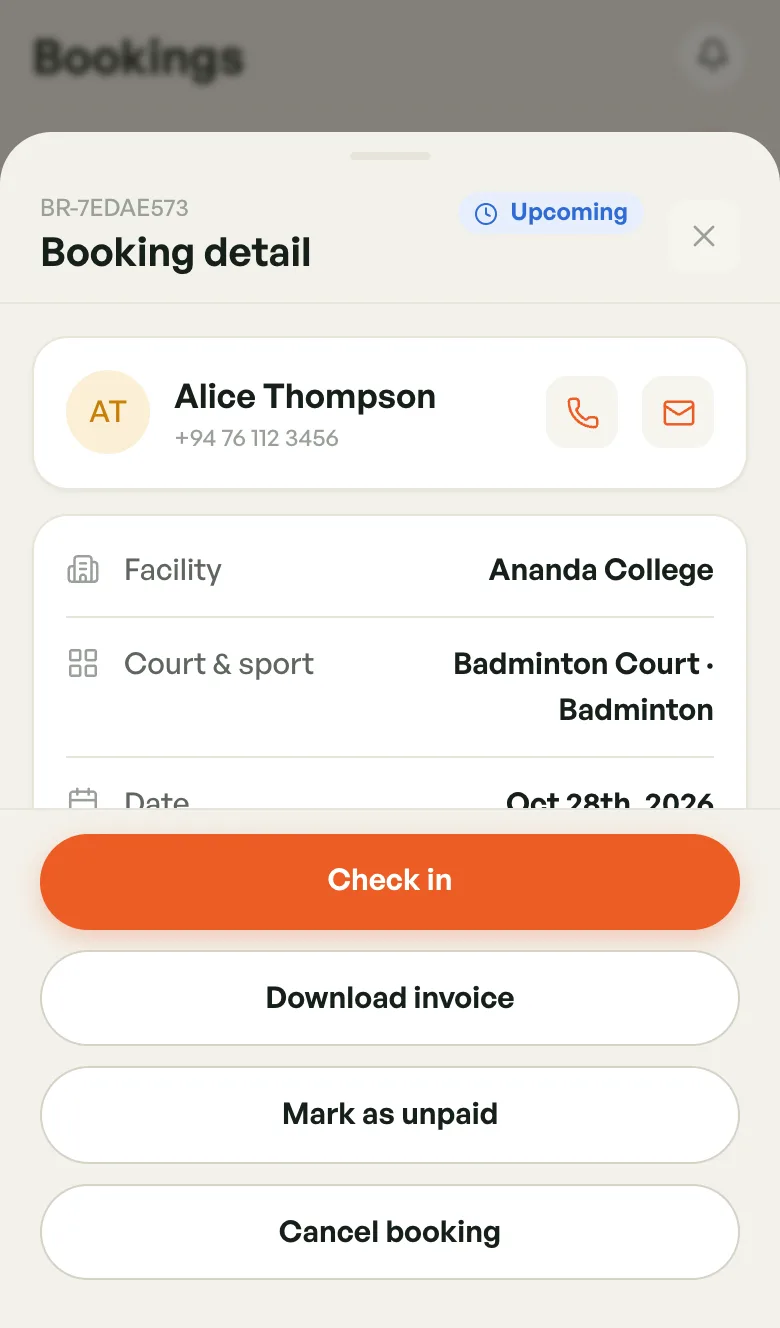
- The header — the booking reference (for example BR-7EDAE573) and the status badge.
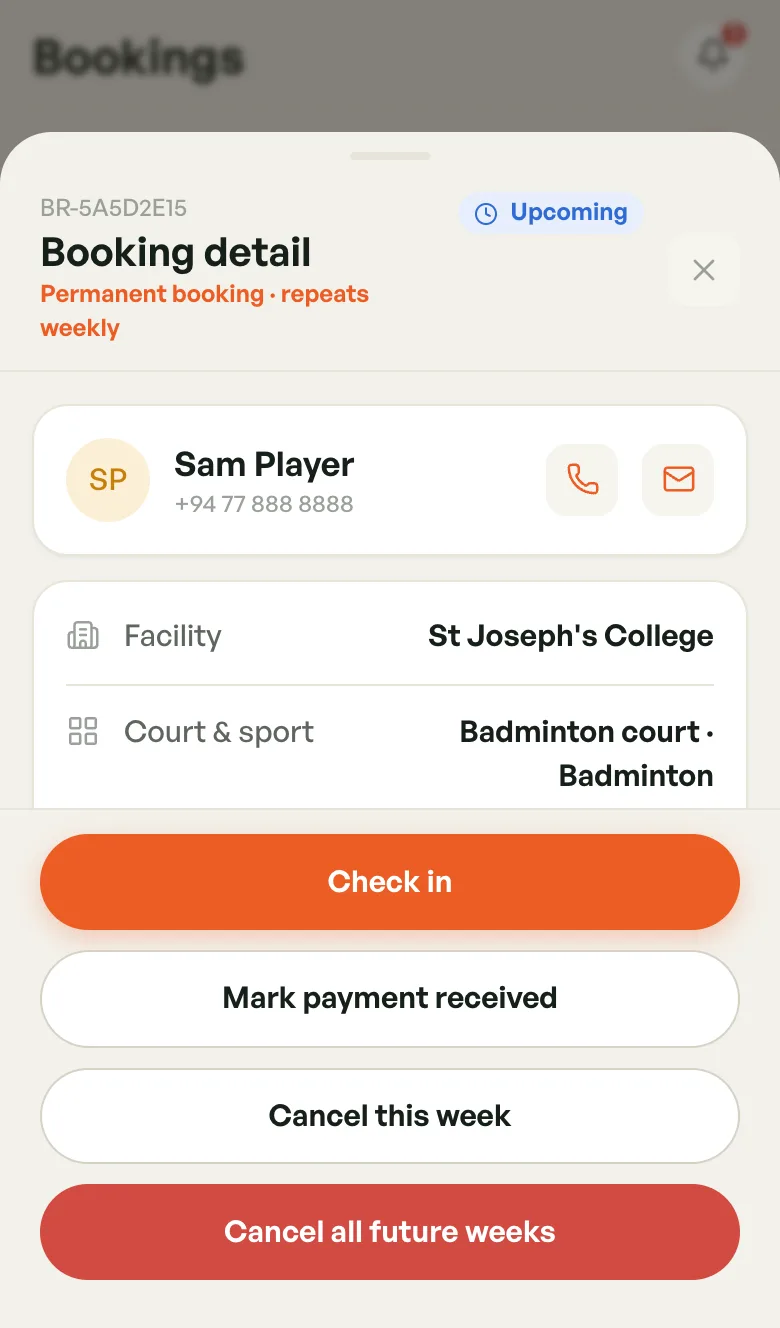
- The player — name and phone, with buttons to call or email them.
- Facility, Court & sport, Date, and Time with the number of slots (one slot is one hour).
- Booking option — shown when the court sells options, such as equipment or a crowd size.
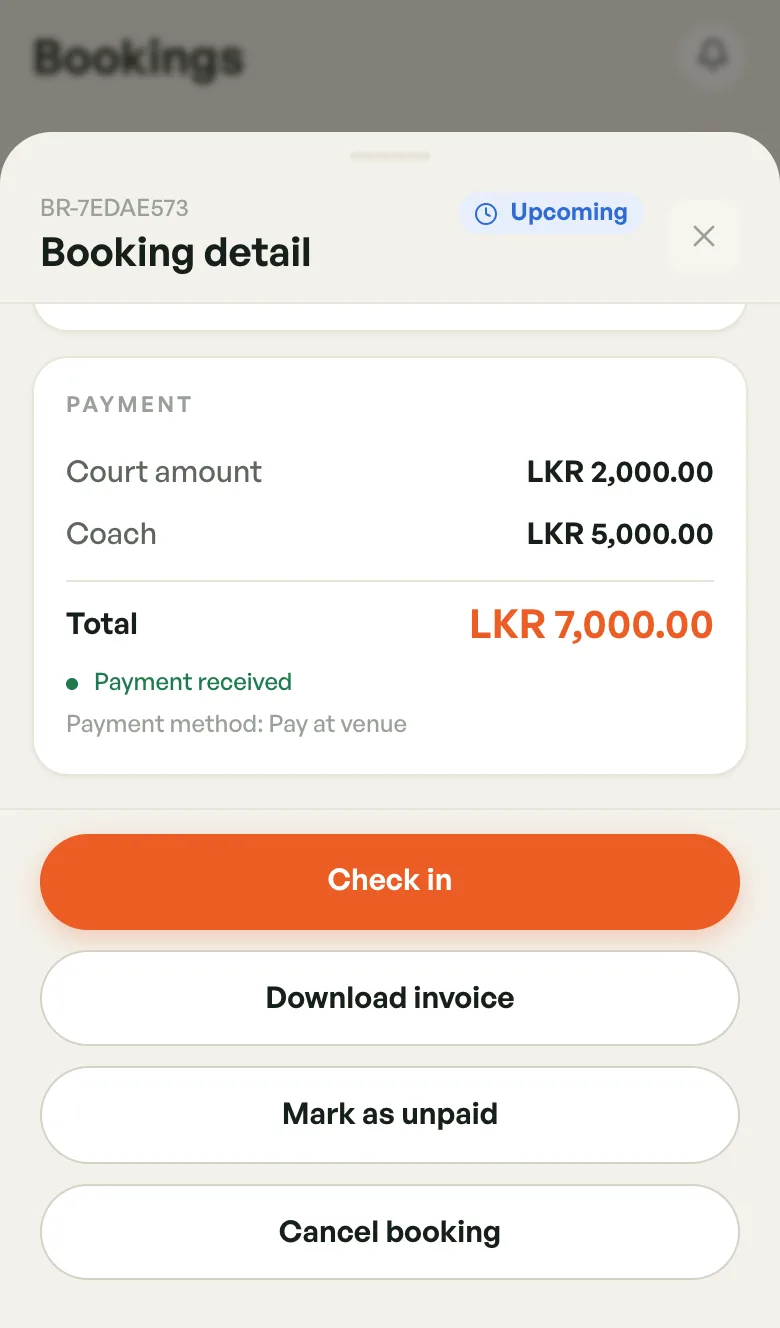
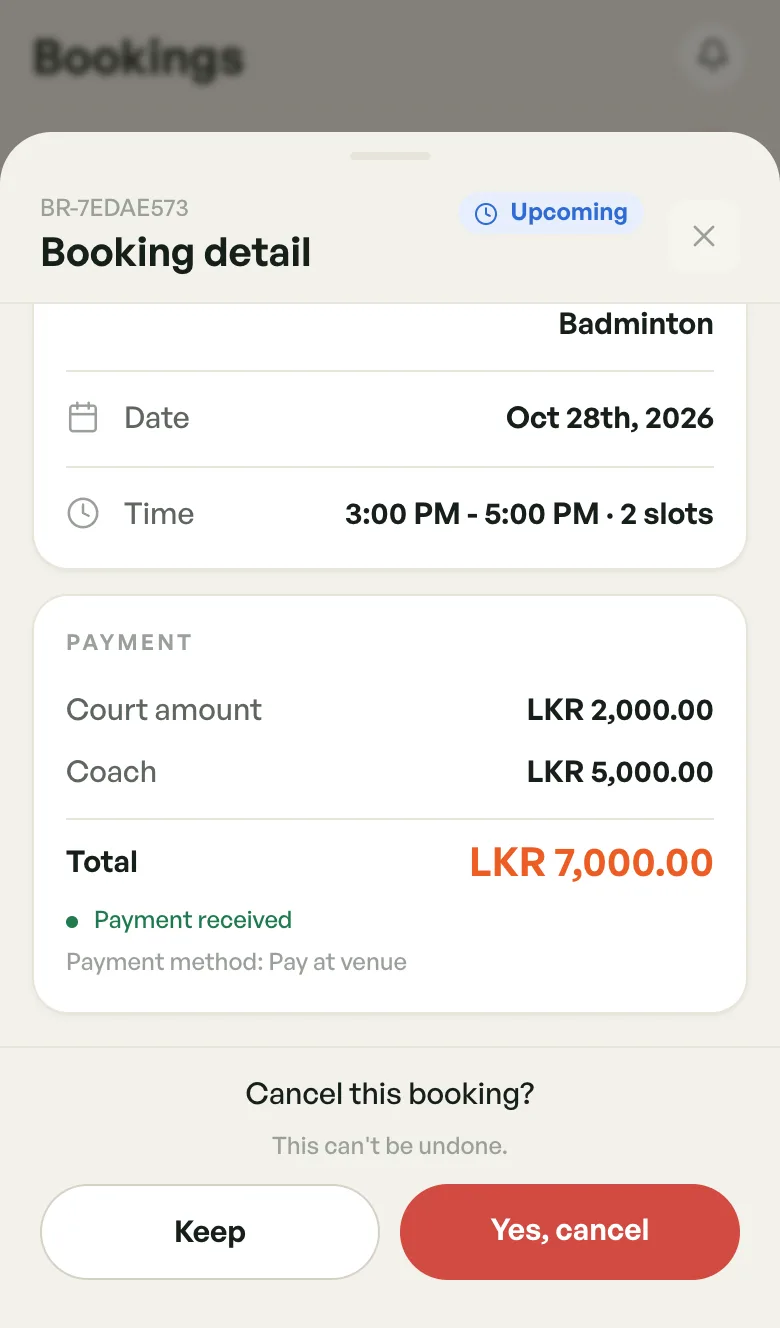
- Payment — the breakdown and the Total.
The Payment card
These lines appear only when they apply:
- Court amount — the court hire.
- Add-ons — extras the player added.
- Coach — the coach's fee, if the player booked a coach for the session.
- Venue promo, Coach promo, BookMyCourt promo — discounts from a promo code, shown as minus amounts.
- Tax and Convenience fee — when charged.
Under the total you'll see whether it is paid:
- Payment due at venue — not paid yet. Collect it when the player arrives.
- Payment received — you or your staff tapped Mark payment received.
- Paid in full — paid by card in the app, or booked as Already paid in New booking.
The line below names the Payment method:
- Pay at venue — the player pays when they arrive
- Paid by card — paid in the app
- Paid at venue — booked by you as Already paid
- Covered by BookMyCourt or No payment needed — a very small card payment that BookMyCourt covered, or nothing was owed
Once an invoice exists, its number shows too.
Checking in and completing
The main button changes with the booking's status:
- Tap Check in when the player arrives. The status becomes Checked in.
- Tap Mark complete when the session ends. The status becomes Completed.
If you skip these, the booking becomes Completed by itself when its end time passes.
Completed and cancelled bookings have no status buttons.
Recording a payment
When a player pays at the venue:
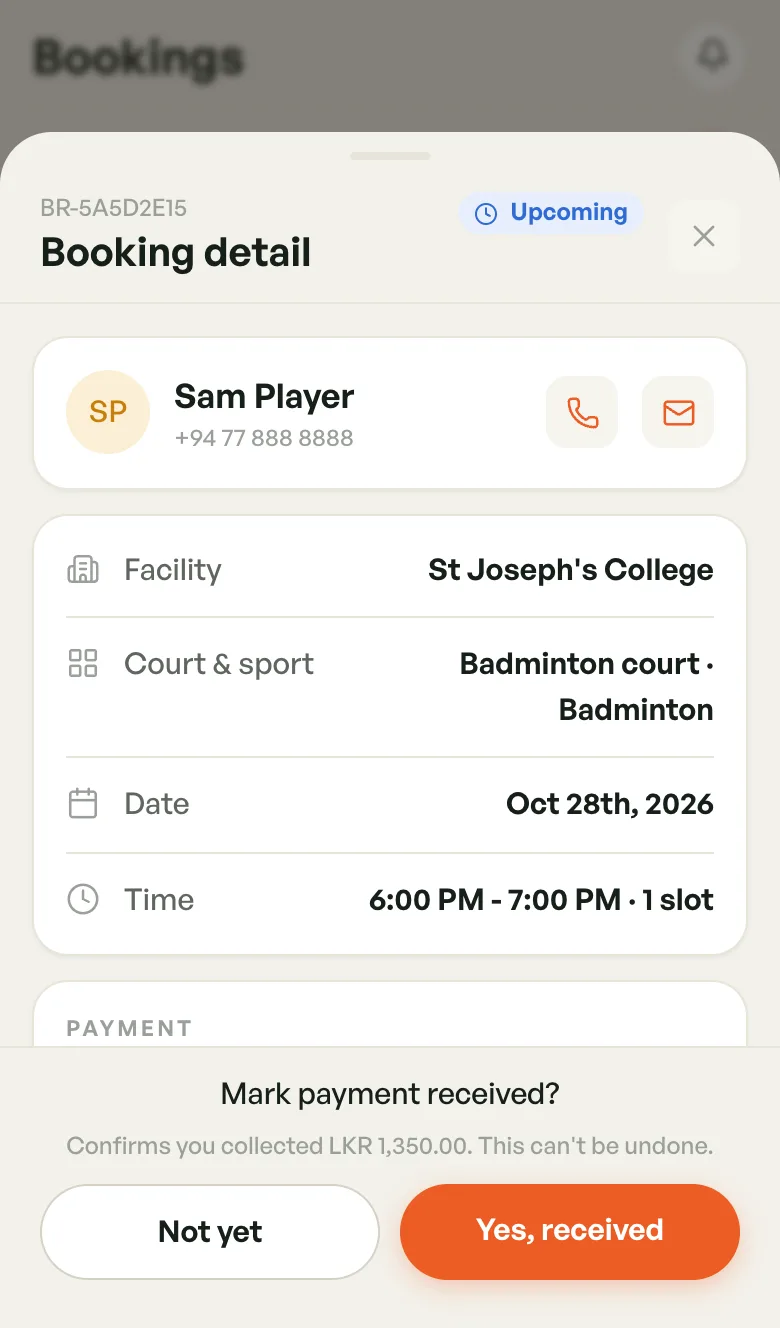
- Open the booking and tap Mark payment received.
- Check the amount in the message, then tap Yes, received. Tap Not yet to go back.
The sheet now shows Payment received, and the button changes to Download invoice.
Mark as unpaid
If you recorded a payment by mistake, you can undo it.
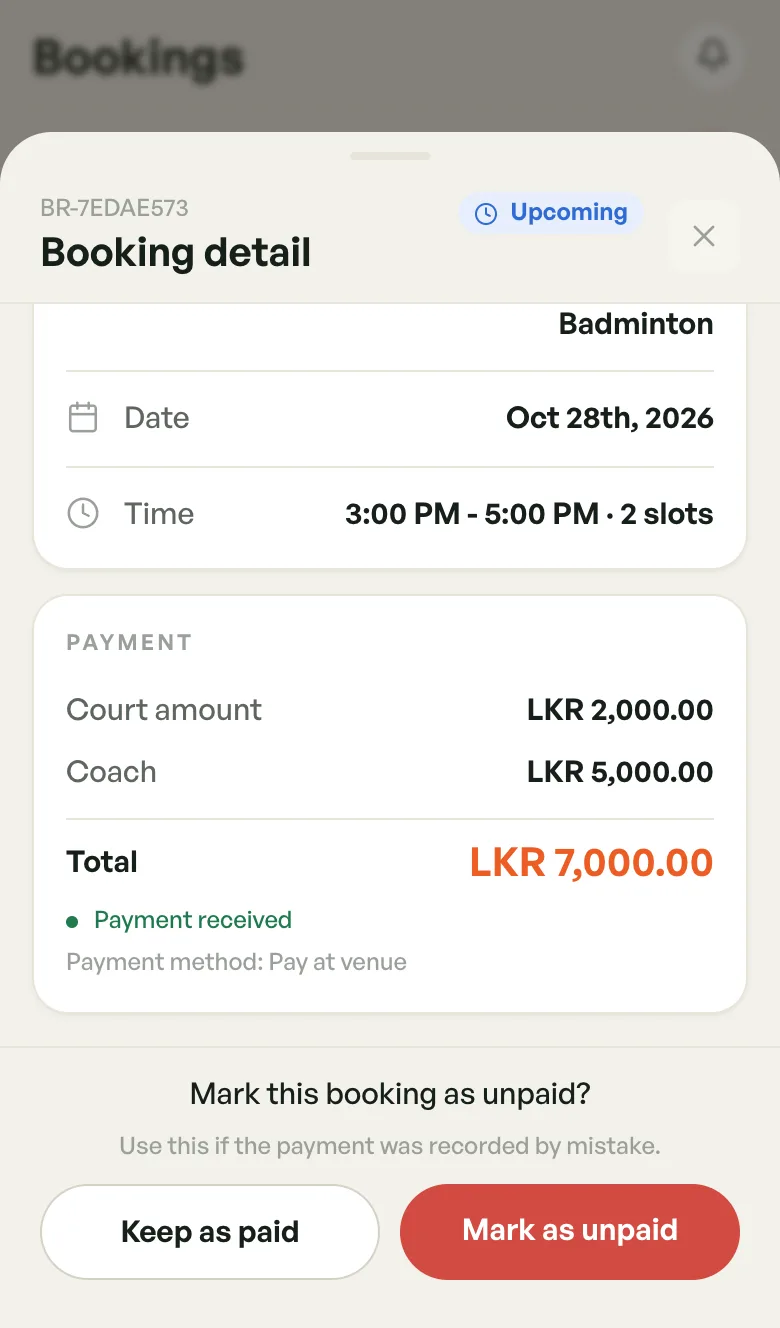
- Tap Mark as unpaid.
- Tap Mark as unpaid again to confirm, or Keep as paid to go back.
The booking goes back to Payment due at venue, and Mark payment received appears again. This works for payments you recorded with Mark payment received or Already paid. Card payments made in the app, and cancelled bookings, can't be marked unpaid.
Invoices
Once a booking is paid, tap Download invoice.
- On a phone, a PDF opens in the share sheet. Save it or send it to the player.
- On a computer, a print window opens. Choose Save as PDF to keep a copy.
The first download gives the booking its invoice number. Downloading again gives you the same invoice.
An invoice made before a booking was cancelled can still be downloaded. A cancelled booking can't get a new one.
Cancelling
- Tap Cancel booking.
- Tap Yes, cancel to confirm, or Keep to go back.
The slot is freed for other players straight away.
If the player still wants to play, make a new booking. See Creating a Booking.
Permanent bookings
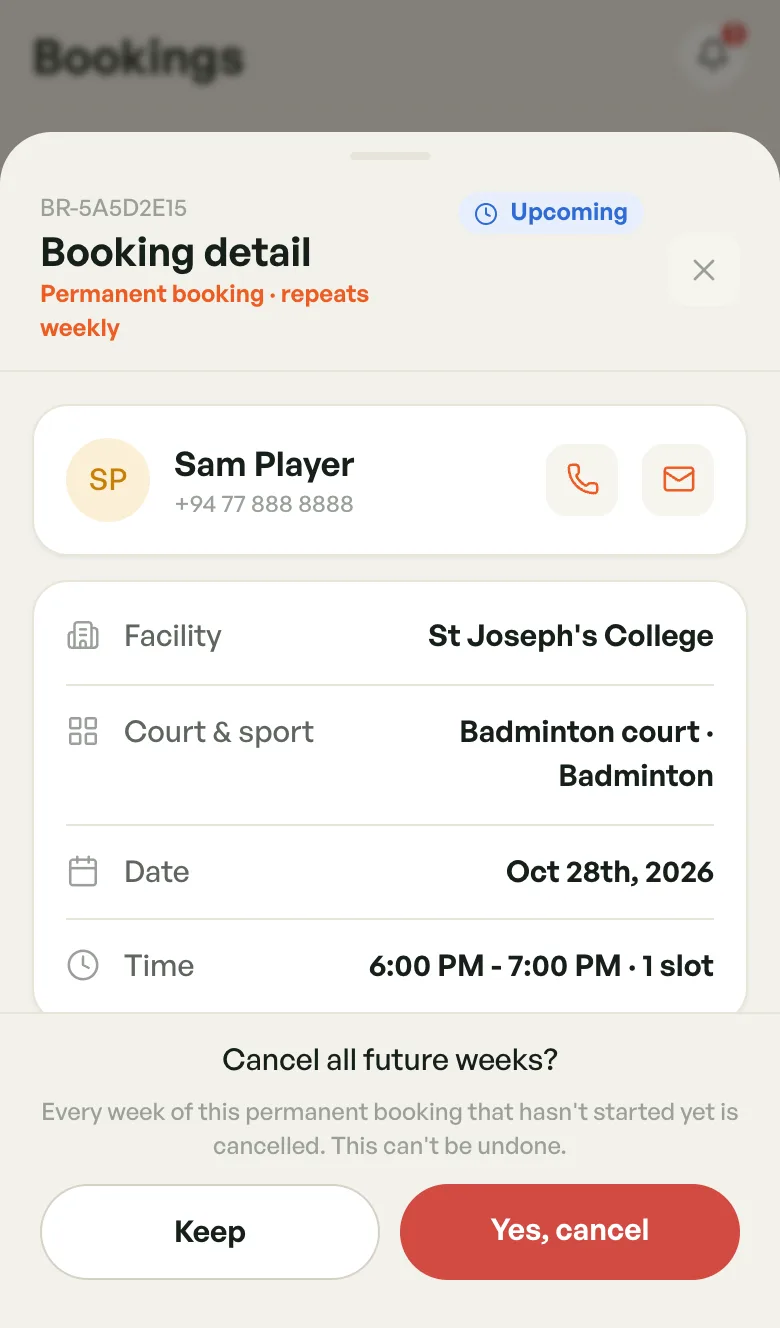
A booking that repeats every week says Permanent booking · repeats weekly under its title. It has two cancel buttons:
- Cancel this week — cancels only this week's booking. The other weeks stay.
- Cancel all future weeks — cancels every week that hasn't started yet. Weeks already played are kept.
To set one up, see Repeat every week.
Rescheduling
There is no reschedule button on the sheet. On a computer, drag the booking to its new time in the calendar. See The Bookings Calendar.